Create a gift rule that triggers an overlay

014 min

When a viewer sends a Rose, a “Nickname sent a rose, thank you!” message appears on your live.

Screenshots are still in French for now; the bold names in the text are the ones from the English app.

Prerequisite: a scene already created (see Getting started with Tik360 on TikTok Live) · ⏱️ 4 min

1. Create the overlay that will display the text

Open your scene → Overlays tab → Create, then choose Text Alert ①.

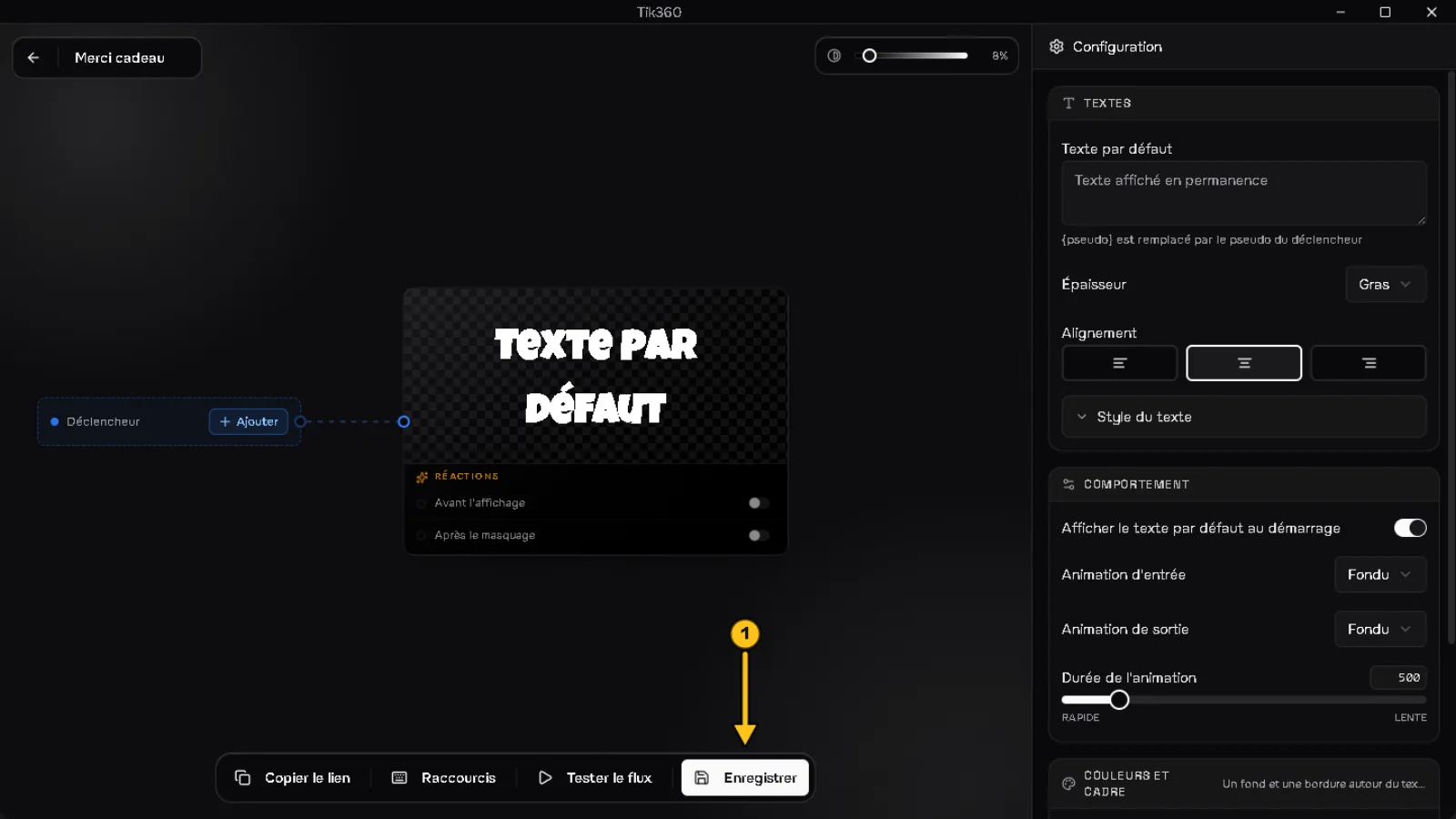
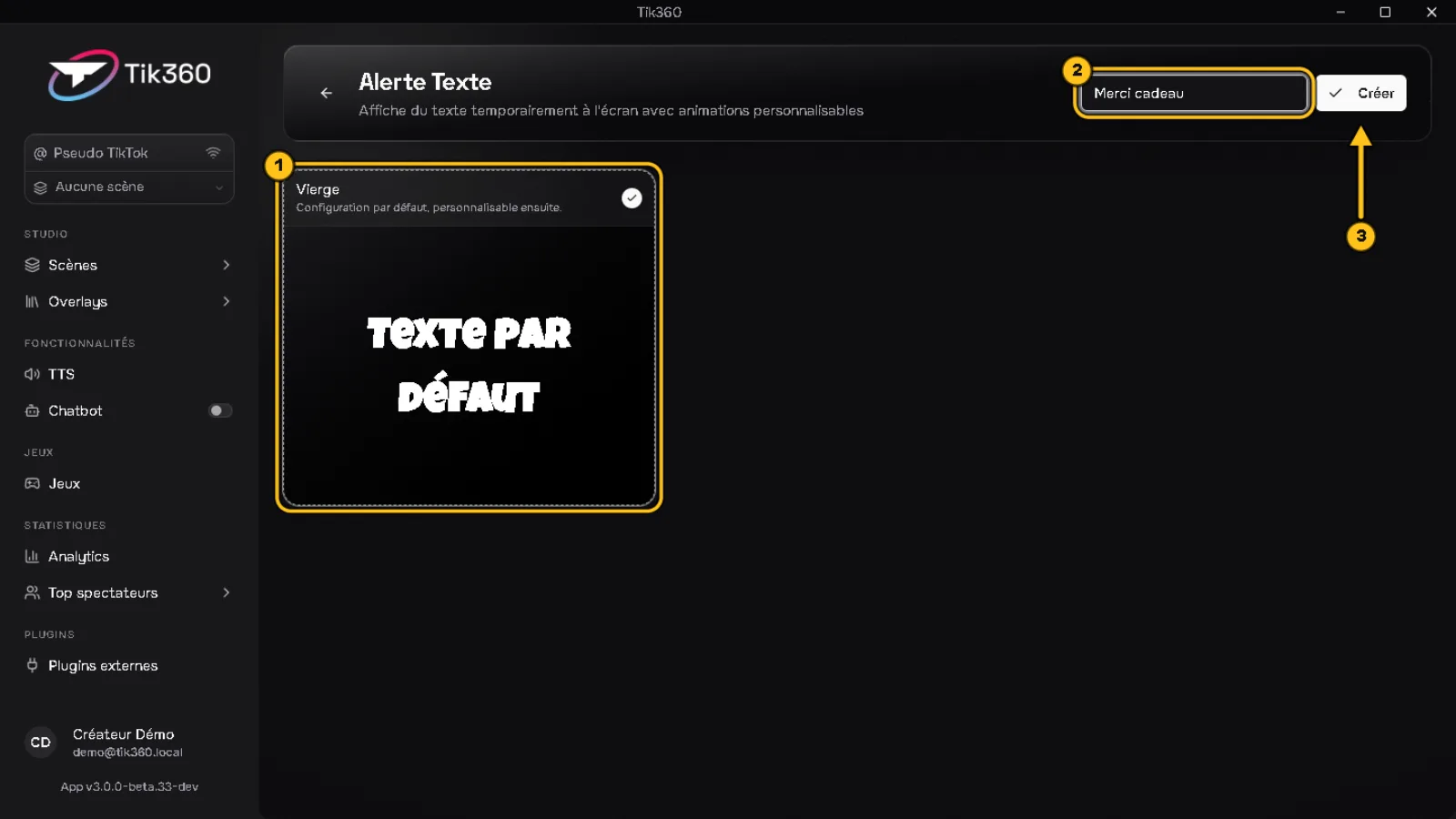
Select the Blank style ①, name the overlay ② (e.g. “Gift thanks”) and click Create ③. In the editor that opens, click Save ①.
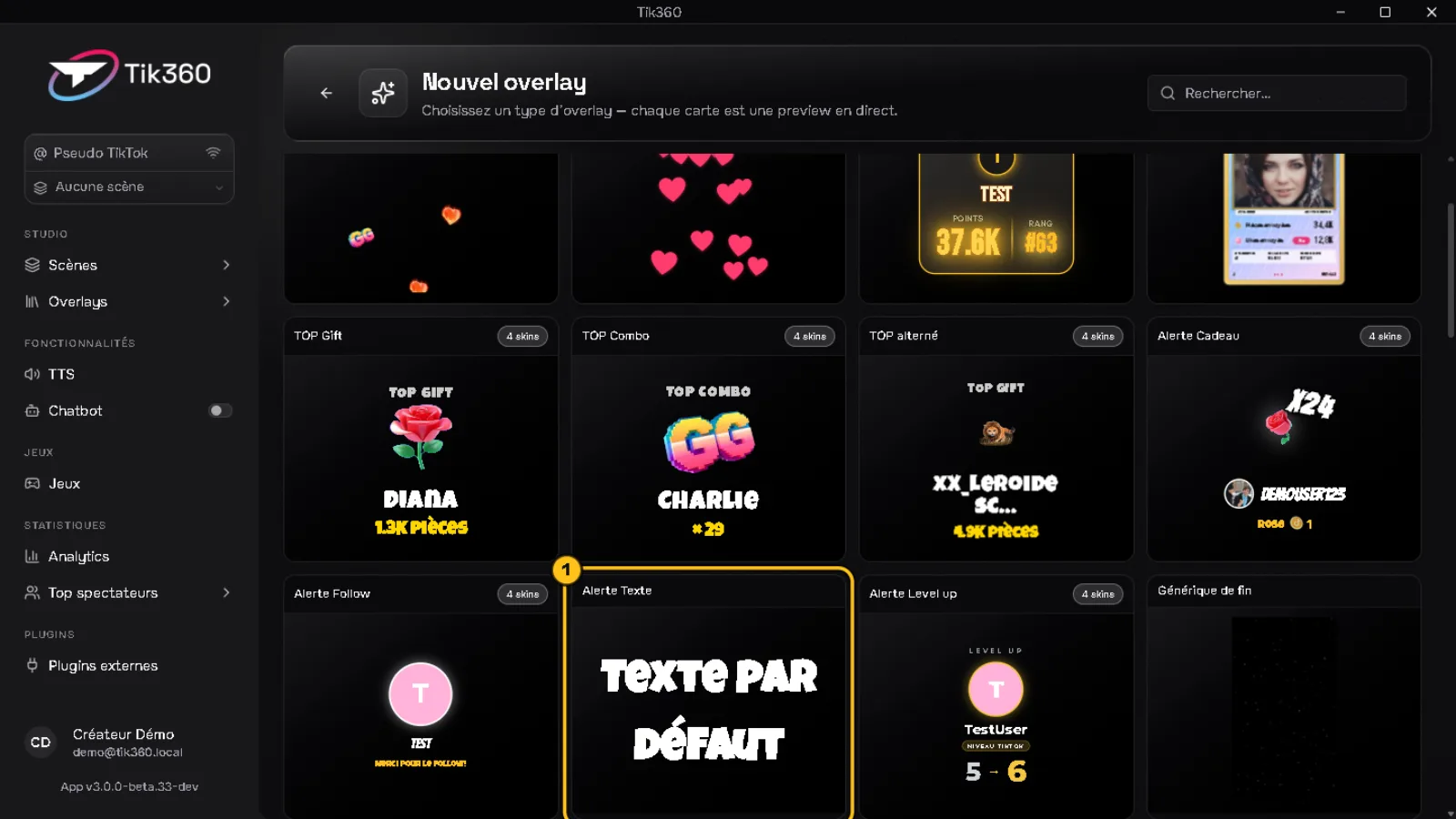
“New overlay” gallery: the “Text Alert” card is circled (1).
Text Alert style selection: the “Blank” card is circled (1), the name “Gift thanks” is circled (2), an arrow 3 points to the “Create” button.
Editor of the Gift thanks overlay: an arrow 1 points to the “Save” button.

2. Add the trigger

Rules tab → New rule, then click Gift received ①. On the right, choose the gift ②; the Minimum combo ③ field is optional (e.g. 10 to react at every step of 10 Roses in a row).
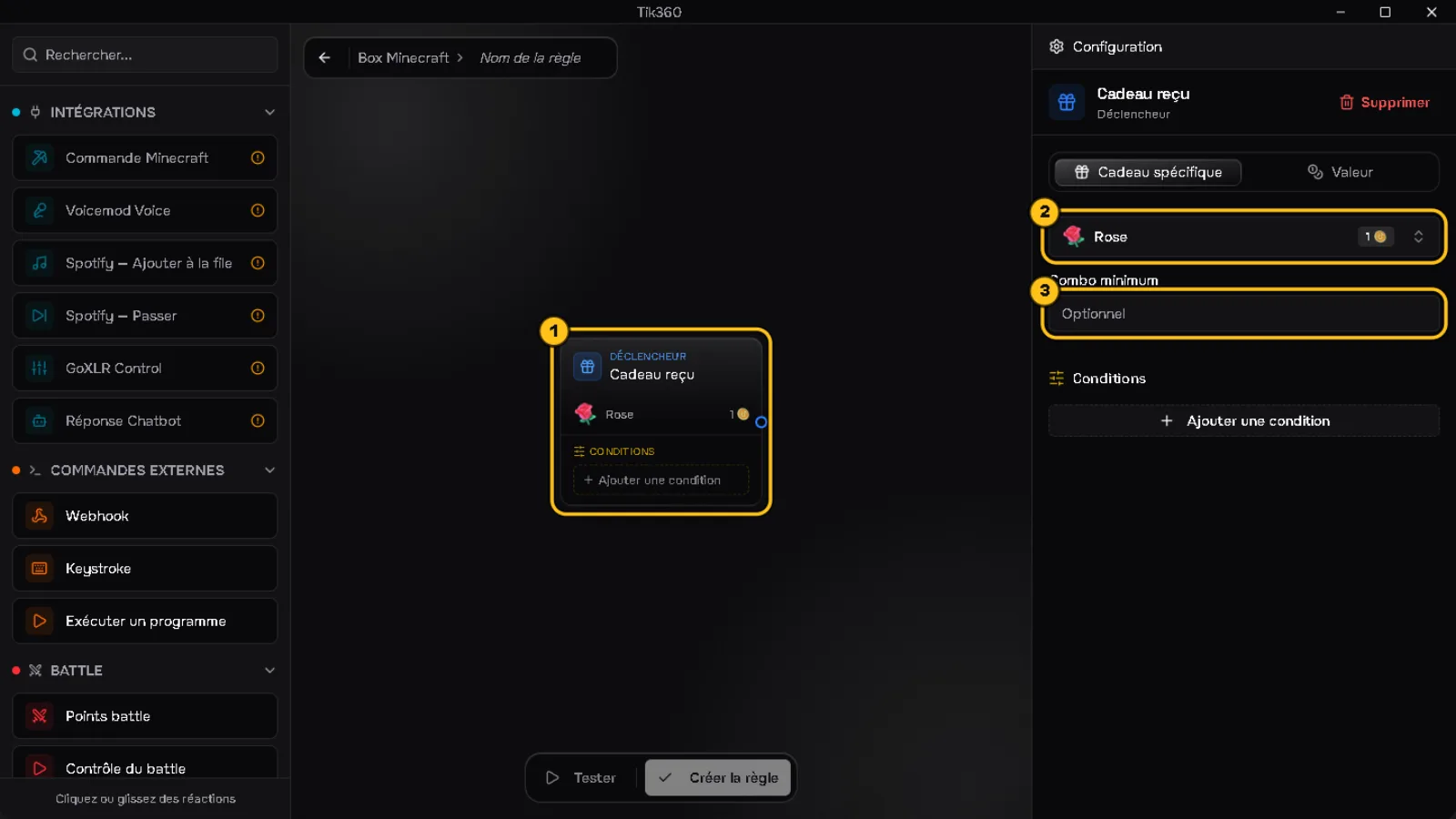
Rule editor: the “Gift received” block is circled (1), the “Rose” gift is circled (2), the “Minimum combo” field is circled (3).

3. Connect the overlay

Click the Text Alert reaction ①. Choose your “Gift thanks” overlay ② and write the text ③: {nickname} sent a rose, thank you!. The Variables button lists everything you can insert (nickname, gift name, number of coins…).
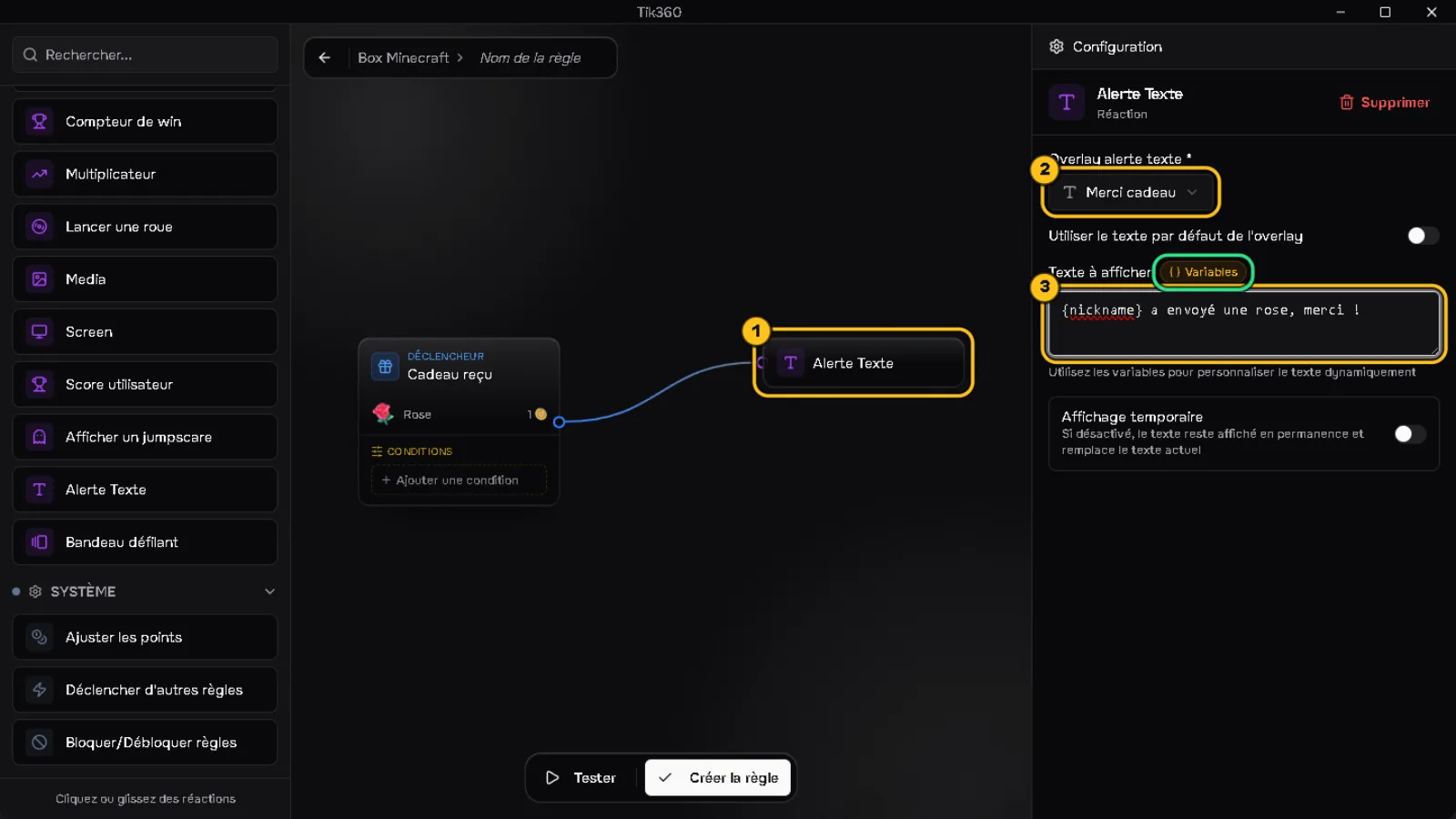
The “Text Alert” block connected to the trigger is circled (1), the selected “Gift thanks” overlay is circled (2), the text to display is circled (3), the “Variables” button is circled in green.

4. Test and save

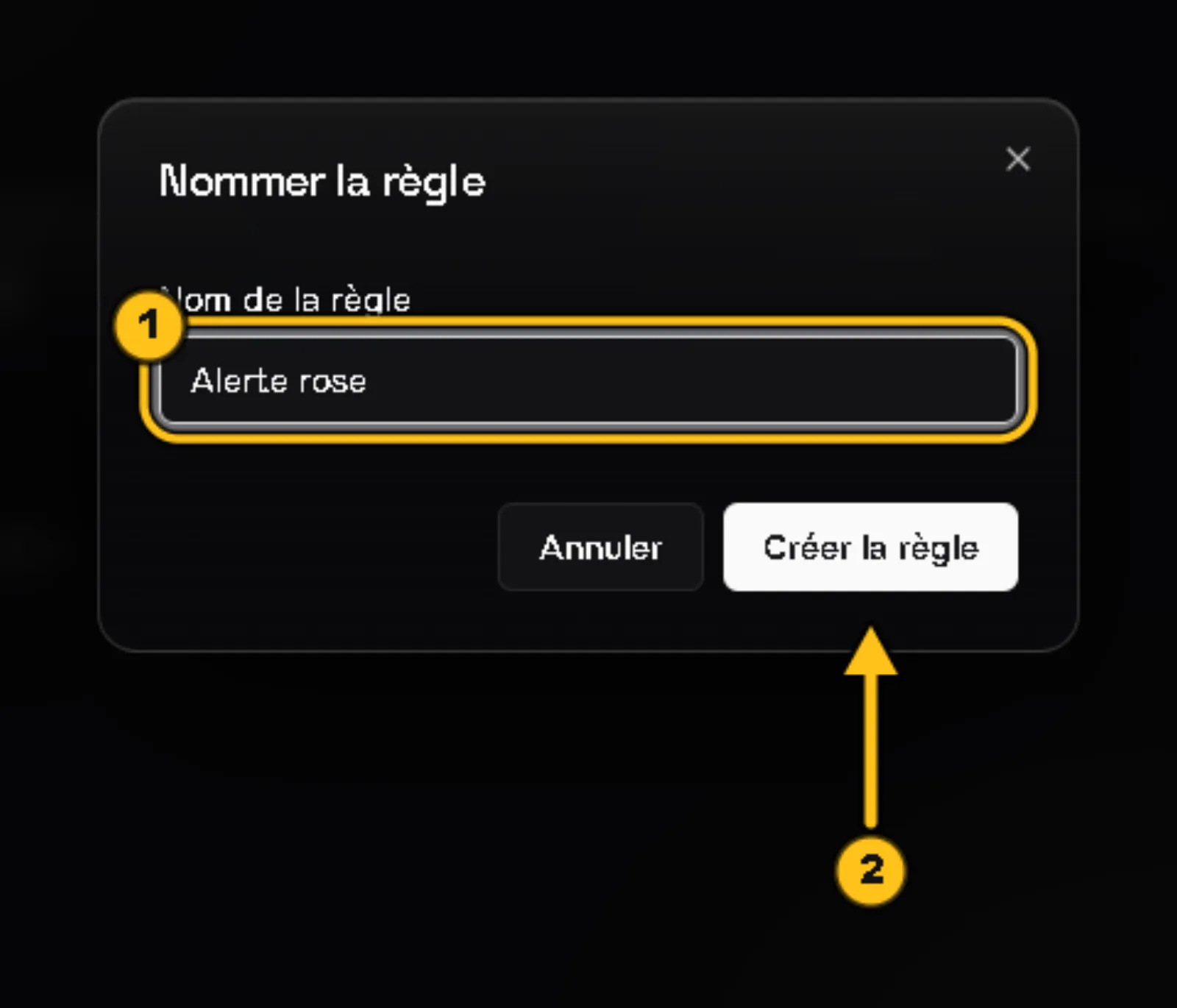
Click Test ① to watch the signal travel through the blocks, then Create rule ②, give it a name ① and confirm ②.
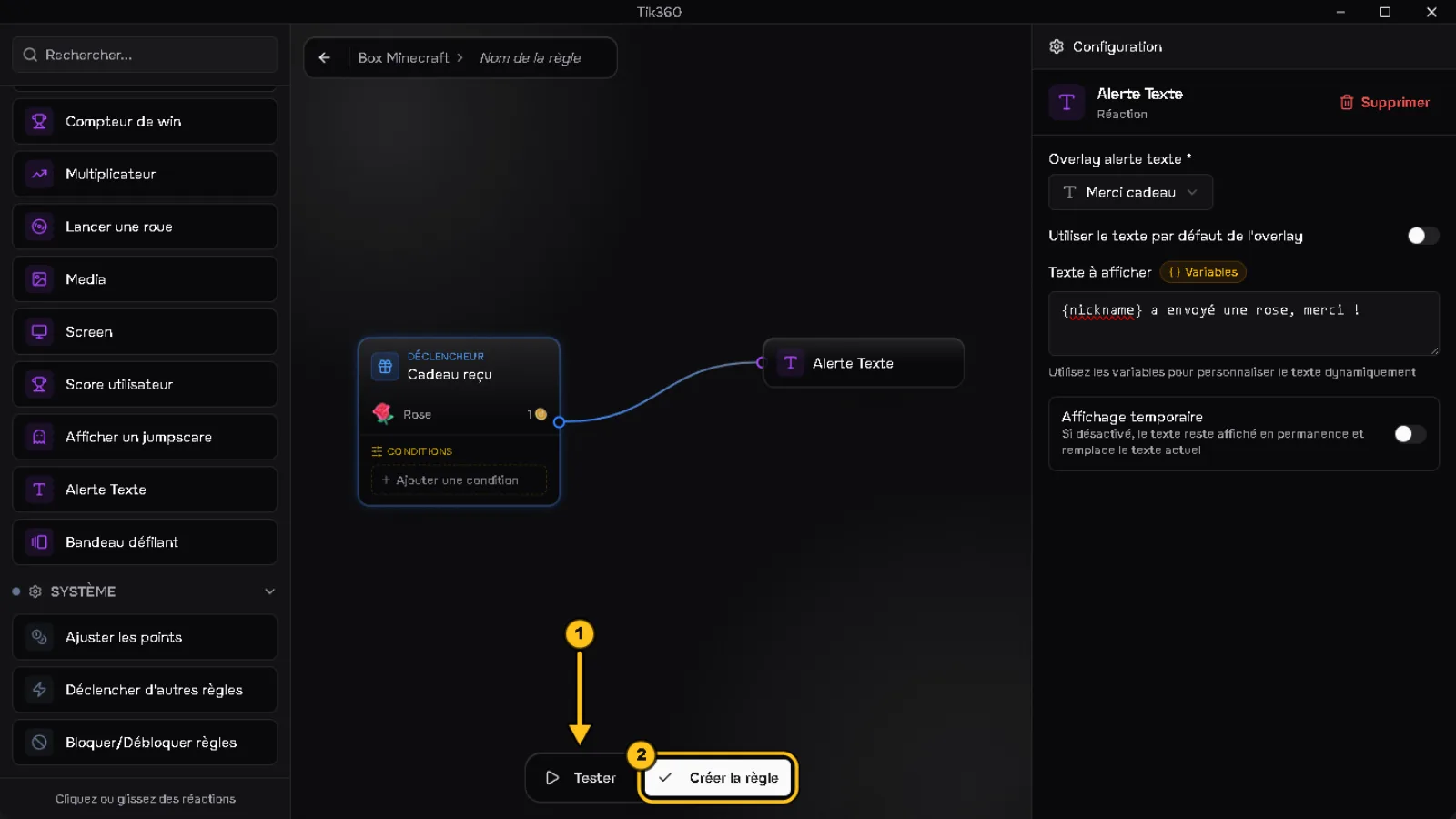
An arrow 1 points to the “Test” button, the “Create rule” button is circled (2).
“Name the rule” window: the name “Rose alert” is circled (1), an arrow 2 points to the “Create rule” button.

✅ Result: the rule appears in the list with its 🌹 trigger and its reaction ①. The ⏩ button ② simulates it at any time. To see the text on screen, the overlay must be installed in your streaming software (tutorial 03).

📺 The full walkthrough on video: Create your first interaction: a Rose sends you to jail.
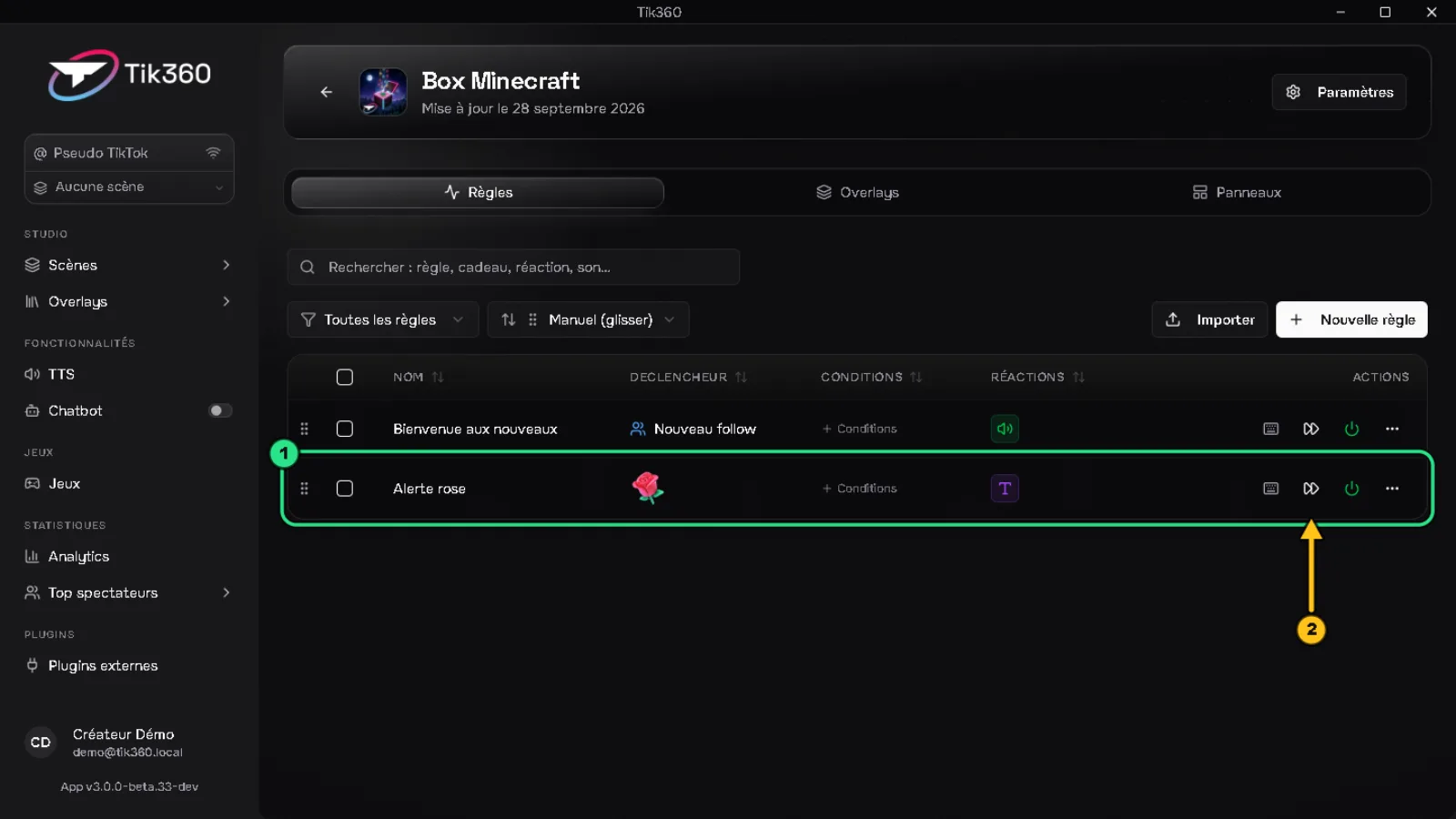
Scene rule list: the new “Rose alert” rule is circled in green (1), an arrow 2 points to its “Simulate directly” button.
All tutorials