Getting started with TIK360, step by step
From installation to your first overlay showing up in your live, in six illustrated steps.
Screenshots are still in French for now; the bold names in the text are the ones from the English app.
Welcome! In 15 minutes, you go from installing the app to a first overlay showing up in your live. Follow the 6 messages in order.
1 — Download and sign in
⏱️ 3 min · Prerequisite: a TikTok account
1. Download TIK360 from https://tik360.com and run the installer.
2. Open the app and sign in: Continue with Discord, Continue with Google, or your email ① and password ②, then Sign in with email ③.
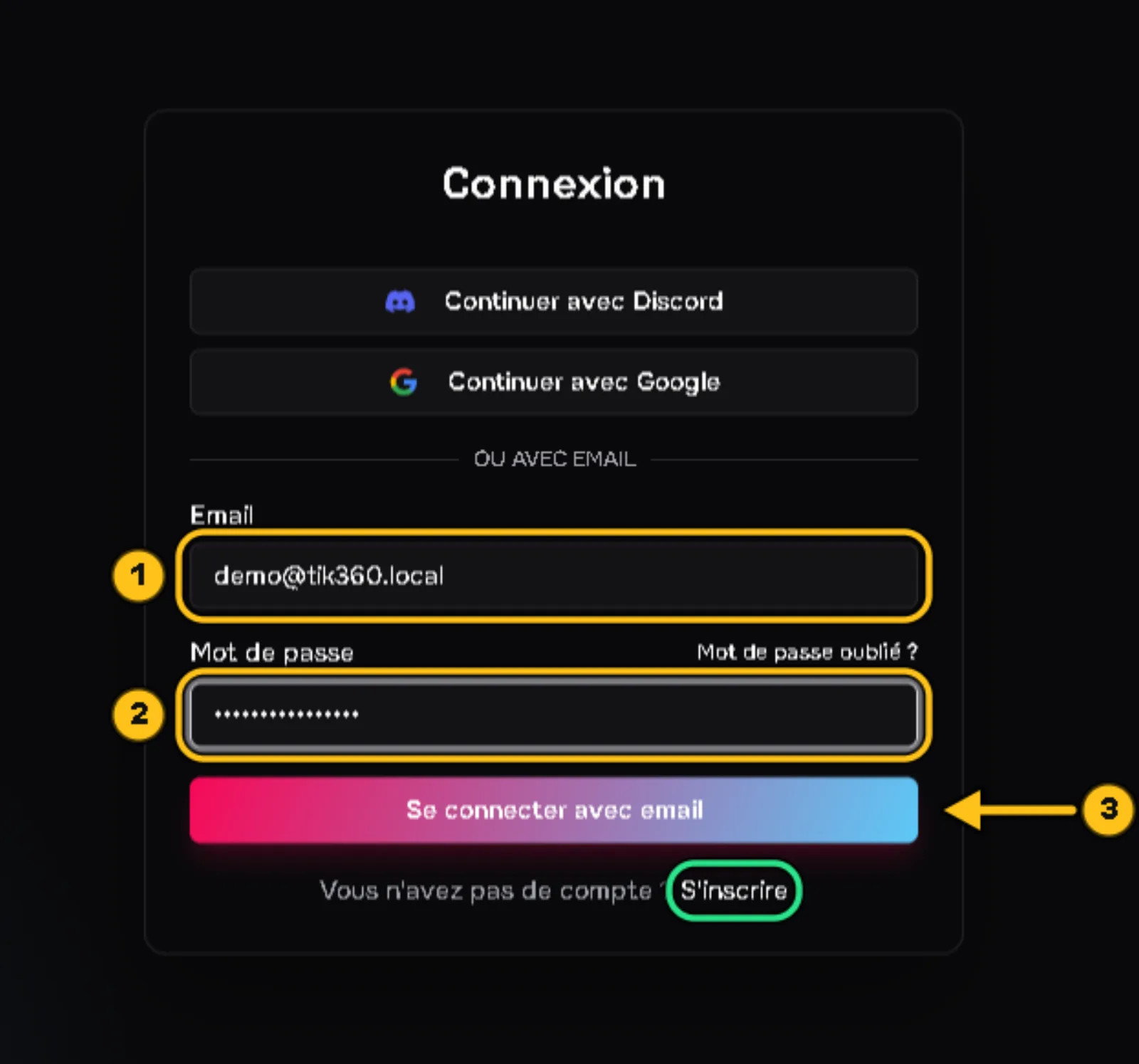
3. Don't have an account yet? Click Create account.
✅ Result: the home screen opens with "Hello, your name".
2 — Find your way around the interface
⏱️ 2 min
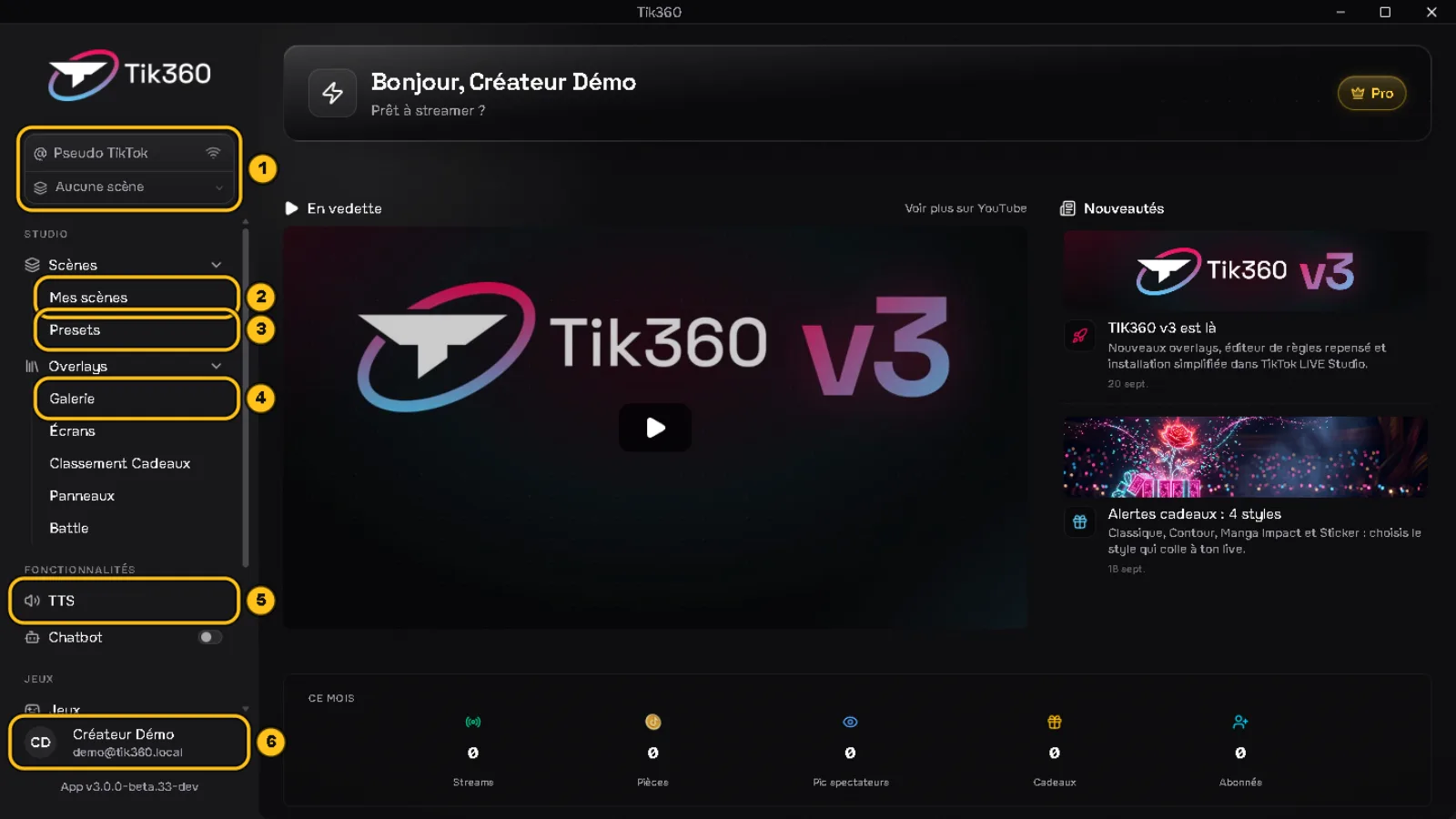
Everything happens in the left sidebar:
① Live control: your TikTok username and the scene used during the live.
② My scenes: a scene groups the rules and overlays for one type of live (e.g. "GTA", "Minecraft").
③ Presets: ready-made scenes, installed in one click.
④ Gallery: all the overlays (alerts, goals, leaderboards, wheels...).
⑤ TTS: reads the chat out loud.
⑥ Your profile: click it to open Settings.
✅ Result: you know where to create a scene and where to find the overlays.
3 — Create a scene
⏱️ 2 min
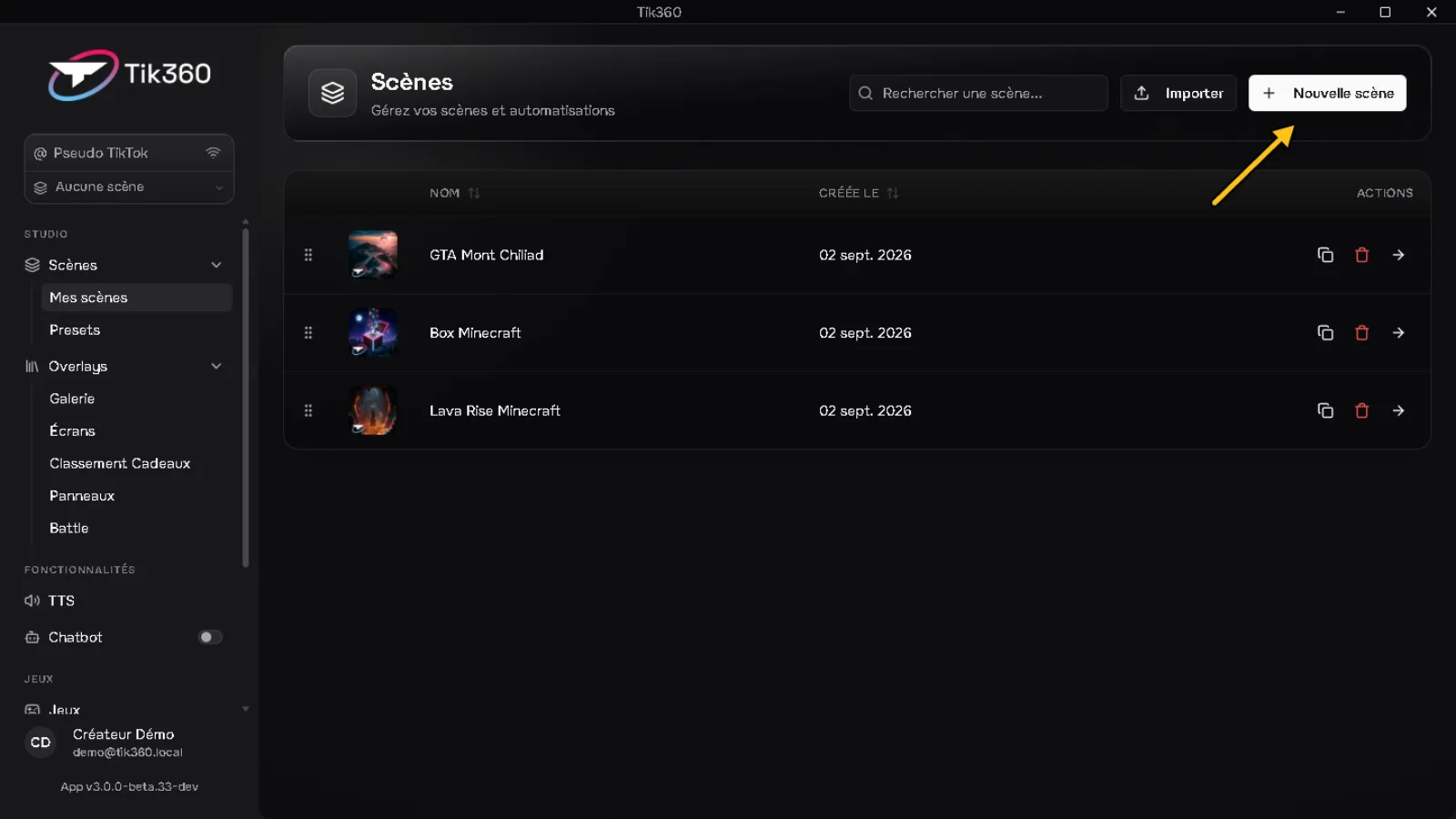
1. Open Scenes → My scenes and click New scene.
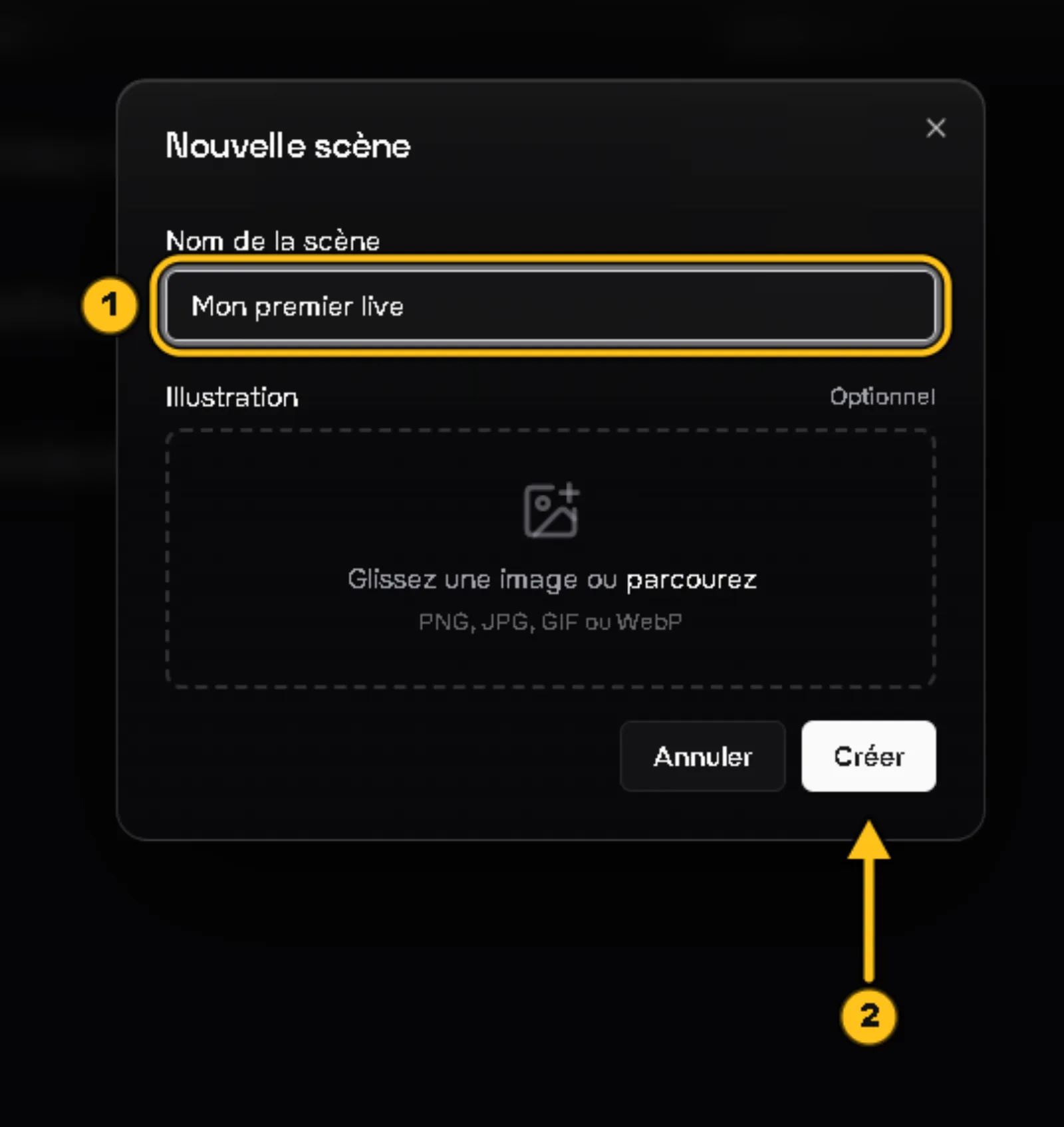
2. Give it a name ① (e.g. "My first live"), the illustration is optional, then click Create ②.
3. The scene opens. It has two tabs:
① Rules: what happens when a viewer does something (gift, follow, message...).
② Overlays: what shows up on your live screen.
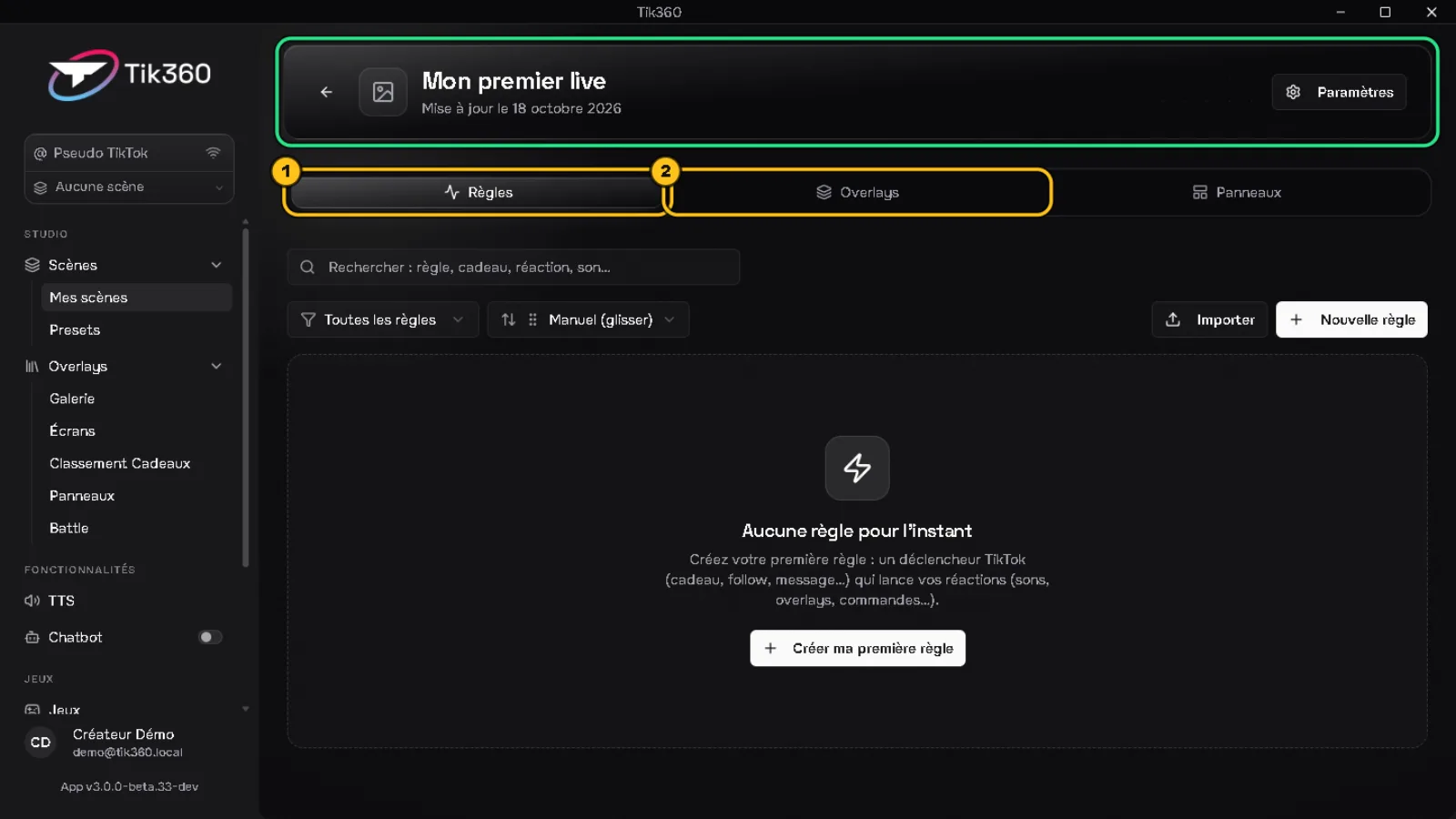
✅ Result: your first scene is created and open.
4 — Create your interaction
⏱️ 5 min
A. The overlay that shows up
1. Overlays tab → Create.
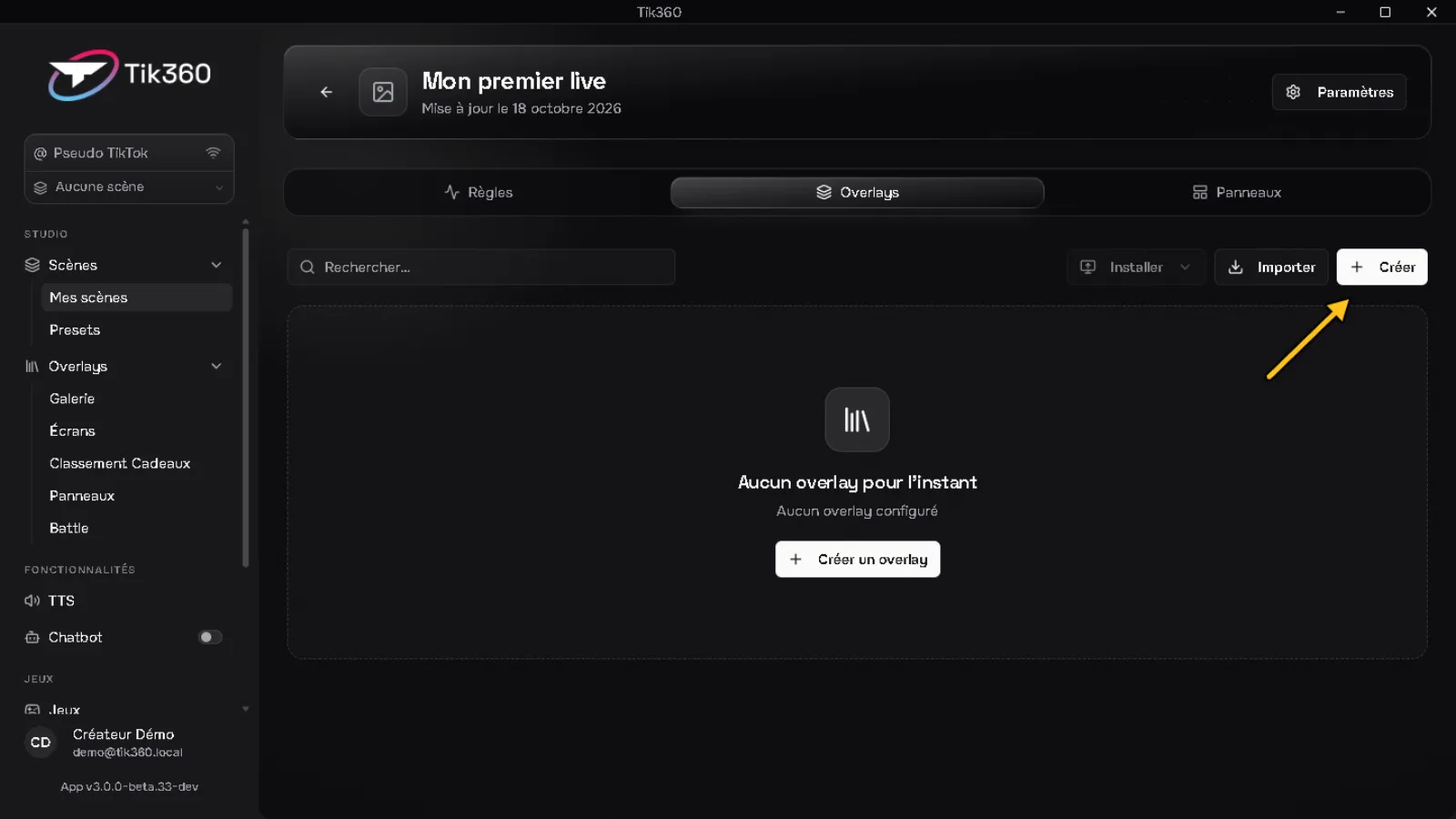
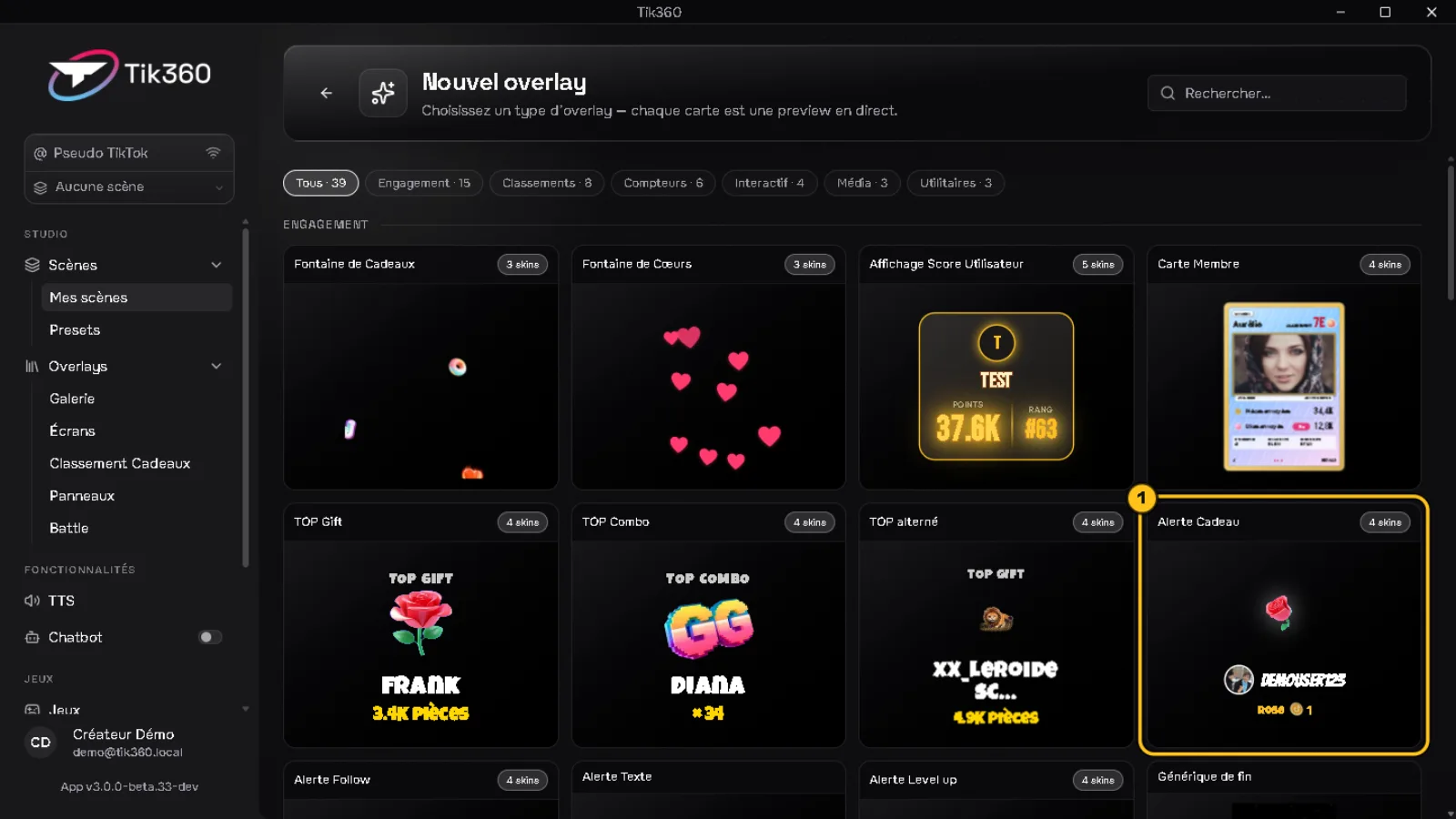
2. In the gallery, choose Gift Alert ①.
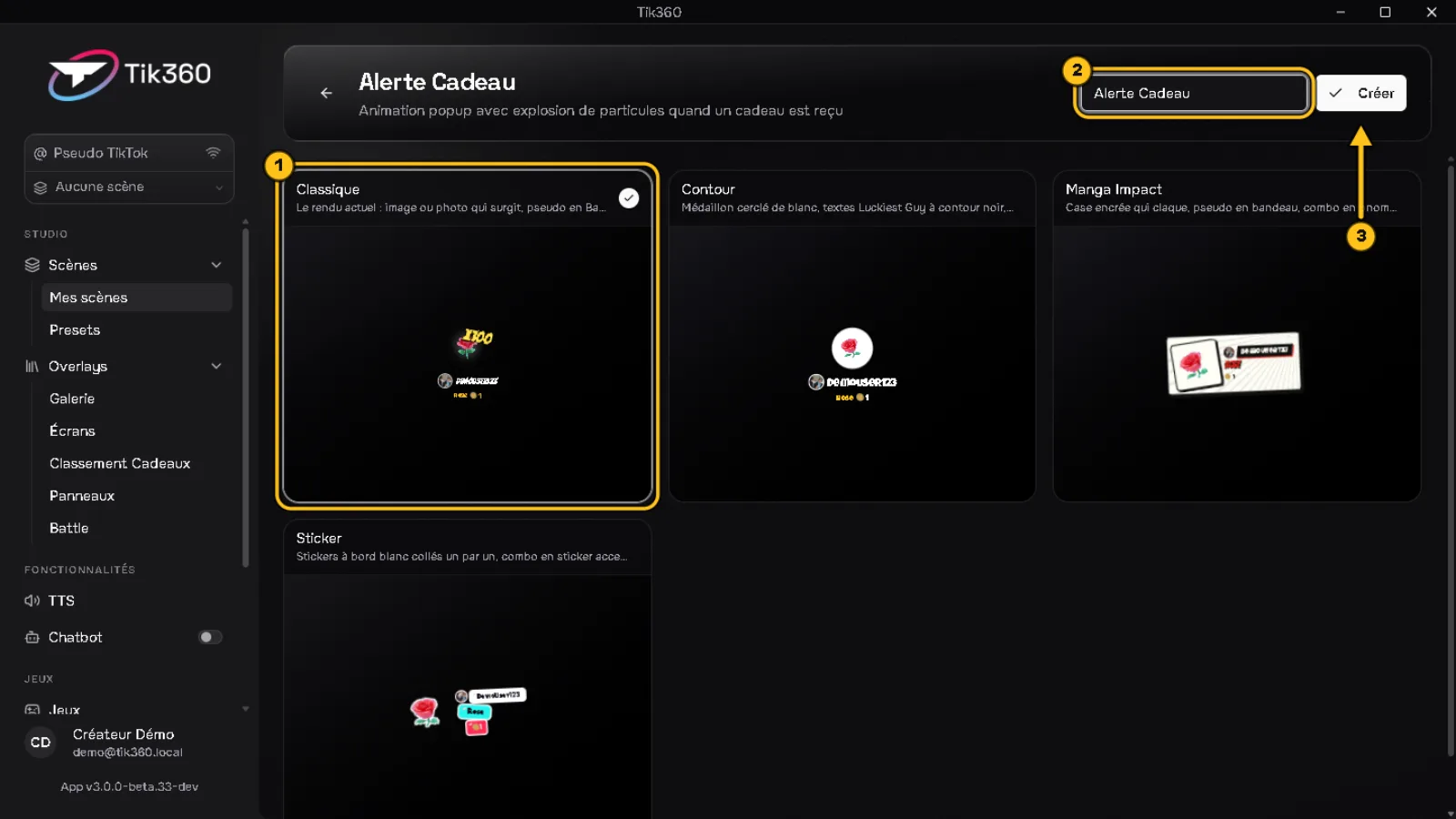
3. Pick a style ① (e.g. Classic), keep or change the name ②, then Create ③.
4. The editor opens. Under Triggering gifts, leave All ①: the alert shows up on its own for every gift, no rule needed. Click Save ②.
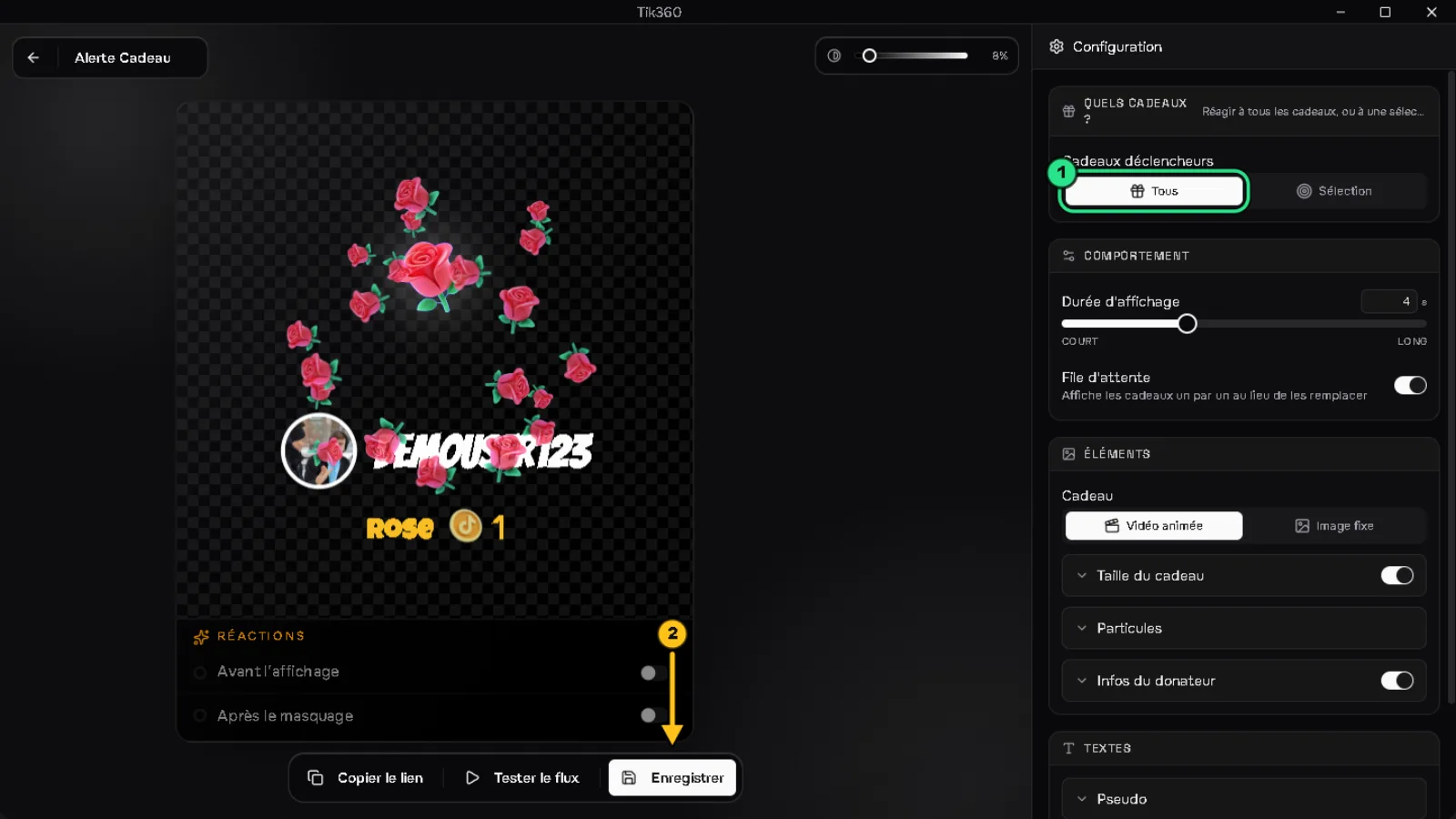
B. The rule that reacts
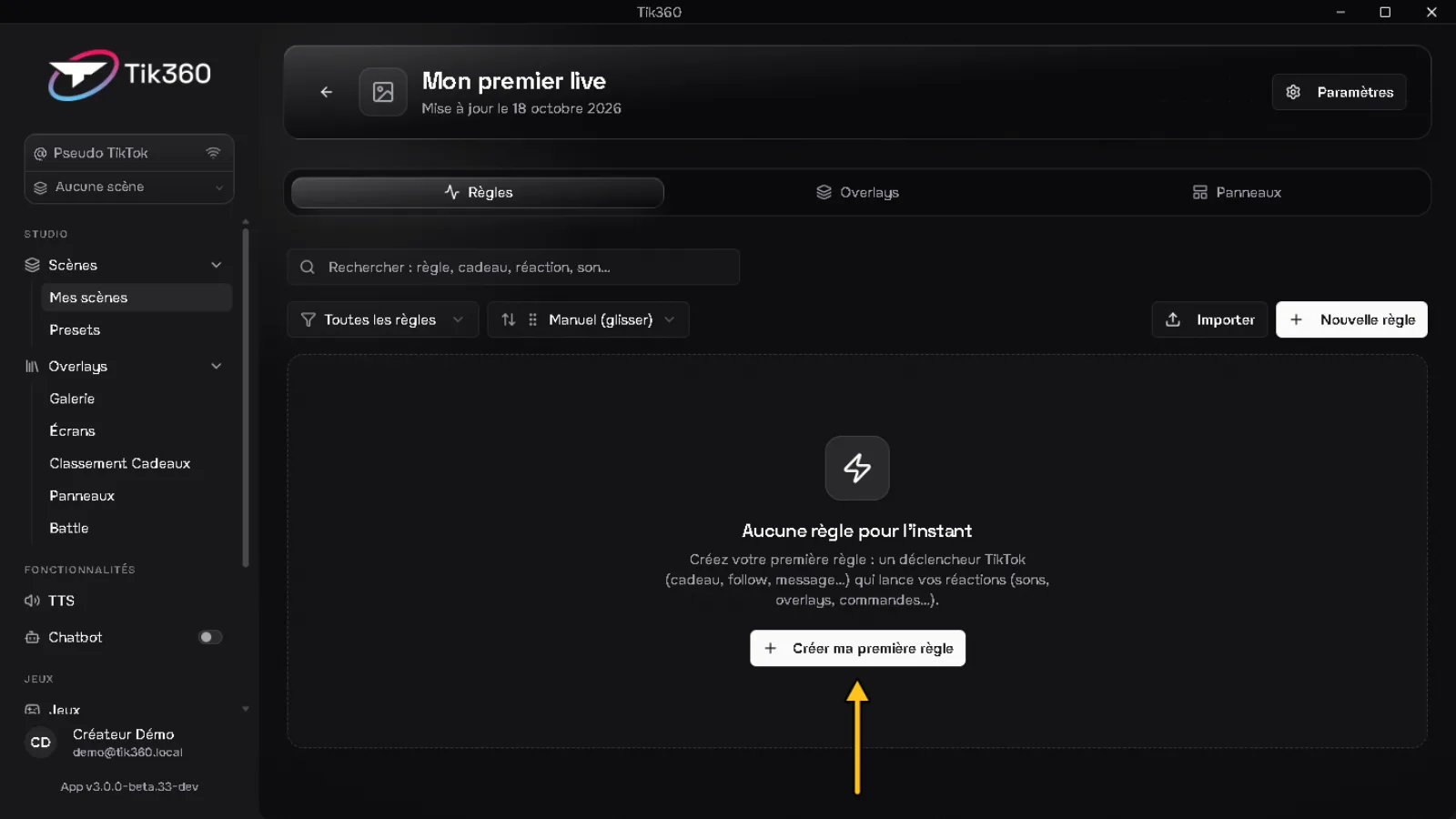
5. Rules tab → Create my first rule.
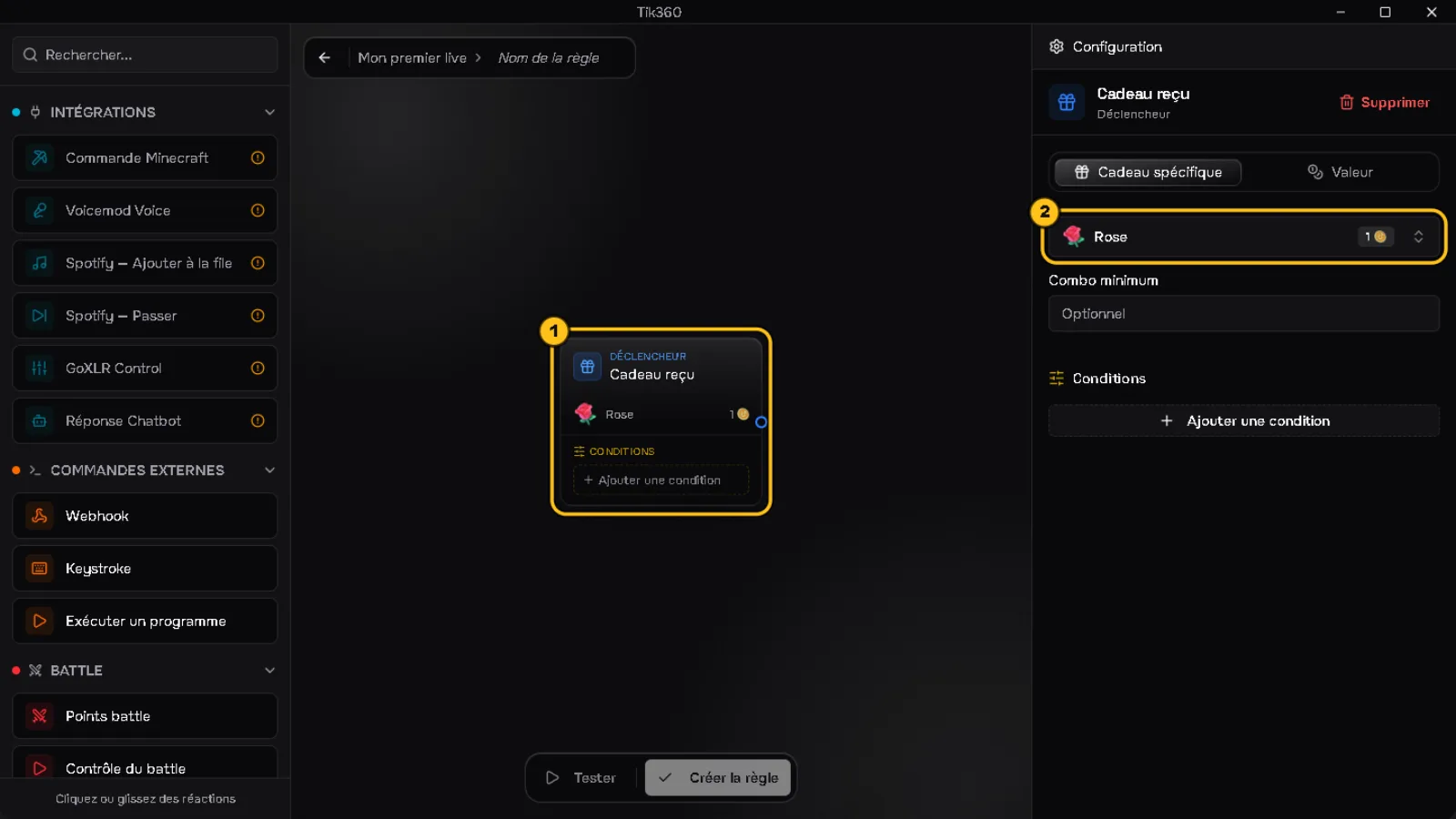
6. On the left, click the Gift received trigger ①. On the right, choose the gift ② (the Rose is suggested by default).
7. Click the Play sound reaction ①, give it a name ② and paste a sound link in the URL tab ③ (or choose a file or a MyInstants sound).
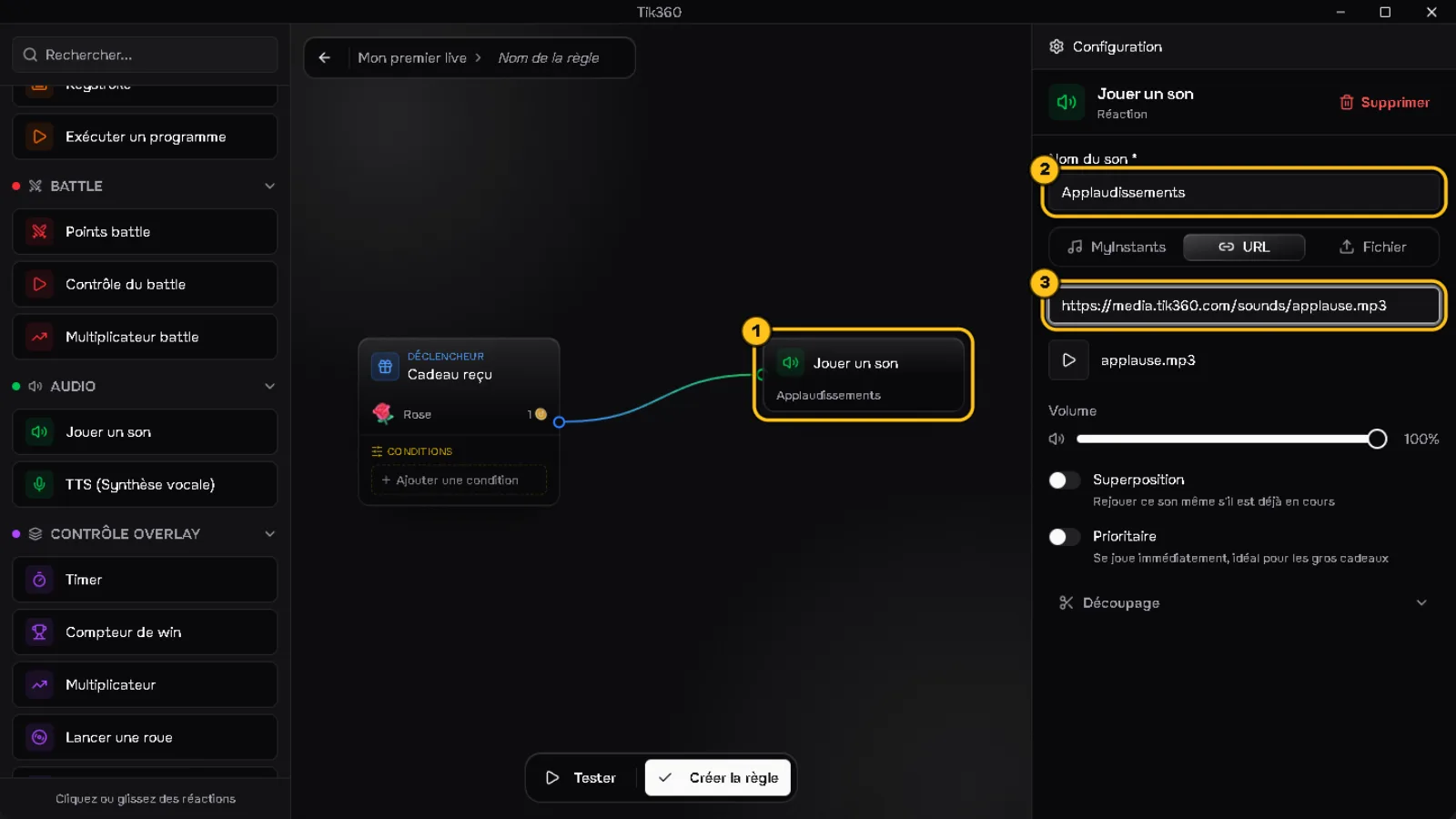
💡 A red "Incomplete configuration" block means a required field is empty.
✅ Result: the gift alert is ready, and the Rose → sound rule has no red blocks left.
5 — Test without being live
⏱️ 1 min
1. Click Test ①: the signal runs through your blocks to check the flow.
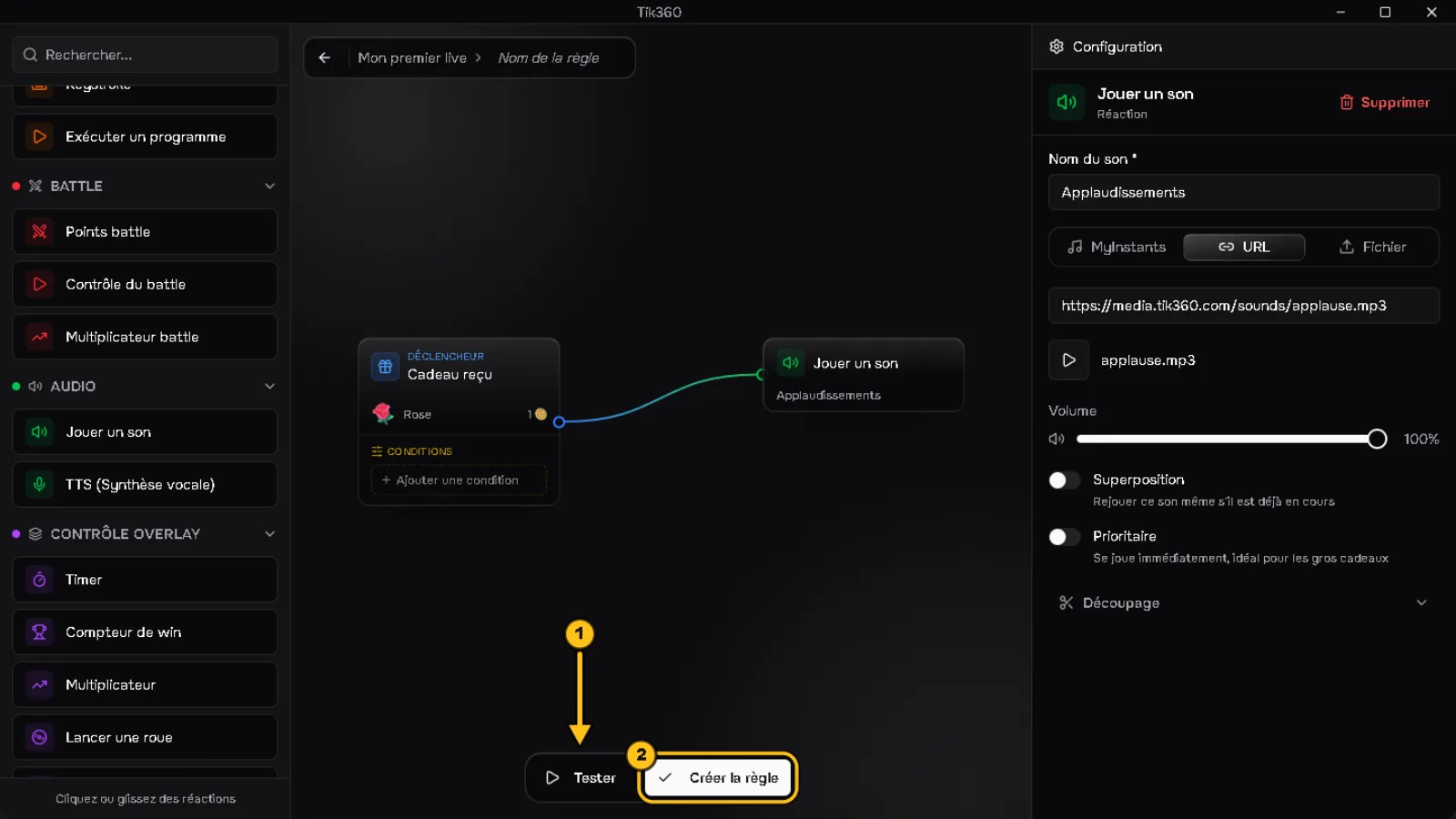
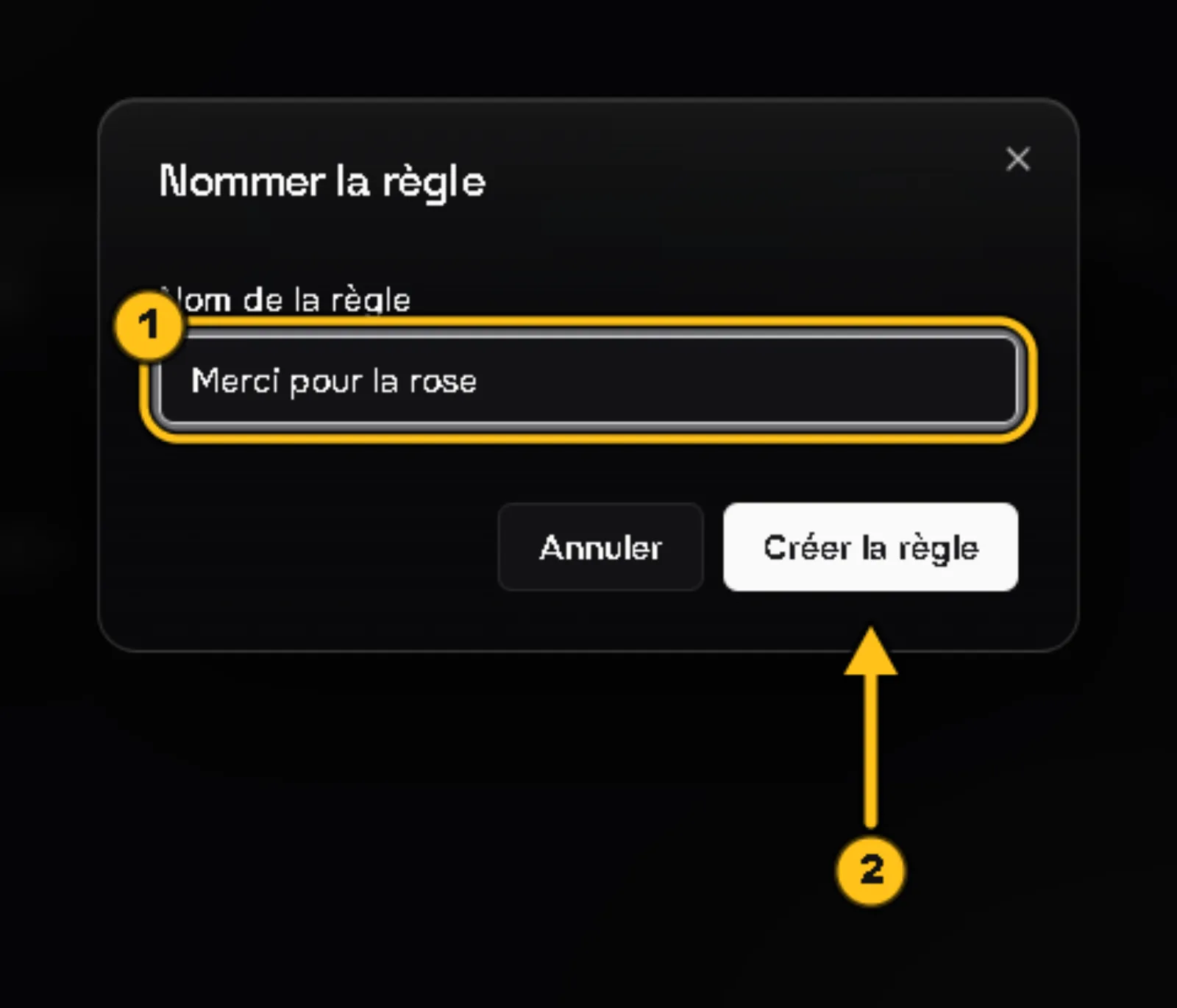
2. Click Create rule ②, give it a name ① (e.g. "Thanks for the rose") then Create rule ②.
3. The rule appears in the list. The ⏩ Simulate directly button ① replays it whenever you want. The green ⏻ icon means the rule is active.
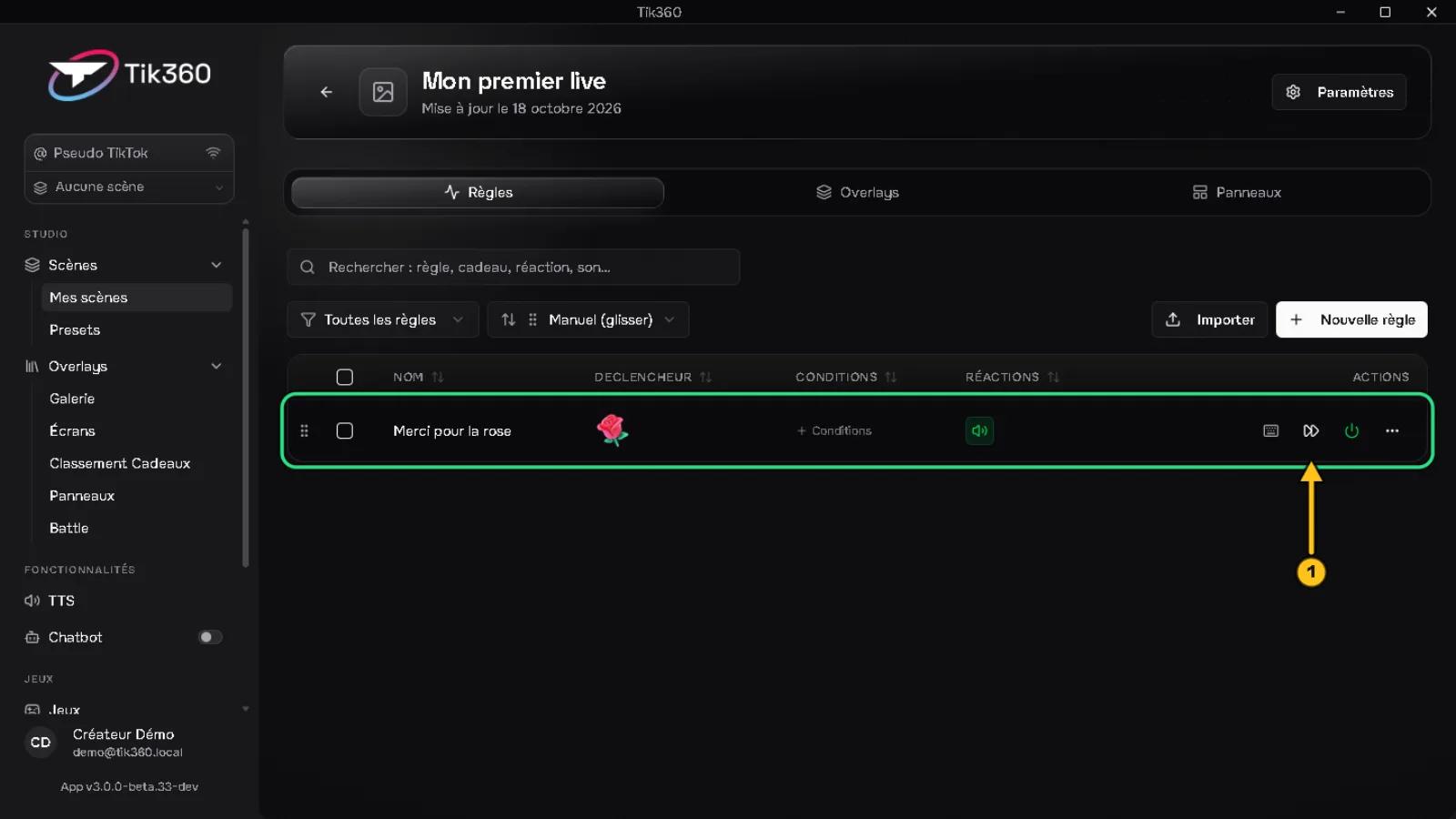
✅ Result: your rule is saved, active and tested.
6 — Install and go live
⏱️ 3 min · Prerequisite: TikTok LIVE Studio (or OBS) installed
1. Overlays tab → Install → TikTok Live Studio ①.
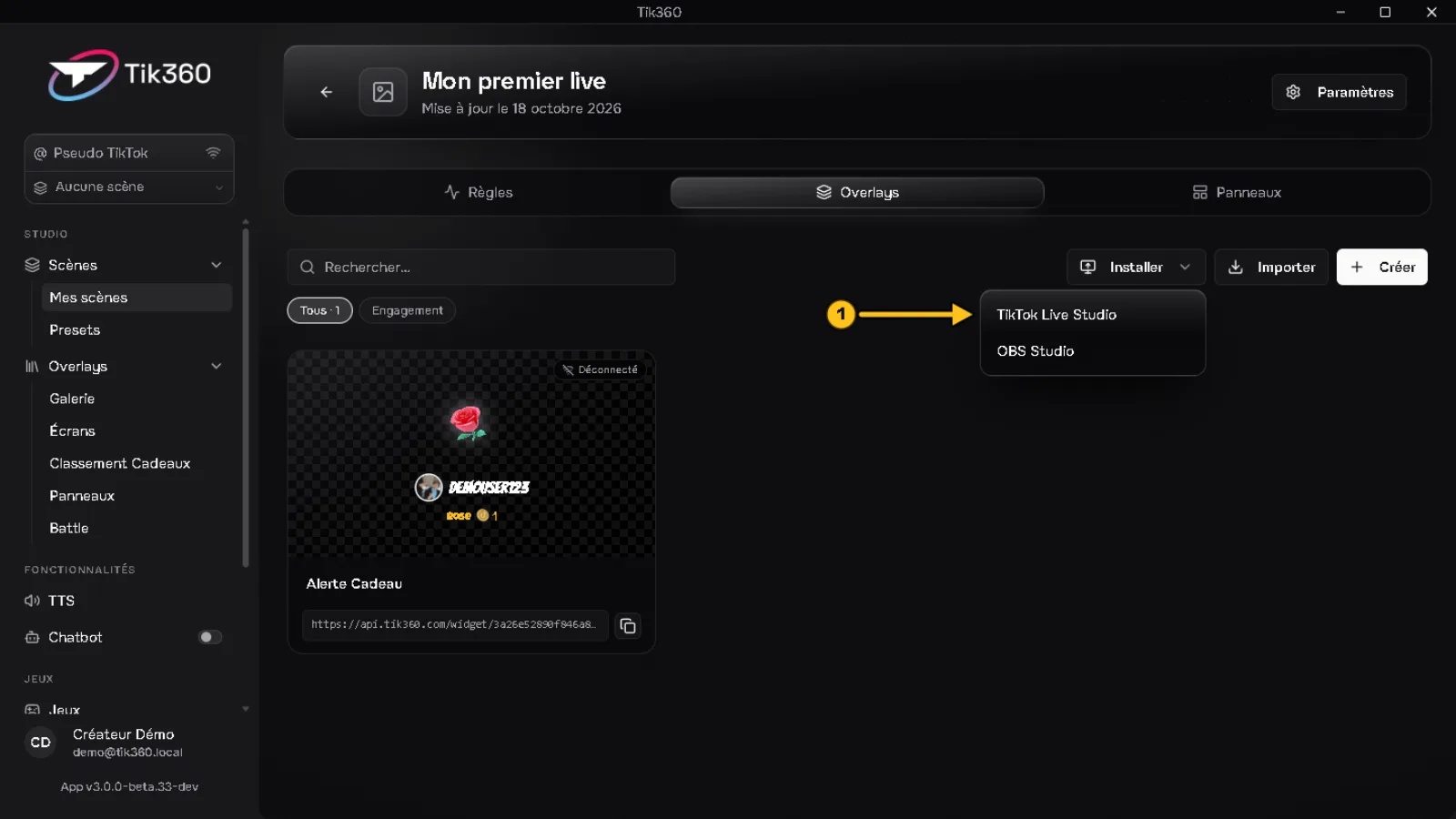
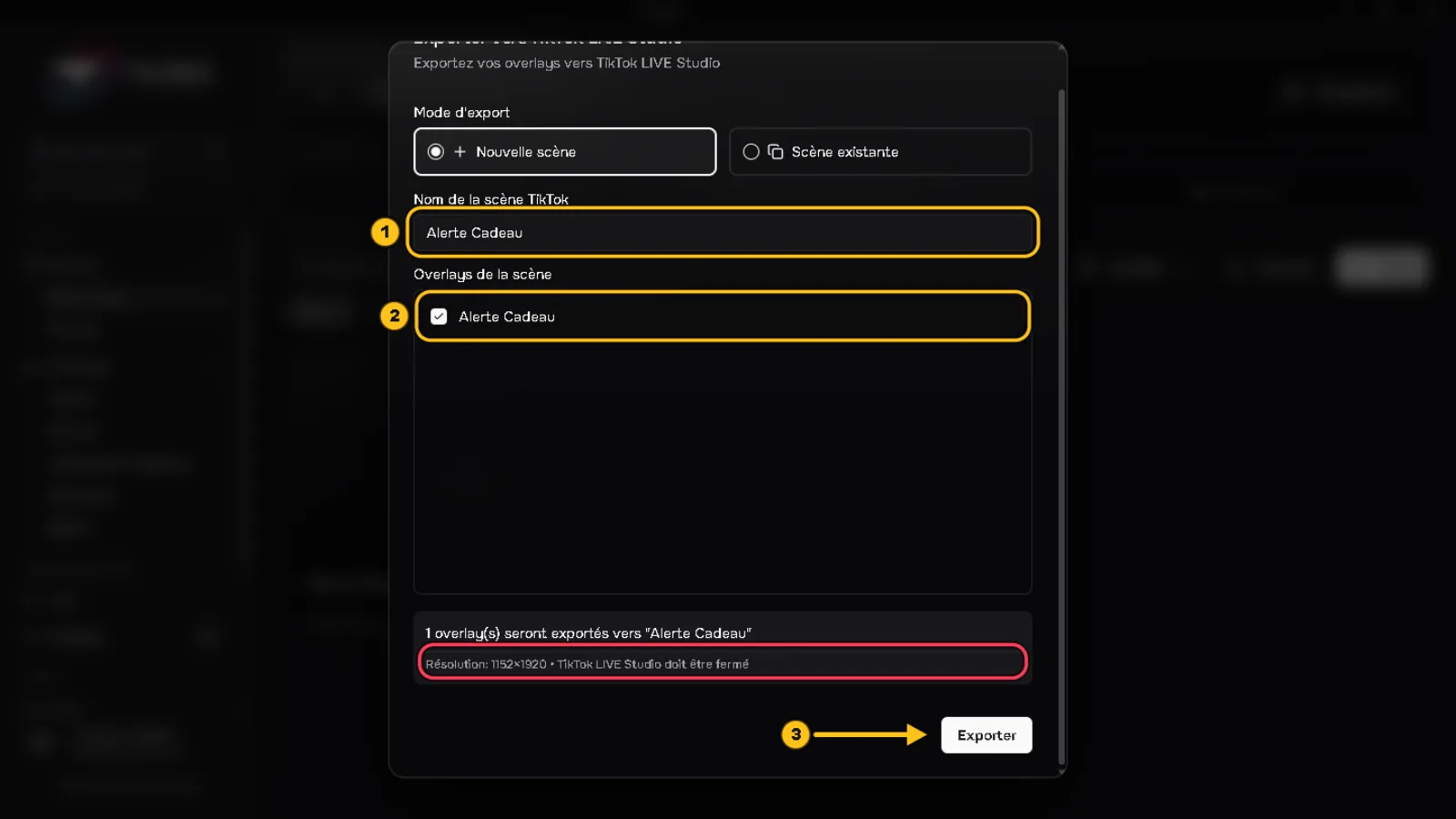
2. ⚠️ Close TikTok LIVE Studio before continuing: TIK360 adds the scene directly to its configuration. Check the TikTok scene name ① and the checked overlays ②, then Export ③. Reopen TikTok LIVE Studio: the scene is there.
🛟 As a fallback, copy the address under the overlay card and add it yourself as a web source.
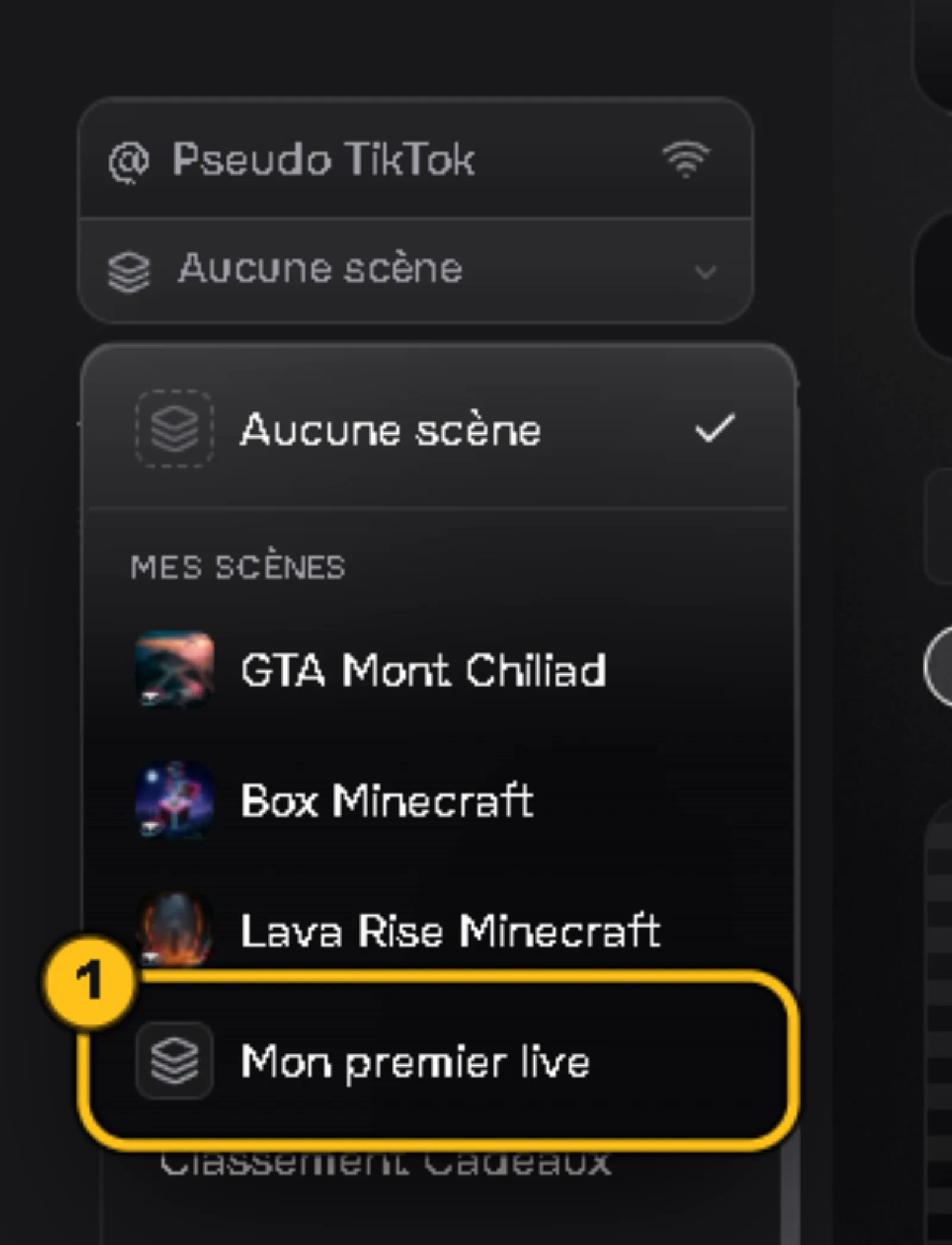
3. In Live control, choose the "My first live" scene ①.
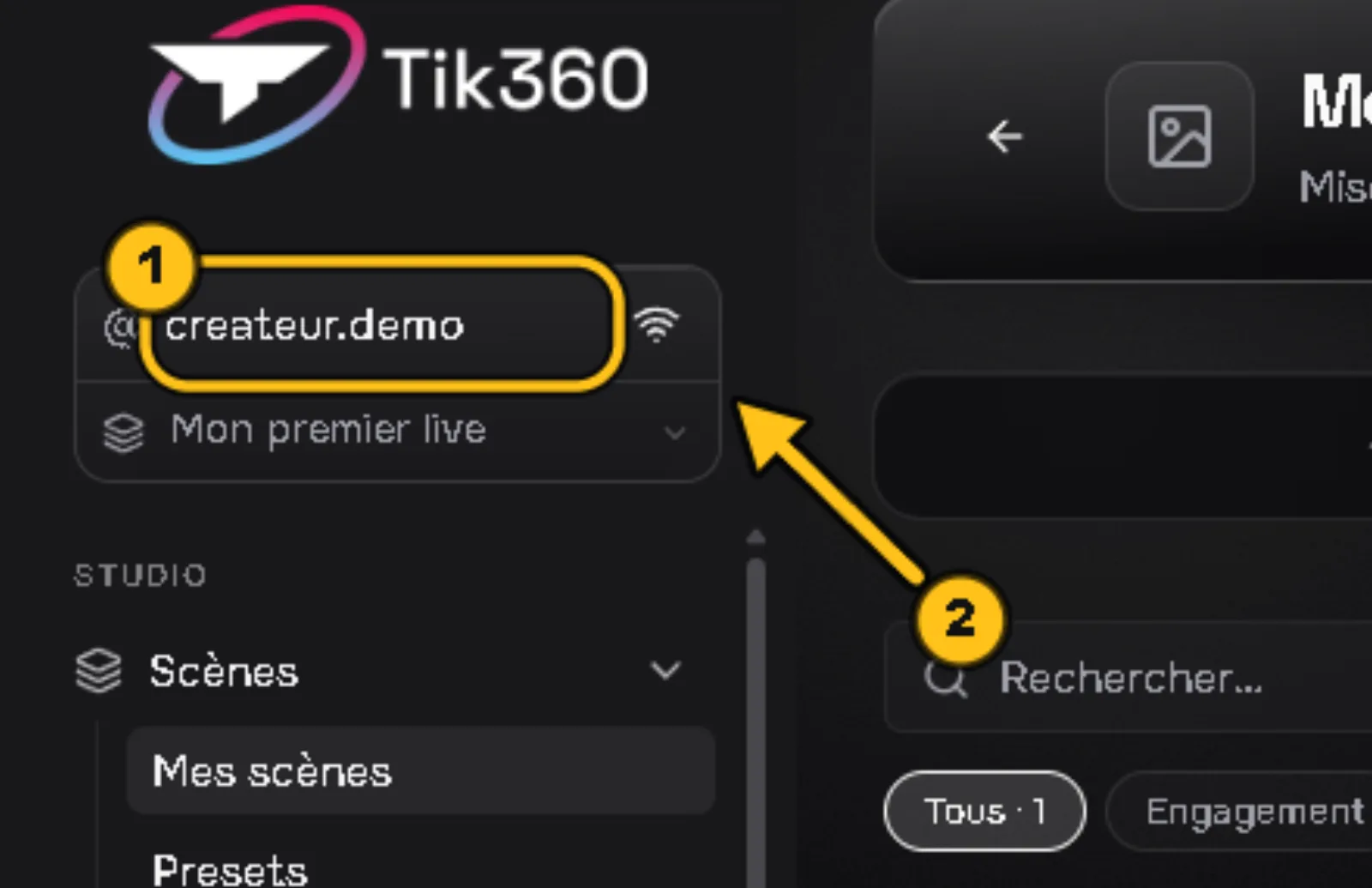
4. Type your TikTok username ① then click the connect icon ②.
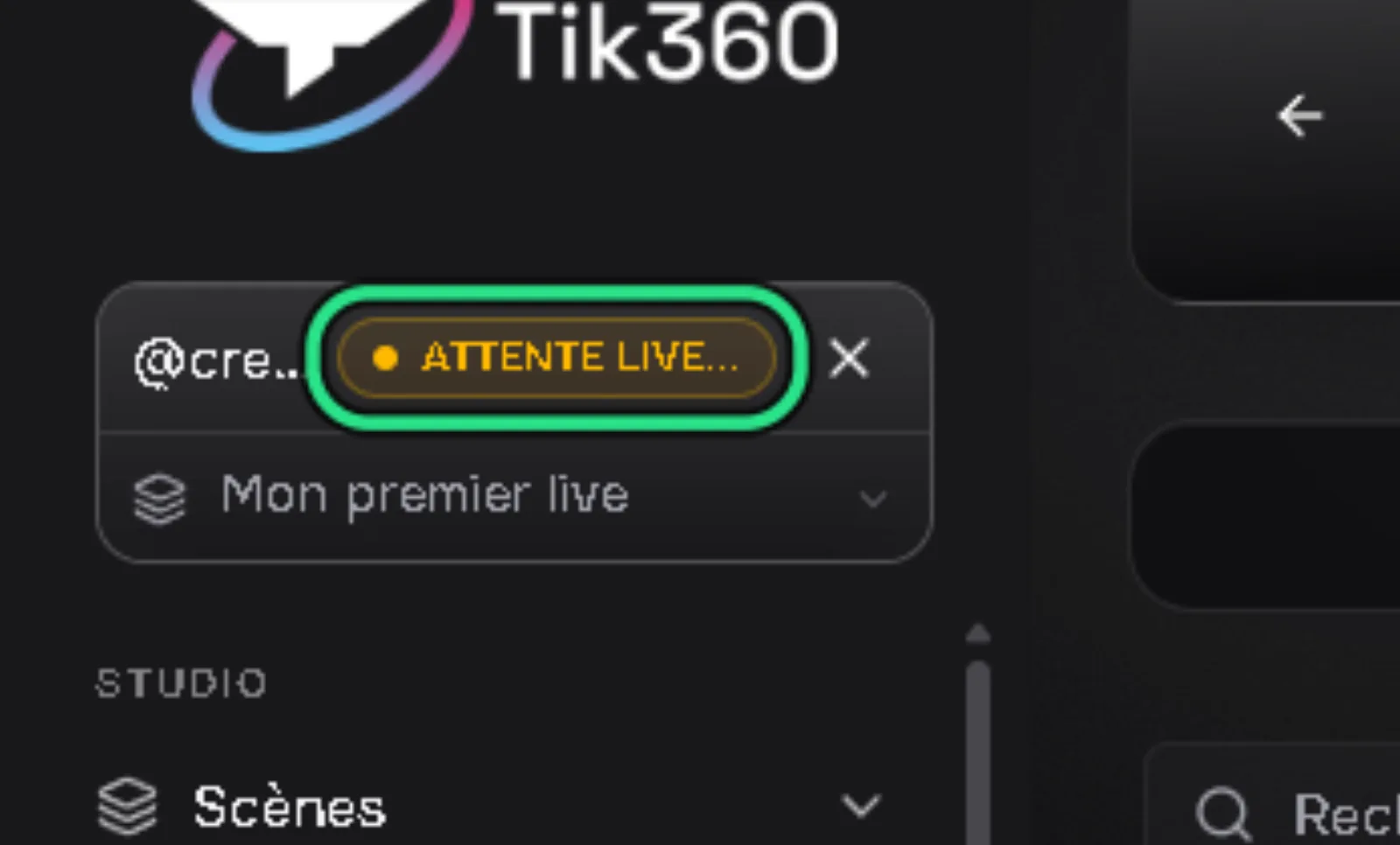
5. "AWAITING LIVE...": TIK360 is waiting for your live to start. Start your live in TikTok LIVE Studio.
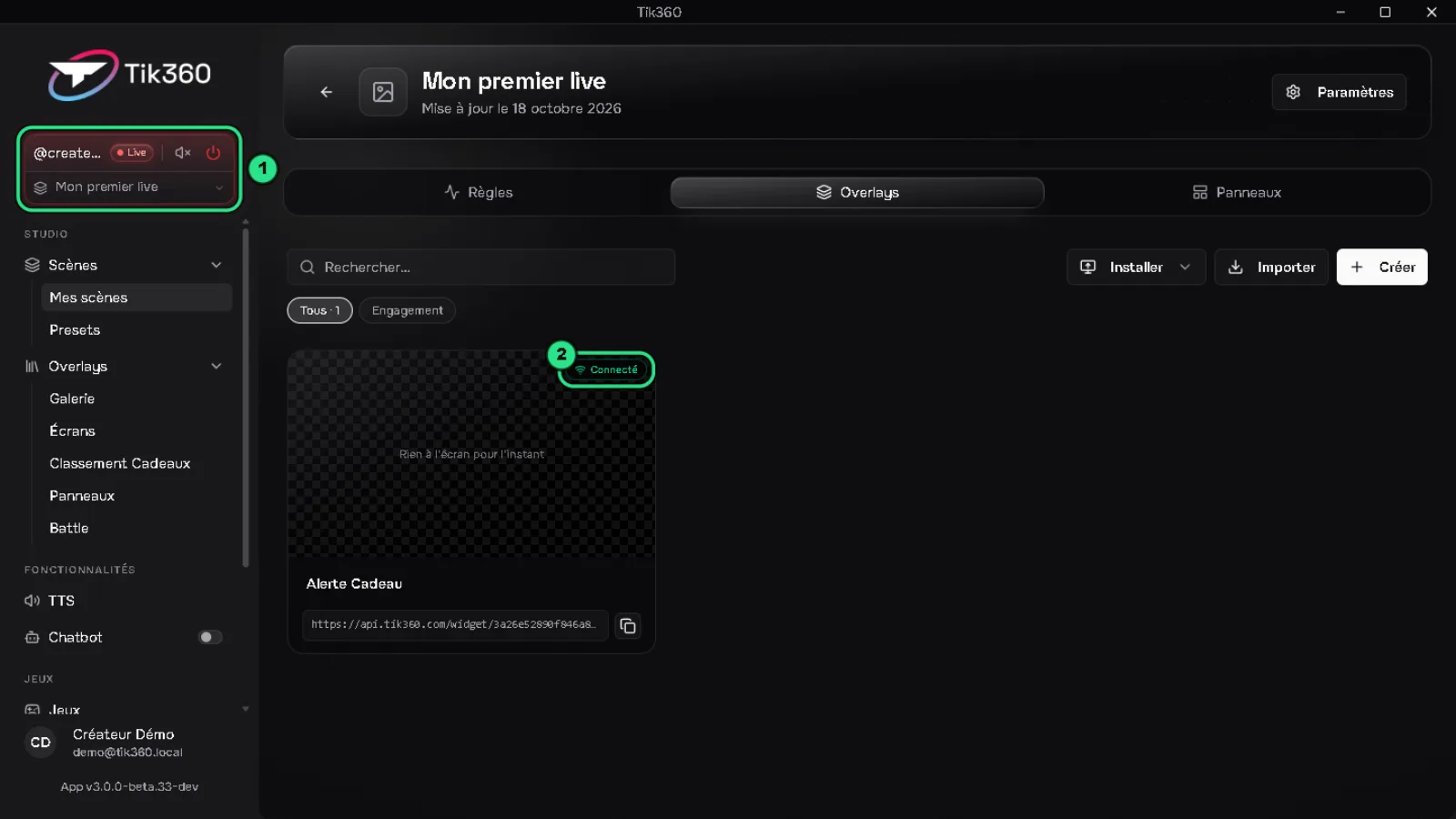
6. As soon as you're live, the Live badge lights up ① and the overlay switches to Connected ②.
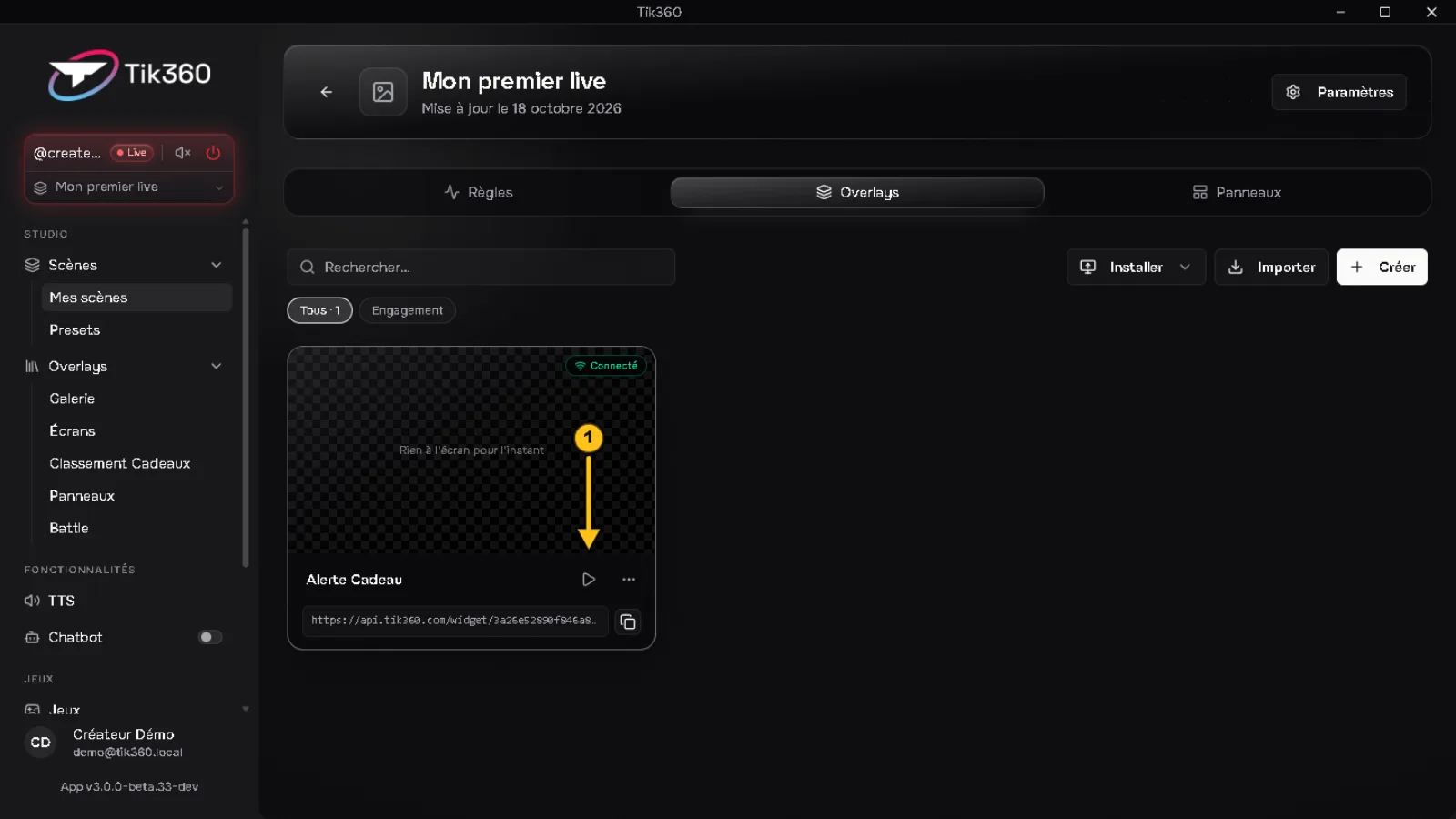
7. Hover over the overlay card and click ▶ ①: a 10-second demo shows up in your live.
✅ Checklist before you stream
☐ The right scene is selected in Live control
☐ Your rule is active (green ⏻)
☐ The test worked
☐ The overlay is installed in TikTok LIVE Studio or OBS
☐ The overlay shows Connected
📺 Coming from v2? Watch Tik360 V3: what changes and the one setting to check. For the full tour: Getting started with Tik360 on TikTok Live, then Create your first interaction: a Rose sends you to jail for your first complete walkthrough.
🆘 Having trouble? Go to #troubleshoot.