Having an issue? 5-minute diagnostic
Version, scene, rule, overlay, sound, connection: a five-step diagnostic to get your live working again.
Screenshots are still in French for now; the bold names in the text are the ones from the English app.
Each section starts with a question. Answer them in order: most issues get fixed in the first two.
Contents
1️⃣ Quick diagnostic → Go to the section
2️⃣ The rule doesn't trigger → Go to the section
3️⃣ The overlay is invisible → Go to the section
4️⃣ The sound doesn't work → Go to the section
5️⃣ The TikTok connection drops → Go to the section
6️⃣ Contact support → Go to the section
1️⃣ Quick diagnostic
Is your app up to date, your live connected and the right scene selected?
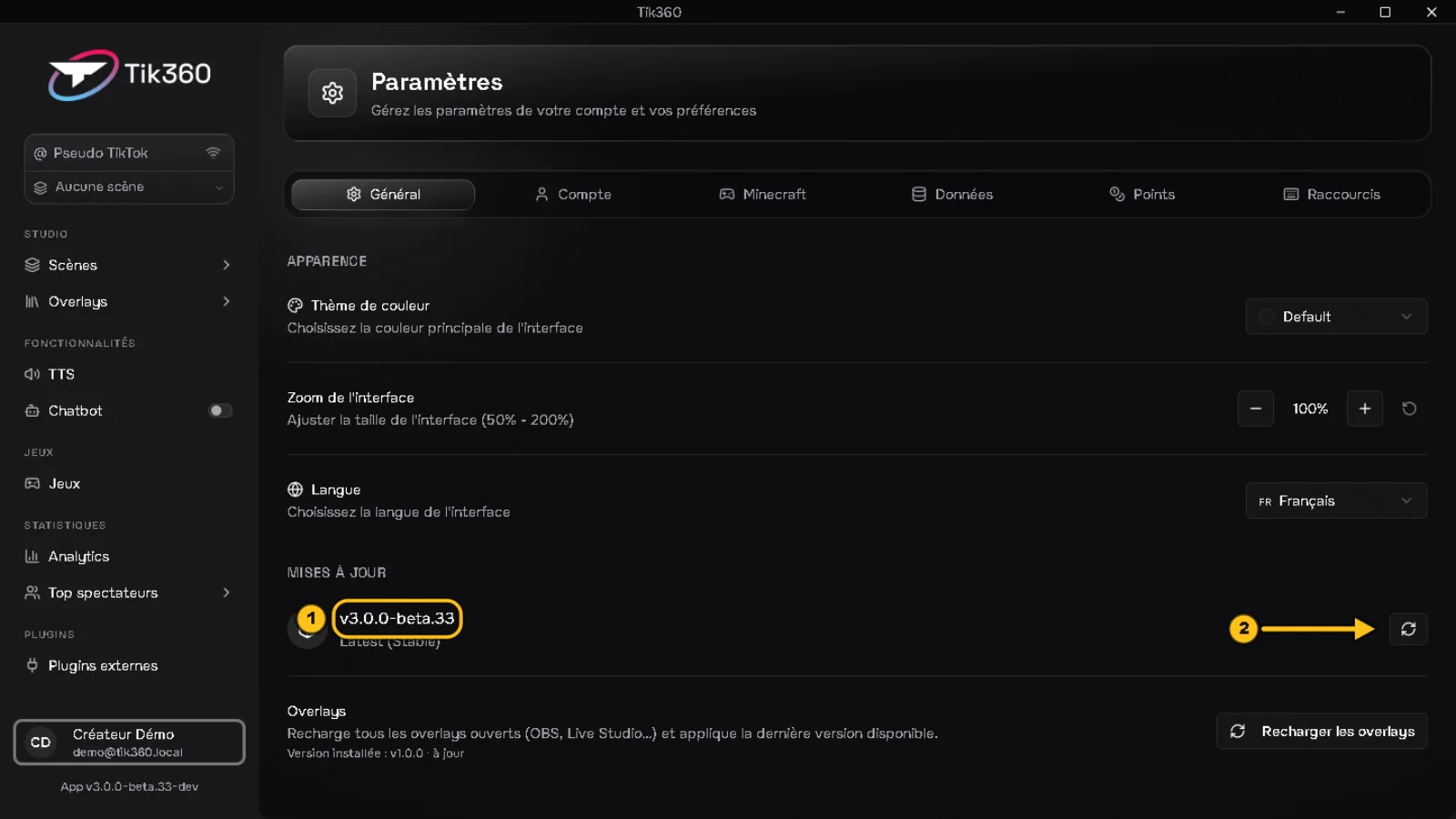
a. Version. Profile (bottom left) → Settings → General → Updates. Your version appears at ①; button ② restarts the update check. If a version is ready, click Install and restart.
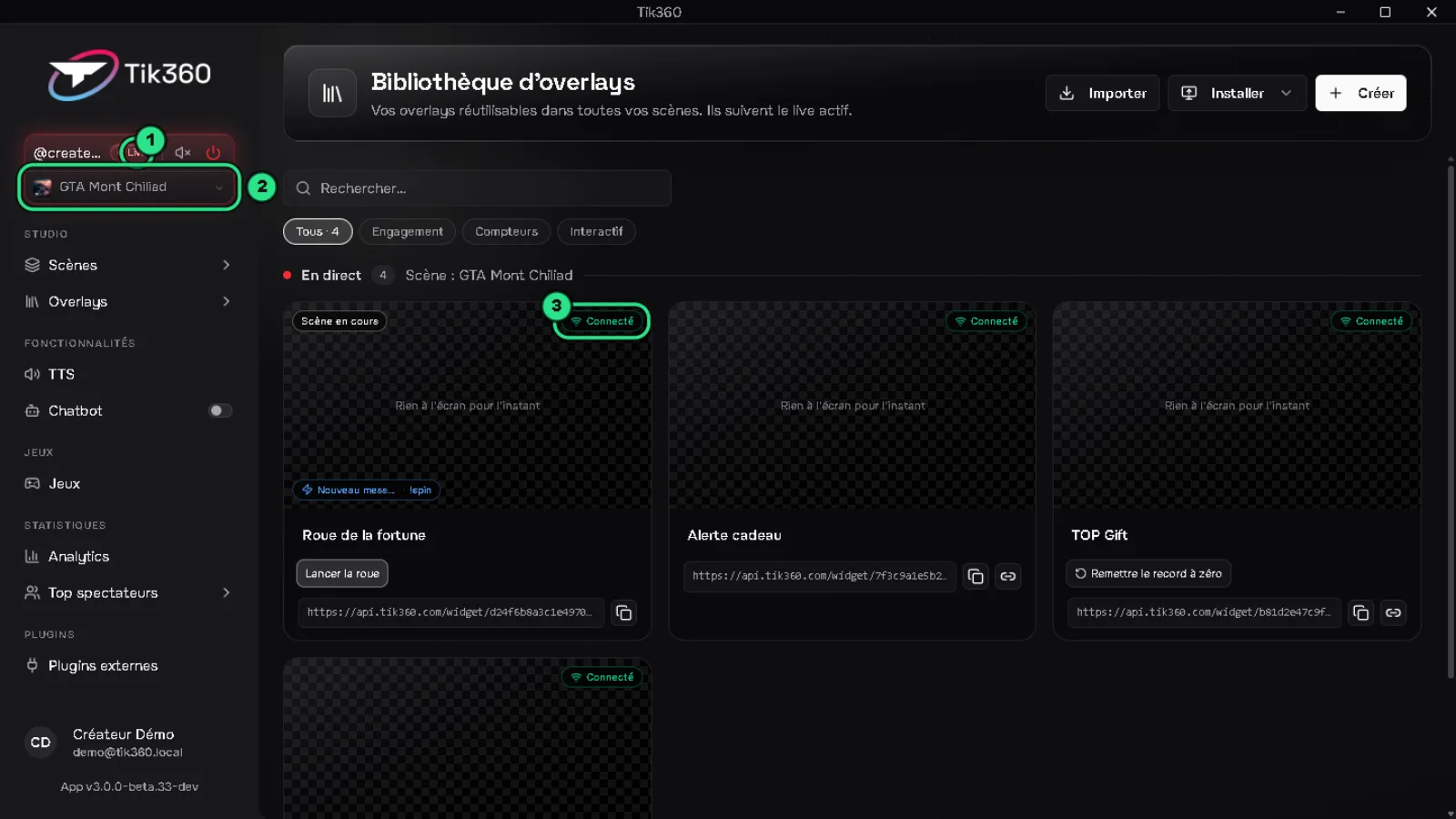
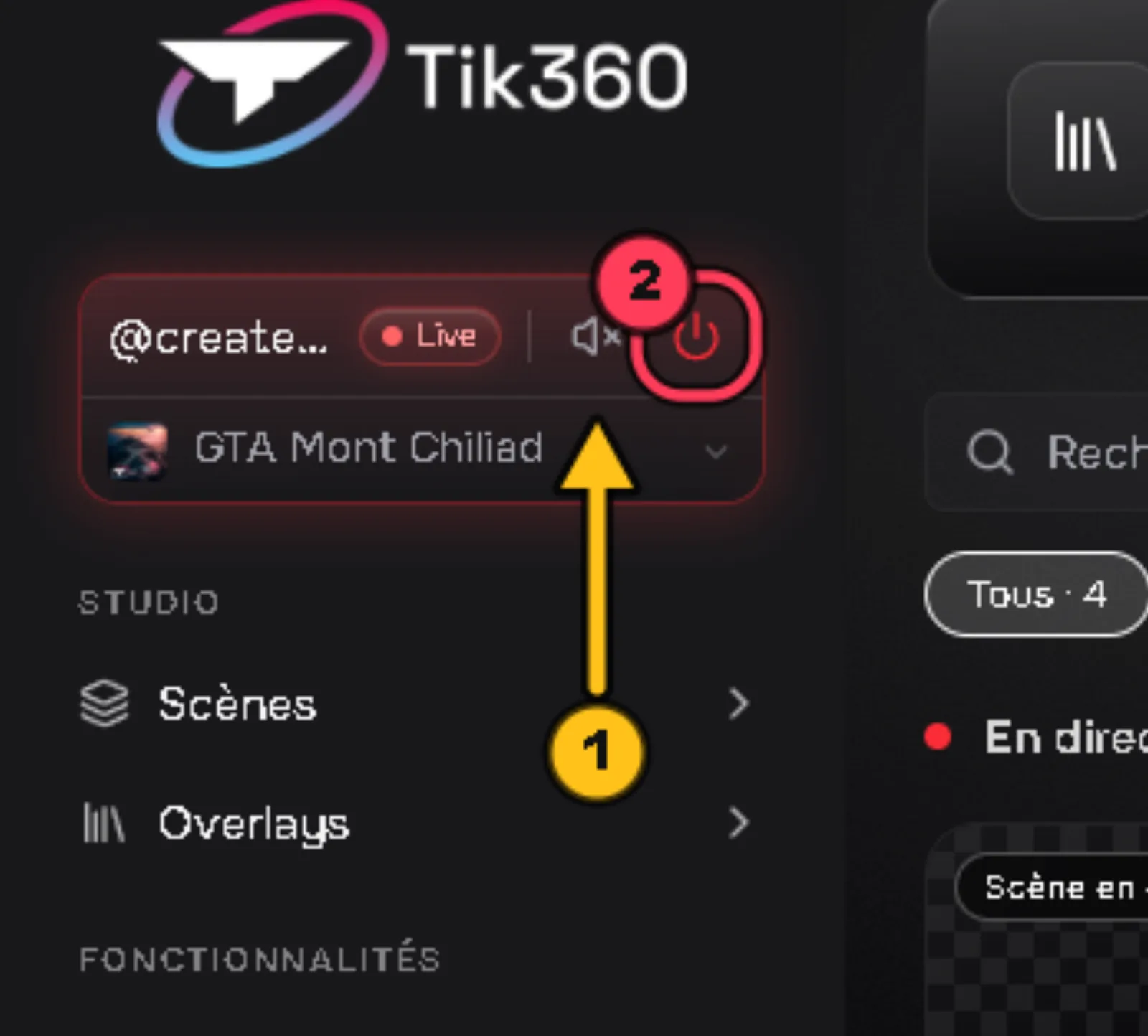
b. Live. In the Live control, the Live badge ① must be lit.
c. Scene. The scene shown under your username ② is the one whose rules are running. A rule from another scene doesn't trigger.
✅ All three are good → Next step: the section that matches your problem.
❌ One of the three isn't → fix it and test again: it's Resolved in most cases.
2️⃣ The rule doesn't trigger
Is the rule enabled, valid and in the live's scene?
1. Open the scene → Rules tab. A gray ⏻ icon ① = disabled rule: click it to enable it again (it turns green again).
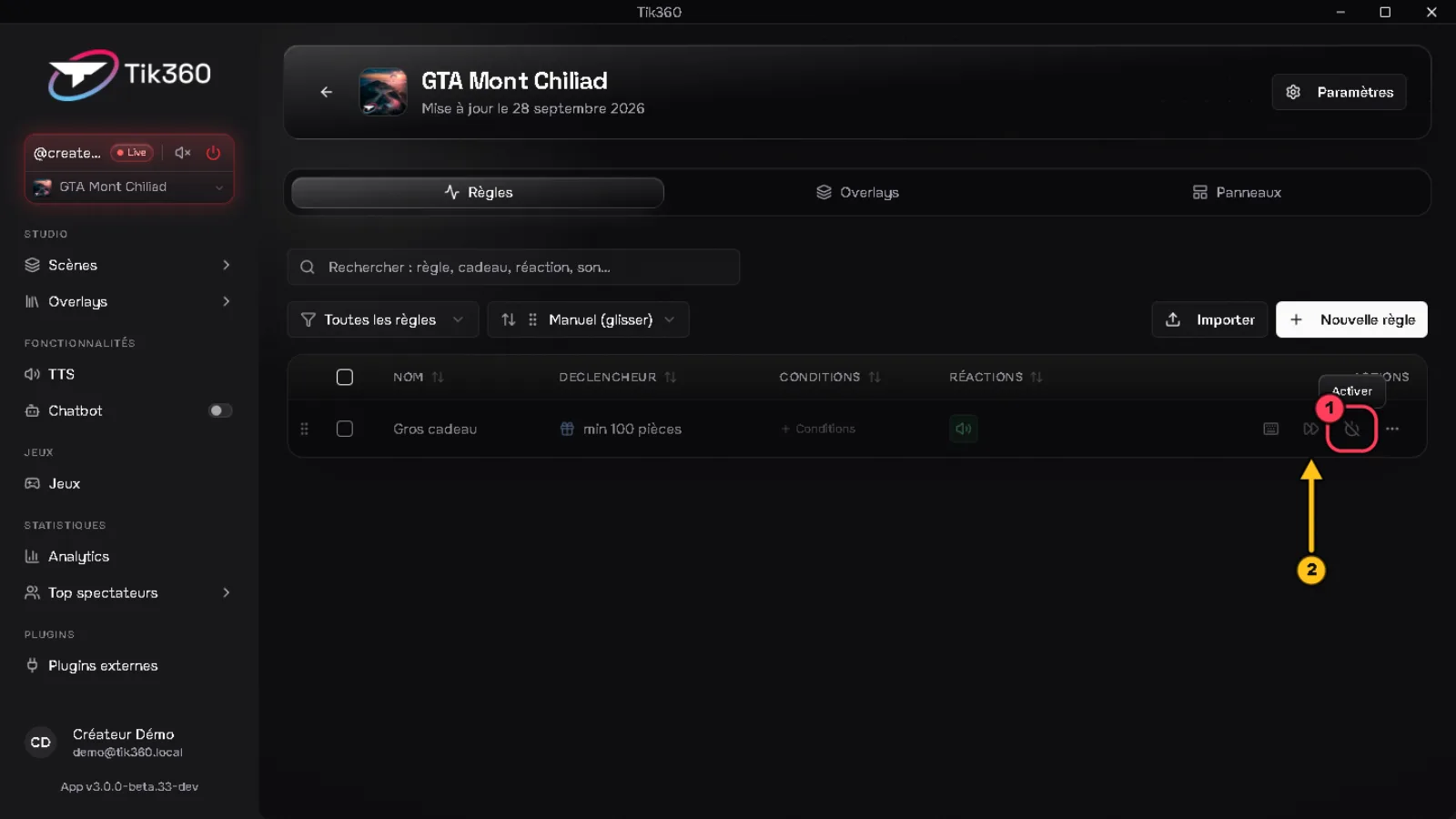
2. Click ⏩ Simulate directly ②: if the reactions fire, the rule works and the problem comes from the live (section 1️⃣).
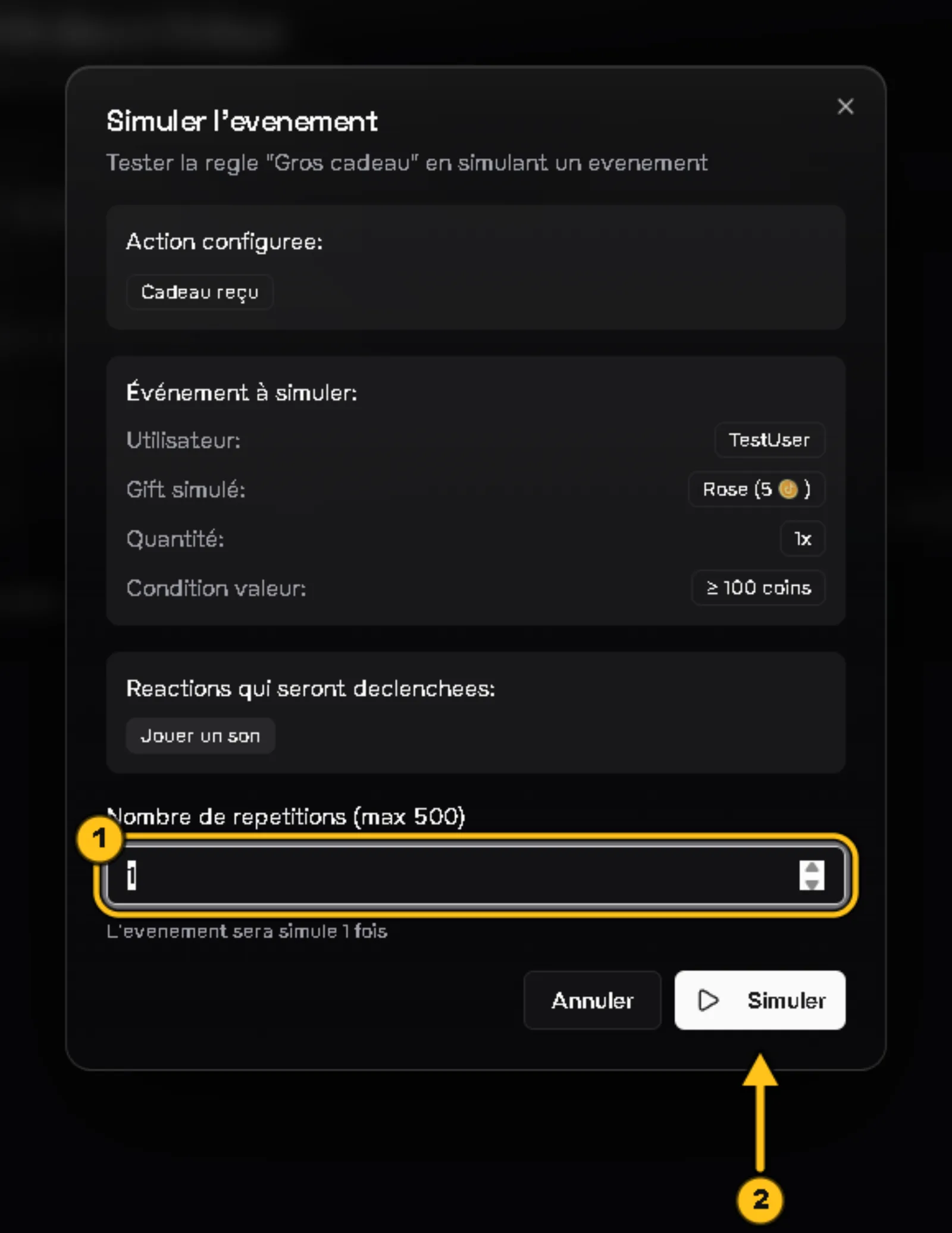
3. Need to test a specific case? ⋯ menu → Simulate event, choose the number of repetitions ① then Simulate ②.
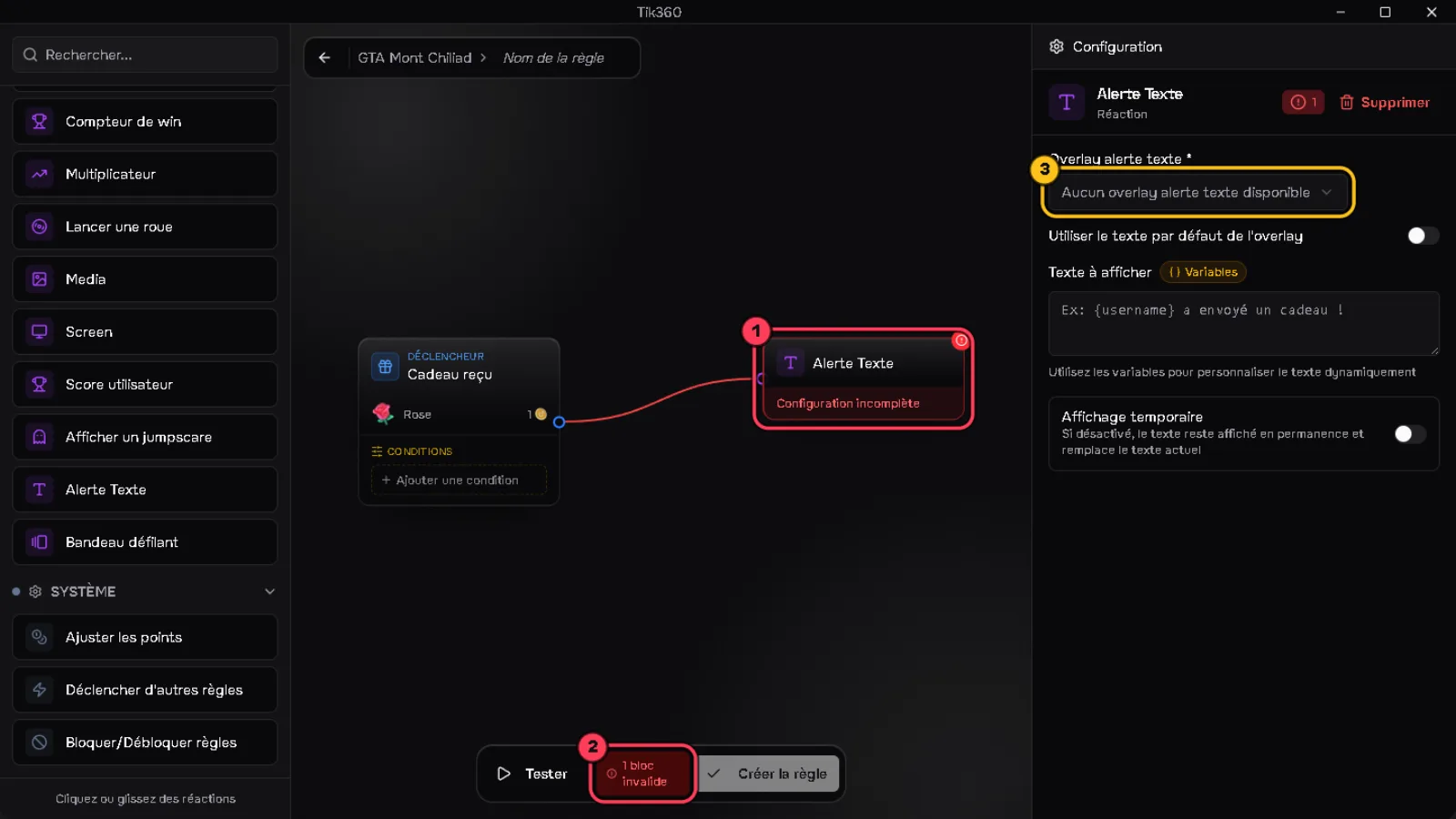
4. Open the rule. A red block ① and the "invalid block" badge ② = a required field is empty: click the block and fill in the field ③ (here, the overlay to control).
5. Check the trigger's conditions: a Per-user cooldown, a Global cooldown or Once per live deliberately block triggers that come too close together.
💡 During a live, you can't simulate a rule from a scene other than the live's.
✅ The simulation works → Resolved, or go to 3️⃣ if the overlay is what doesn't show up.
3️⃣ The overlay is invisible
Does the overlay card show "Connected"?
1. Open Overlays → Gallery (or the scene's Overlays tab).
2. Disconnected ① = TikTok LIVE Studio or OBS didn't open the overlay. Check that the source exists in your live scene and that it uses the address shown ② (copy button to paste it again).
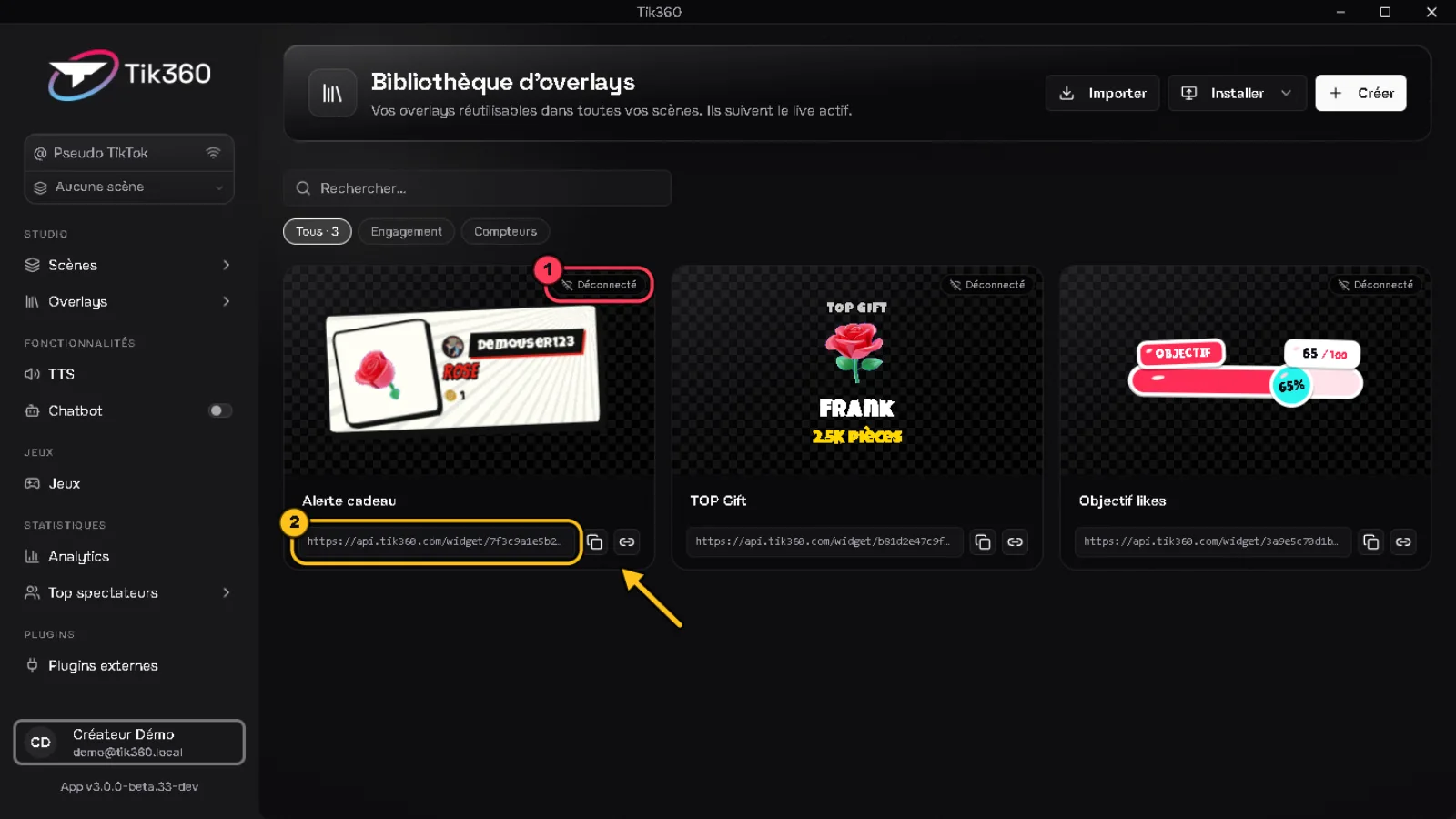
3. A grayed-out card = disabled overlay: ⋯ menu → Enable.
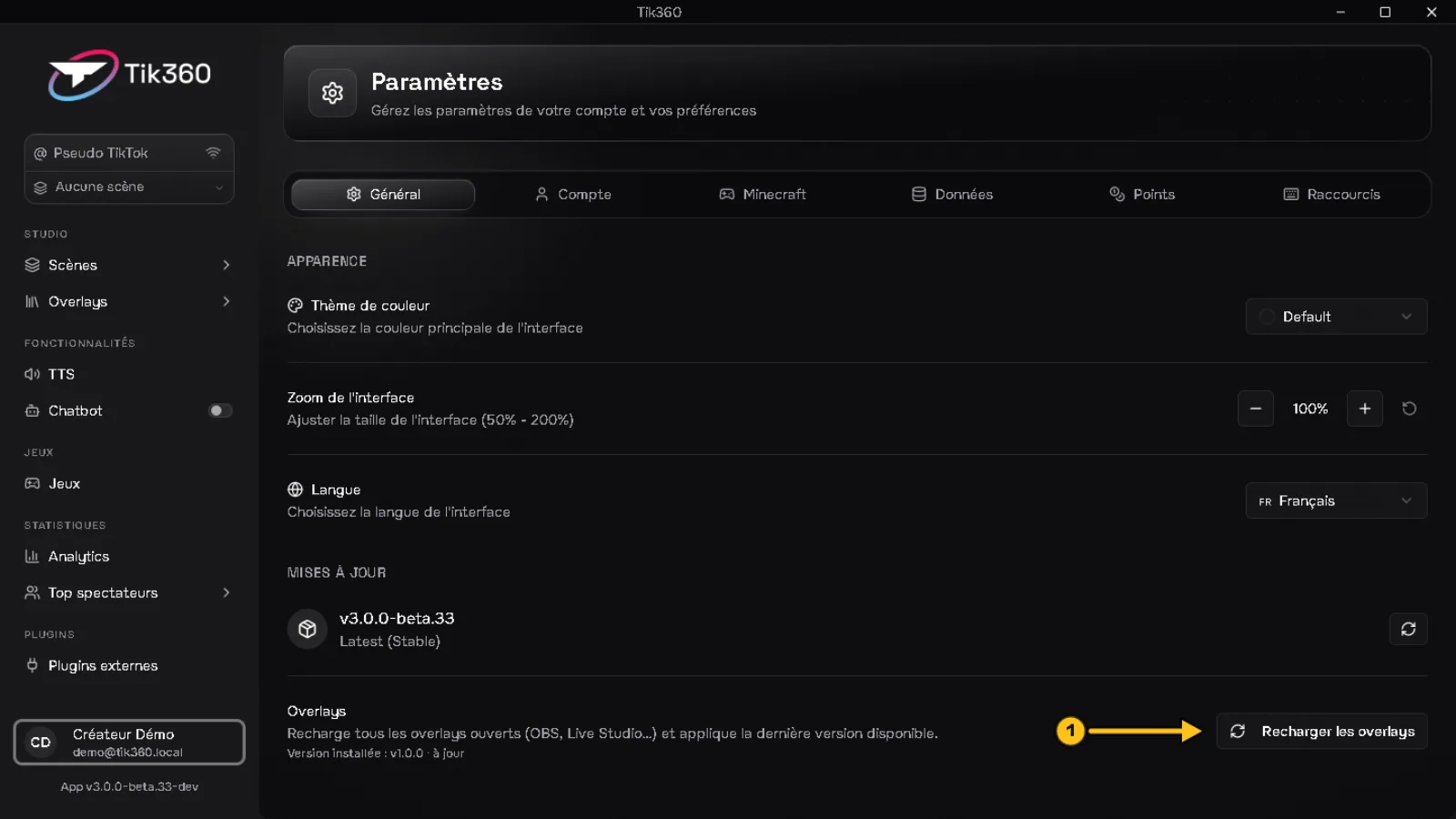
4. Connected but still nothing? Check the size and position of the source in your streaming software, then Settings → General → Reload overlays ①: all open overlays reload with the latest version.
✅ The card switches to Connected and the ▶ test appears → Resolved.
4️⃣ The sound doesn't work
Is the sound muted, too low or blocked by another sound?
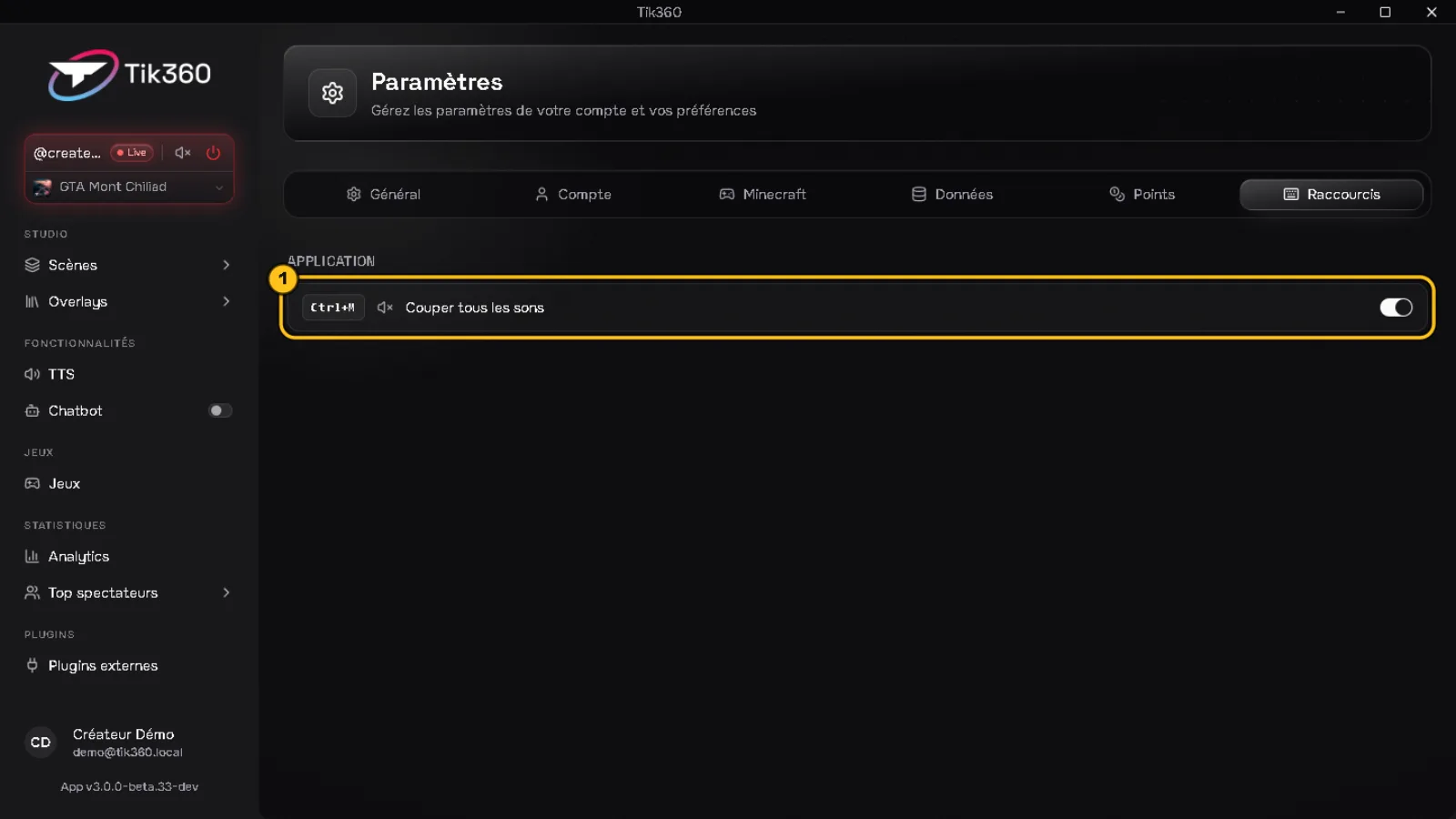
1. Clear sounds ① in the Live control stops all sounds currently playing. The Stop all sounds shortcut (Ctrl+M by default) does the same: check that it wasn't triggered by mistake in Settings → Shortcuts ①.
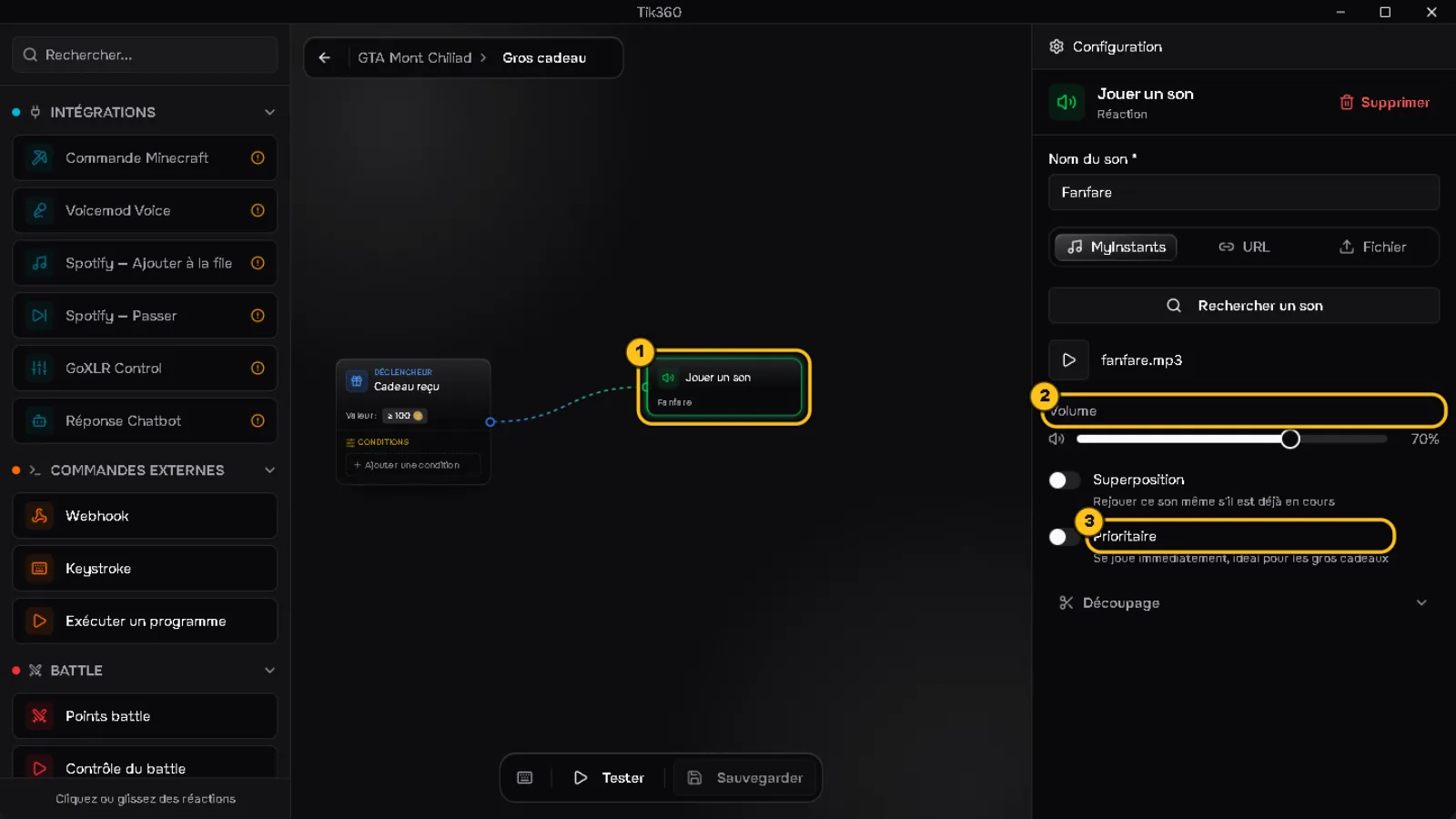
2. Open the rule and click the Play sound block ①:
- Volume ②: raise it if it's too low.
- Priority ③: the sound plays immediately, without waiting in the queue.
- Overlap: turn it on to replay the same sound while it's already playing.
3. TIK360 plays sounds through the Windows default audio output. Check the Windows volume mixer and the device captured by your streaming software.
✅ The sound plays again in simulation (⏩) → Resolved.
5️⃣ The TikTok connection drops
Is your TikTok live actually started with the username you entered?
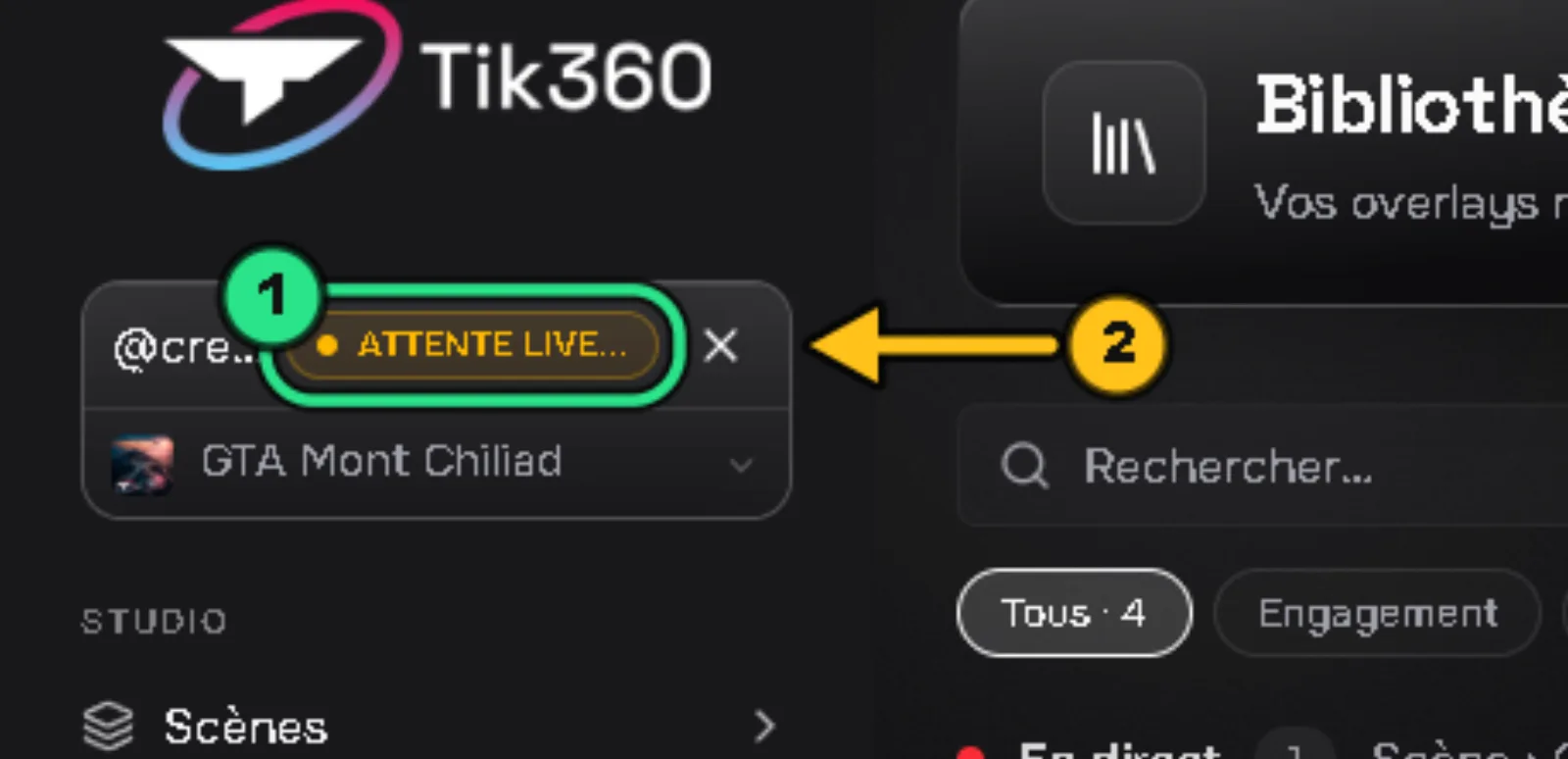
1. AWAITING LIVE... ① = TIK360 is waiting for your live to start. This is normal as long as you're not live. The cross ② cancels the wait.
2. RECONNECTING... = the connection dropped and TIK360 is retrying on its own. Give it a few seconds.
3. A red message under the Live control = error: check the spelling of the username (without @), then click ⏻ Stop and reconnect.
4. Still stuck? Fully close TIK360, reopen it, then reconnect once your live has started.
✅ The Live badge lights up → Resolved. Otherwise → 6️⃣.
6️⃣ Contact support
Nothing worked? Send us a complete report and we'll get back to you faster.
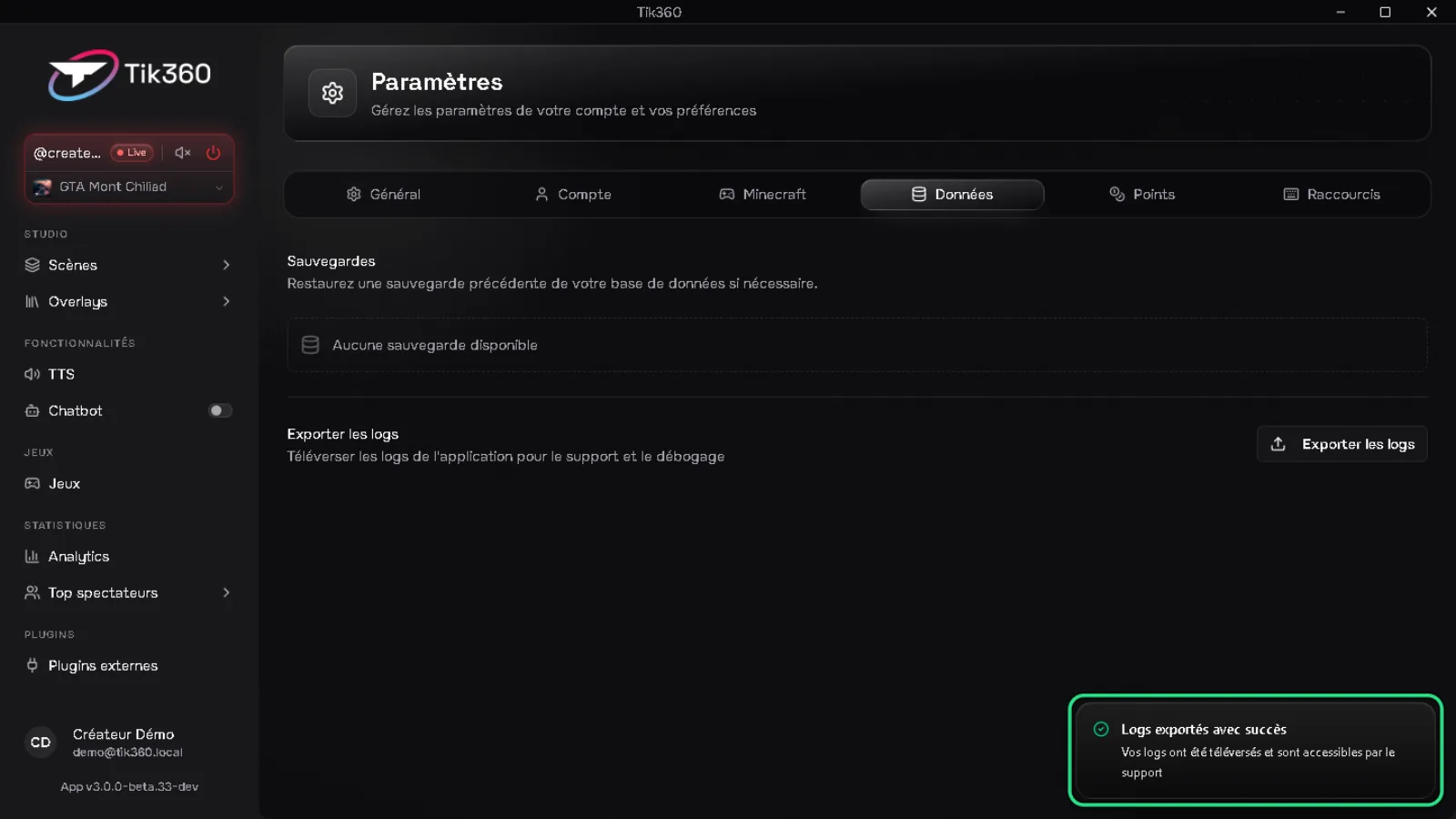
1. Settings → Data → Export Logs ①.
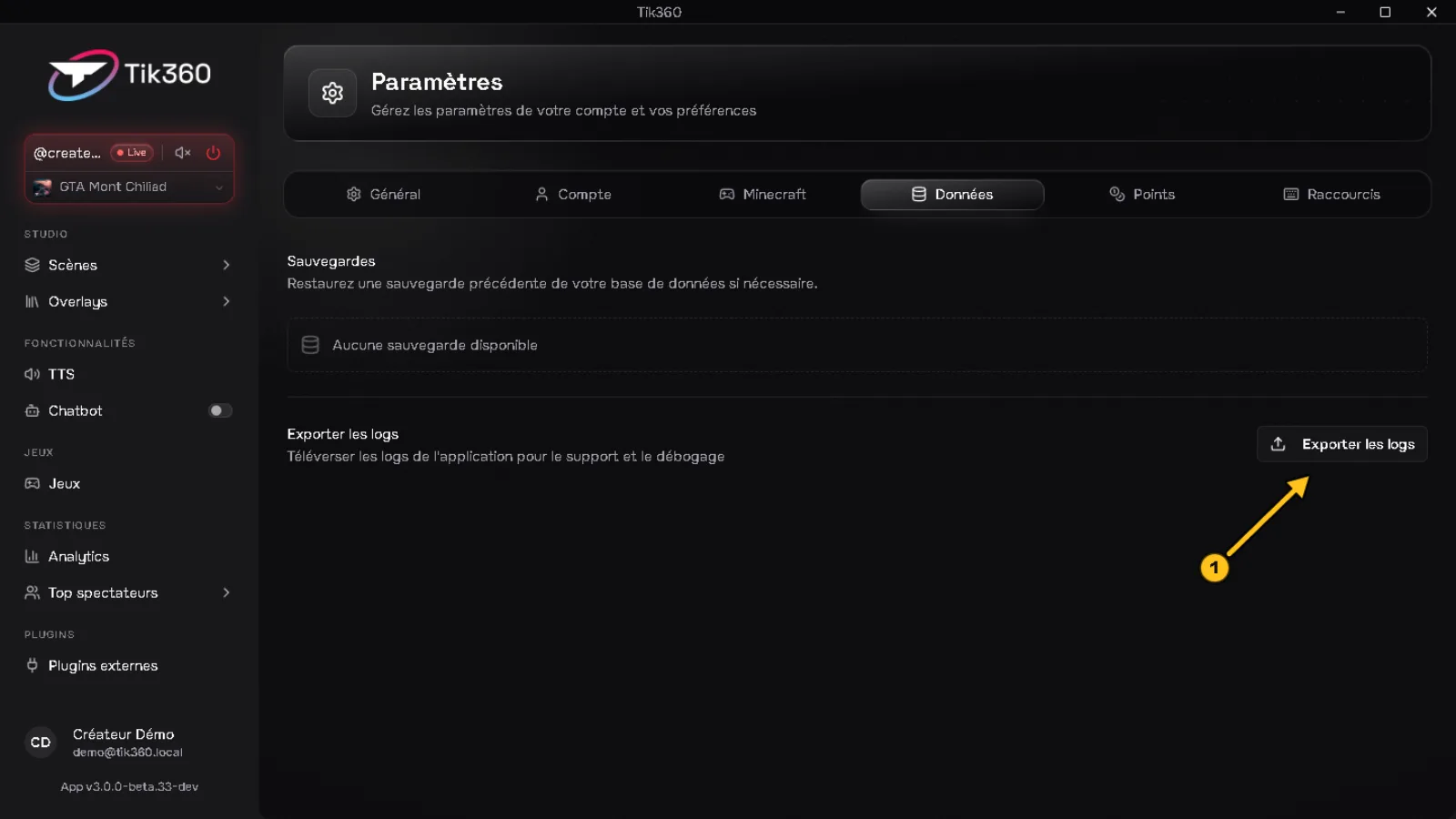
2. Wait for the "Logs exported successfully" message: support has direct access to them.
3. Open a ticket and paste this template:
> Version: (Settings → General)
> Time of the problem:
> Scene:
> Rule or overlay involved:
> What you expected / what happened:
> Logs exported: yes
> + a screenshot of the problem