Set up an overlay's internal flow
When your wheel stops, a sound plays automatically.
Screenshots are still in French for now; the bold names in the text are the ones from the English app.
Prerequisite: a Lucky Wheel overlay in a scene · ⏱️ 3 min
An overlay doesn't just display: it also sends its own events (spin start and end, prize drawn, show, hide...). You can hook reactions onto them.
1. Open the overlay's flow
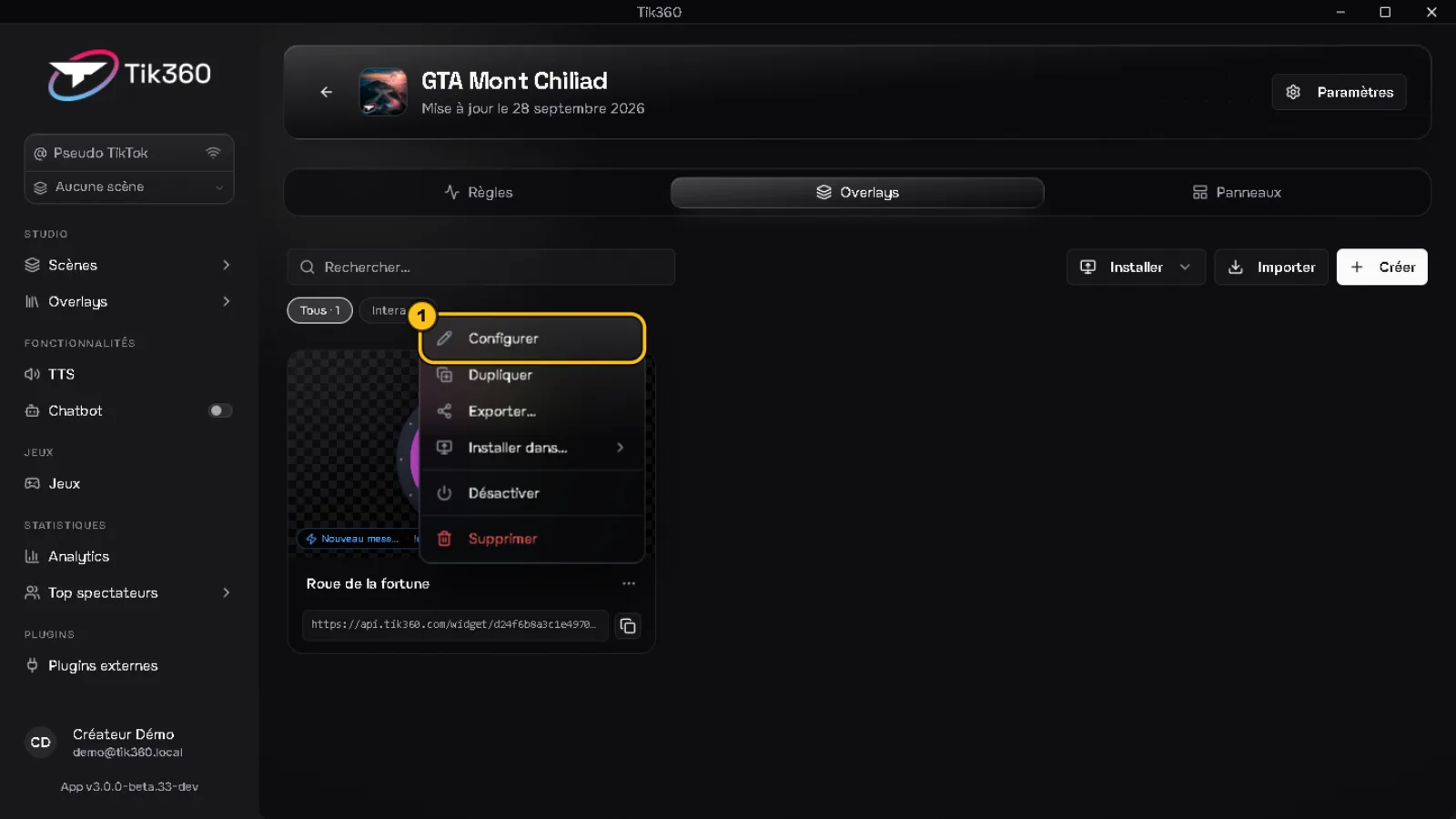
Hover over the overlay card → ⋯ → Configure ①.
2. Turn on the event
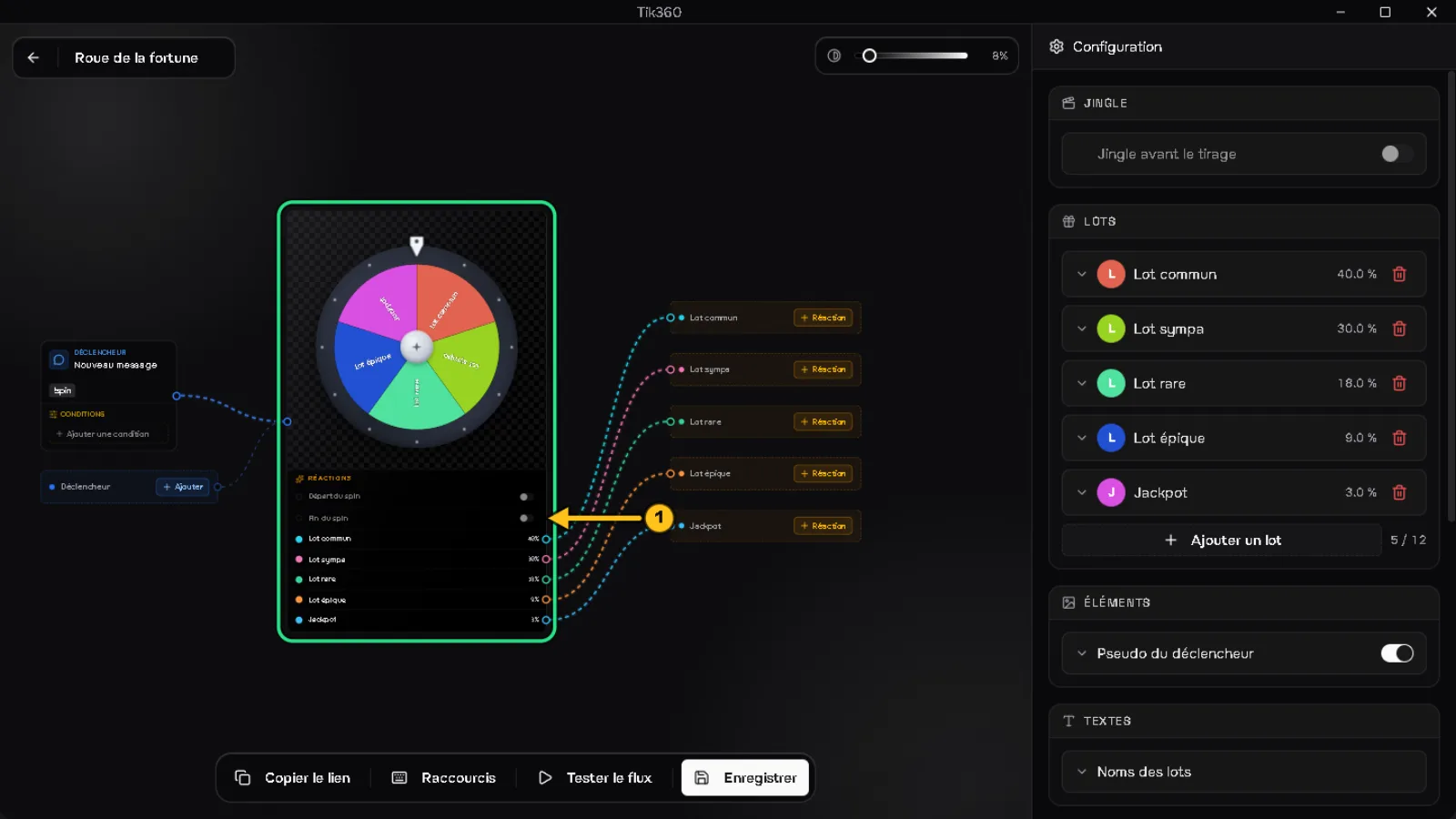
In the wheel block, the events are listed under Reactions. Turn on the Spin end ① switch.
3. Add a reaction
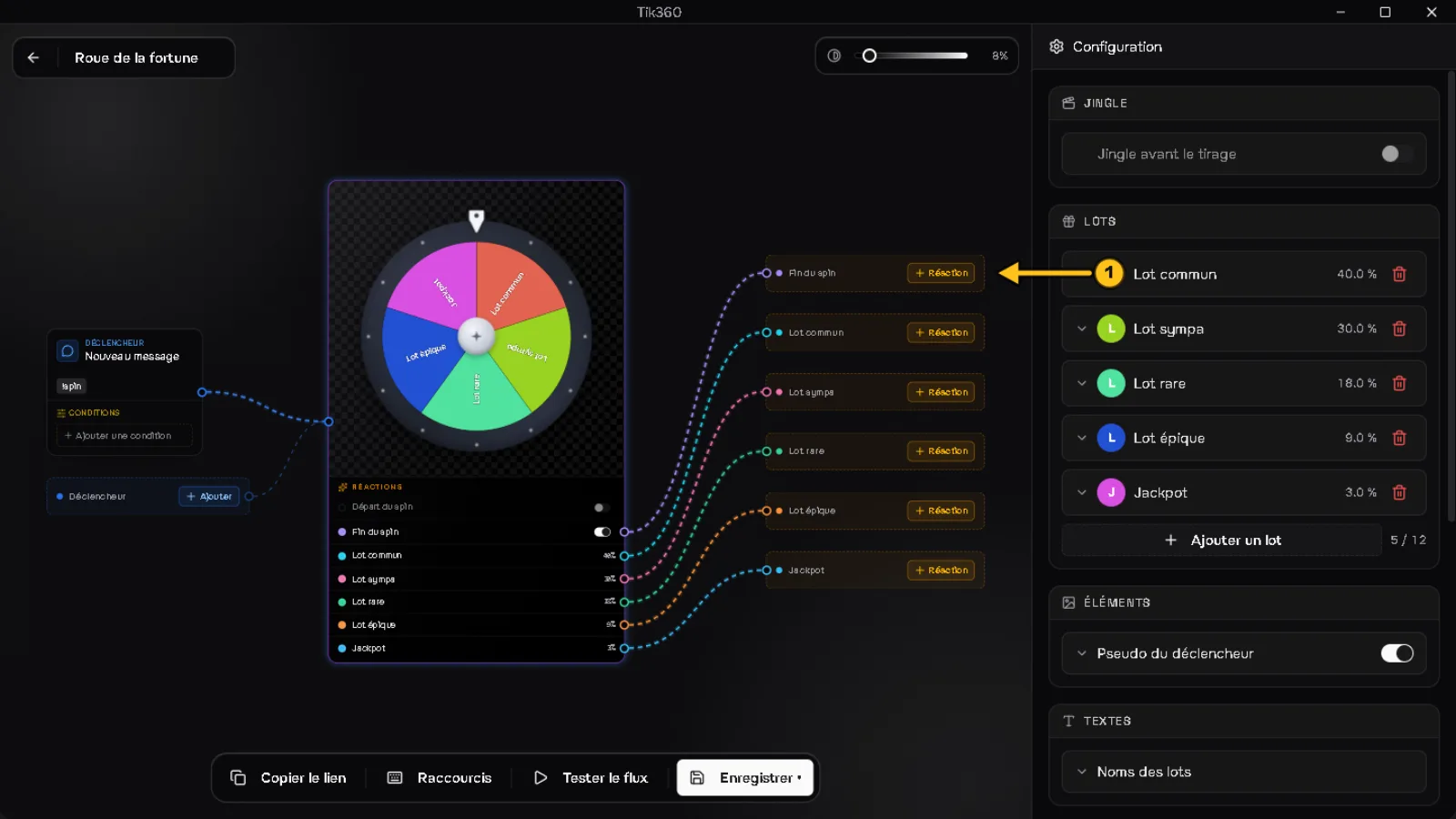
Click + Reaction ① next to Spin end.
4. Choose it
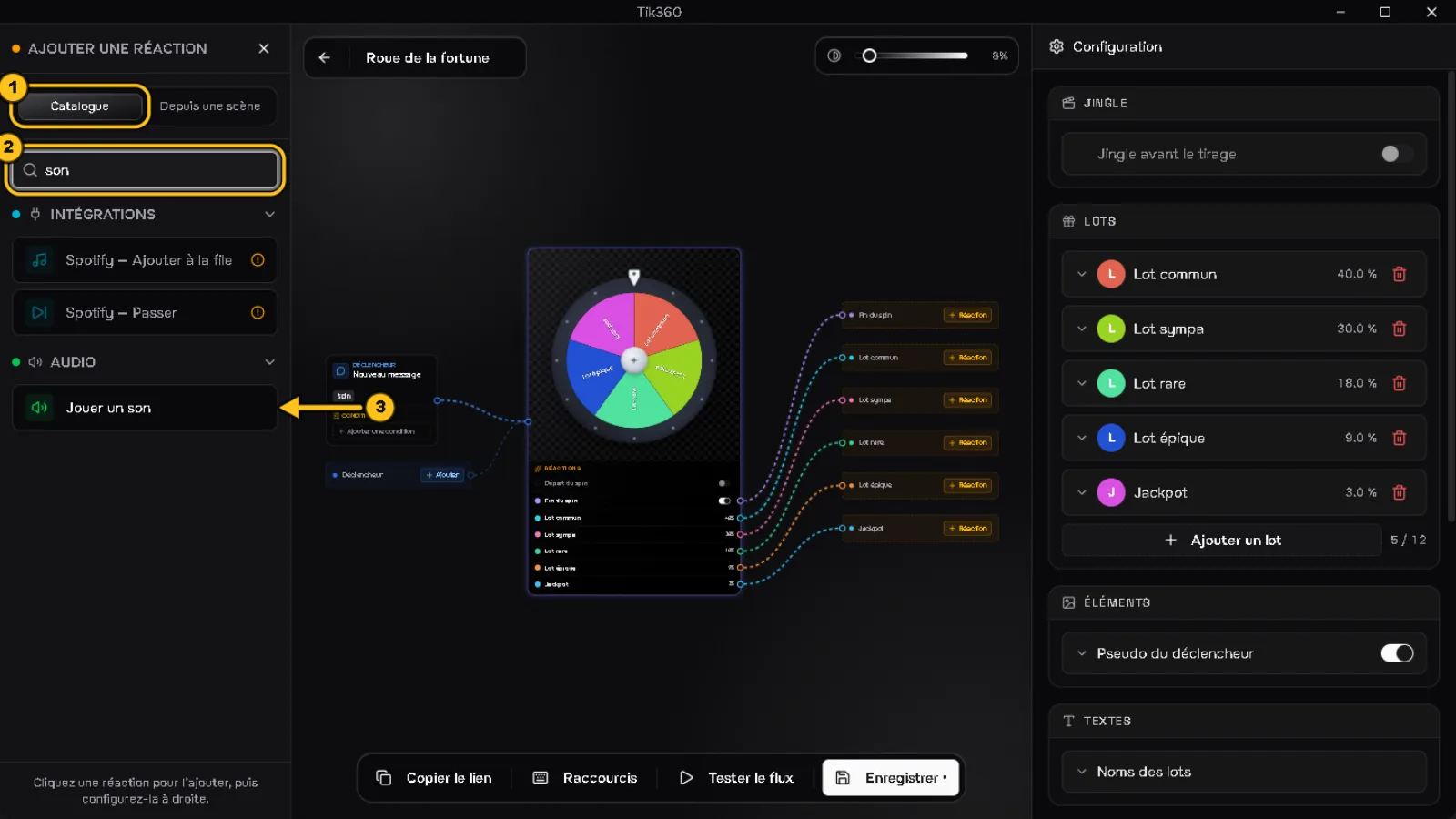
In the Catalog ① panel, search for "sound" ② then click Play sound ③.
💡 The From a scene tab reuses a reaction you already created in one of your rules.
5. Configure, test, save
The reaction appears in the Spin end ① block. Give it a sound ② (URL, File or MyInstants tab), click Test the flow ③ then Save ④.
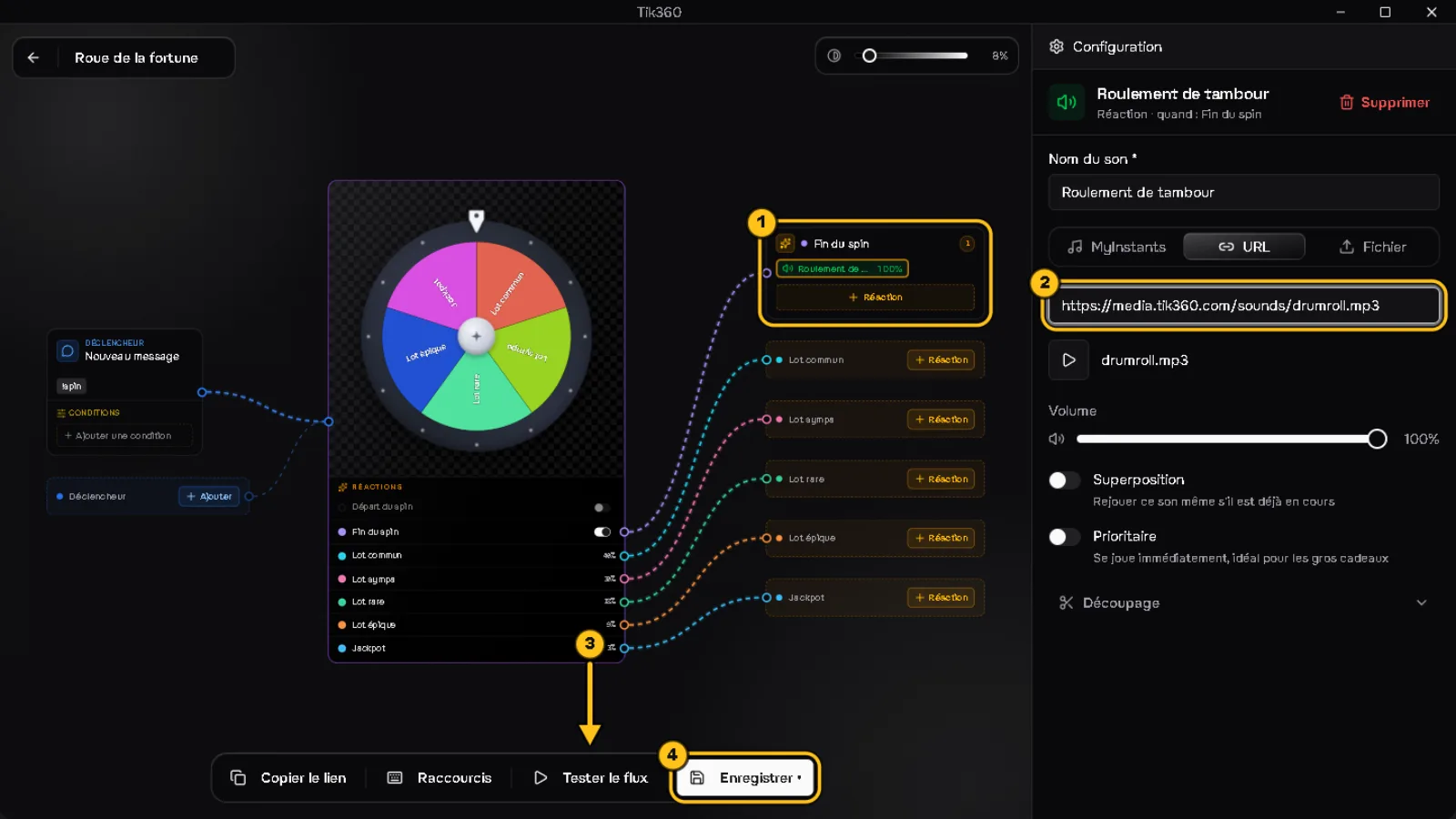
✅ Result: every time a spin ends, the sound plays. Same principle for each prize: a different sound for the Jackpot, for example.