Add an overlay to TikTok LIVE Studio or OBS
Your overlay shows up on air and TIK360 sees it as “Connected”.
Screenshots are still in French for now; the bold names in the text are the ones from the English app.
Prerequisite: an overlay already created, and TikTok LIVE Studio (Windows) or OBS Studio installed · ⏱️ 3 min
1. Open the install menu
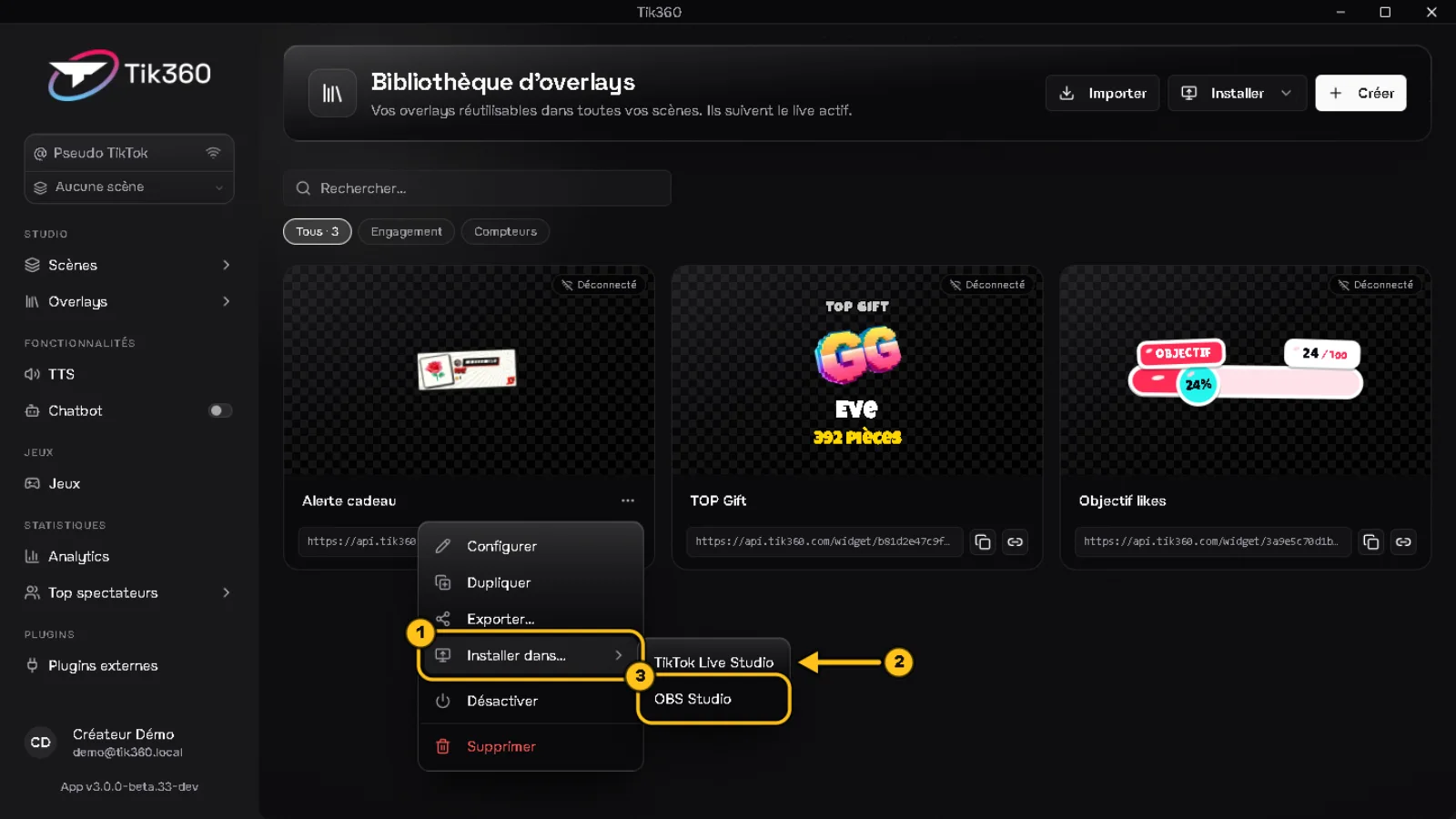
Hover over the overlay card → ⋯ → Install in… ① → TikTok Live Studio ② or OBS Studio ③.
To install several overlays at once, use the Install button at the top of the page.
2a. OBS Studio
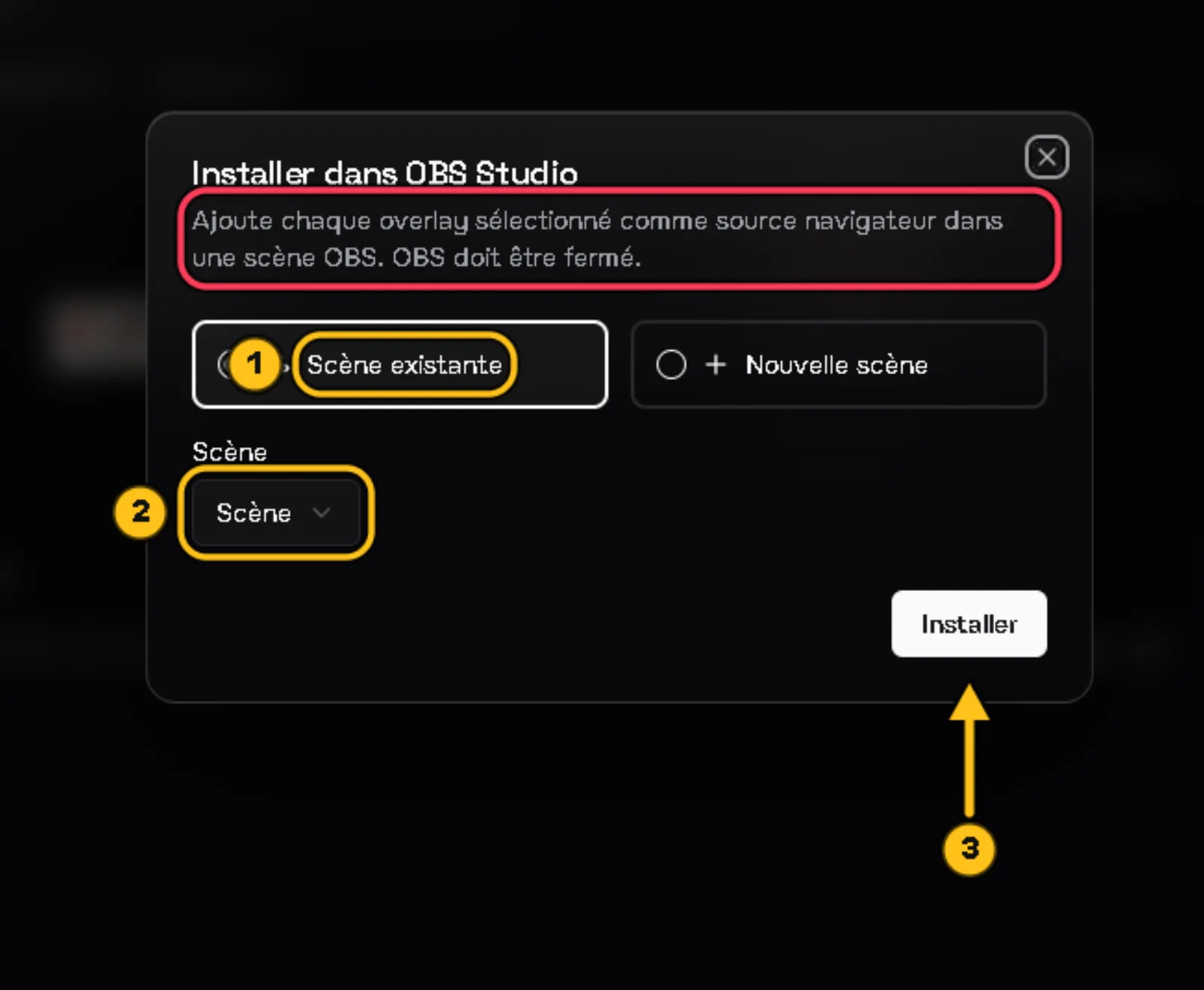
⚠️ Close OBS before clicking: TIK360 writes directly into your scene collection.
Choose Existing scene ① or New scene, select the OBS scene ②, then Install ③. Reopen OBS: the overlay is added as a browser source.
2b. TikTok LIVE Studio
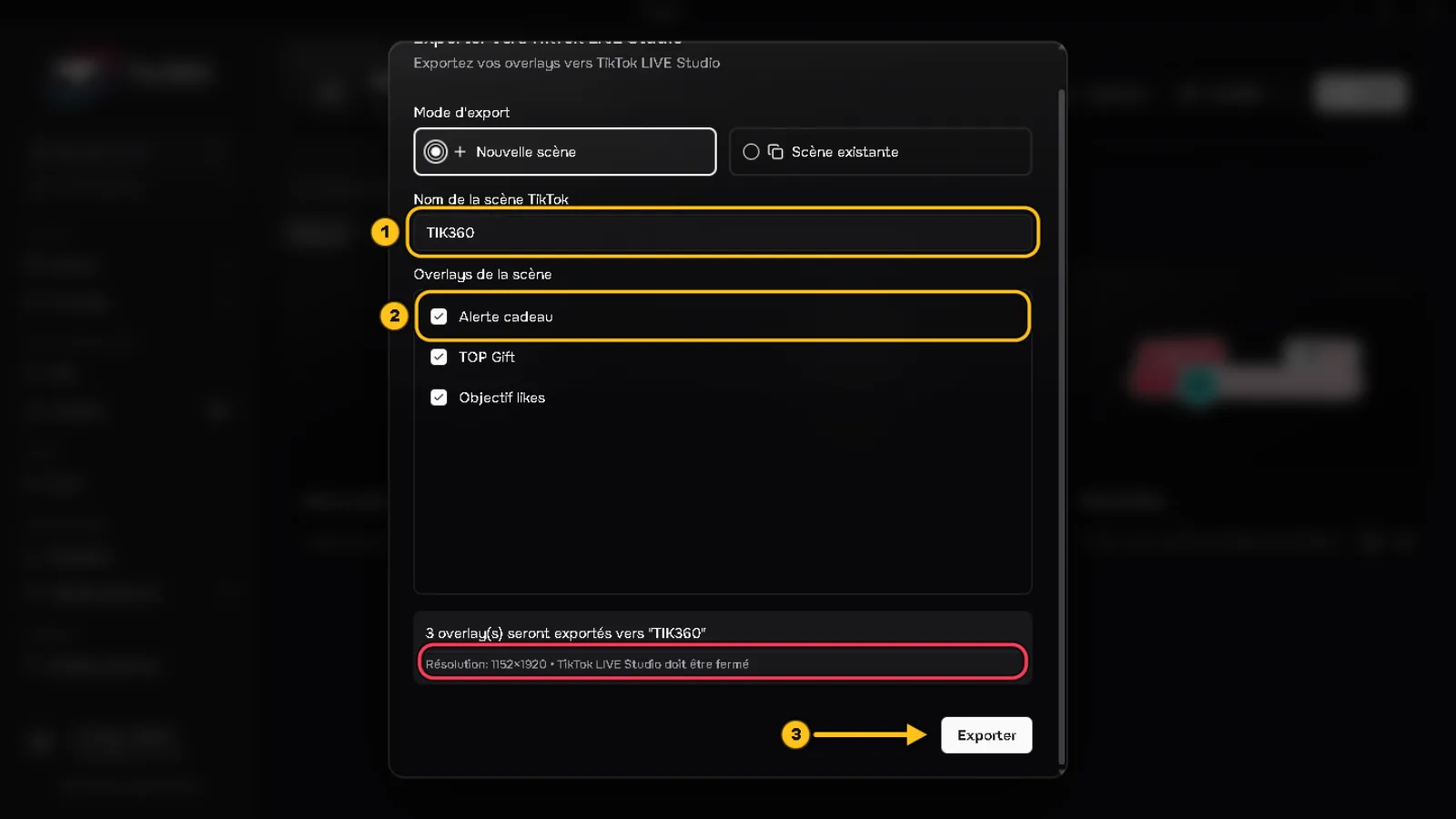
⚠️ Close TikTok LIVE Studio before exporting.
Name the TikTok scene ①, keep the overlays you want checked ②, then Export ③. The format is vertical (1152×1920).
3. Manual method (backup)
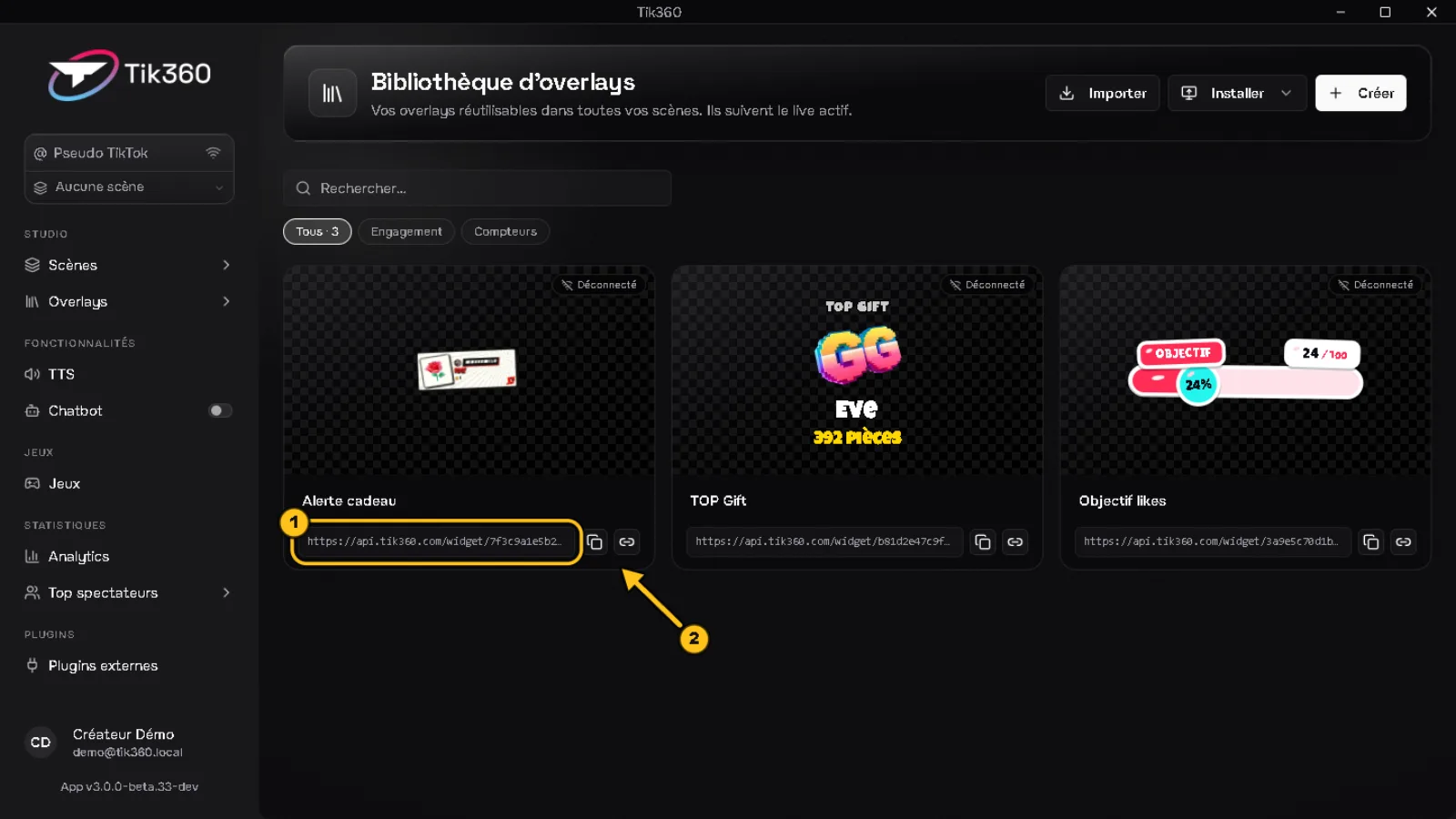
Copy the address under the card ① with the button ② and add it yourself as a browser source (OBS) or web source (TikTok LIVE Studio).
4. Check
Start your live: the card switches to Connected ①. Hover over it and click ▶ ②: a 10-second demo plays in your streaming software. Then adjust the size and position of the source if needed.
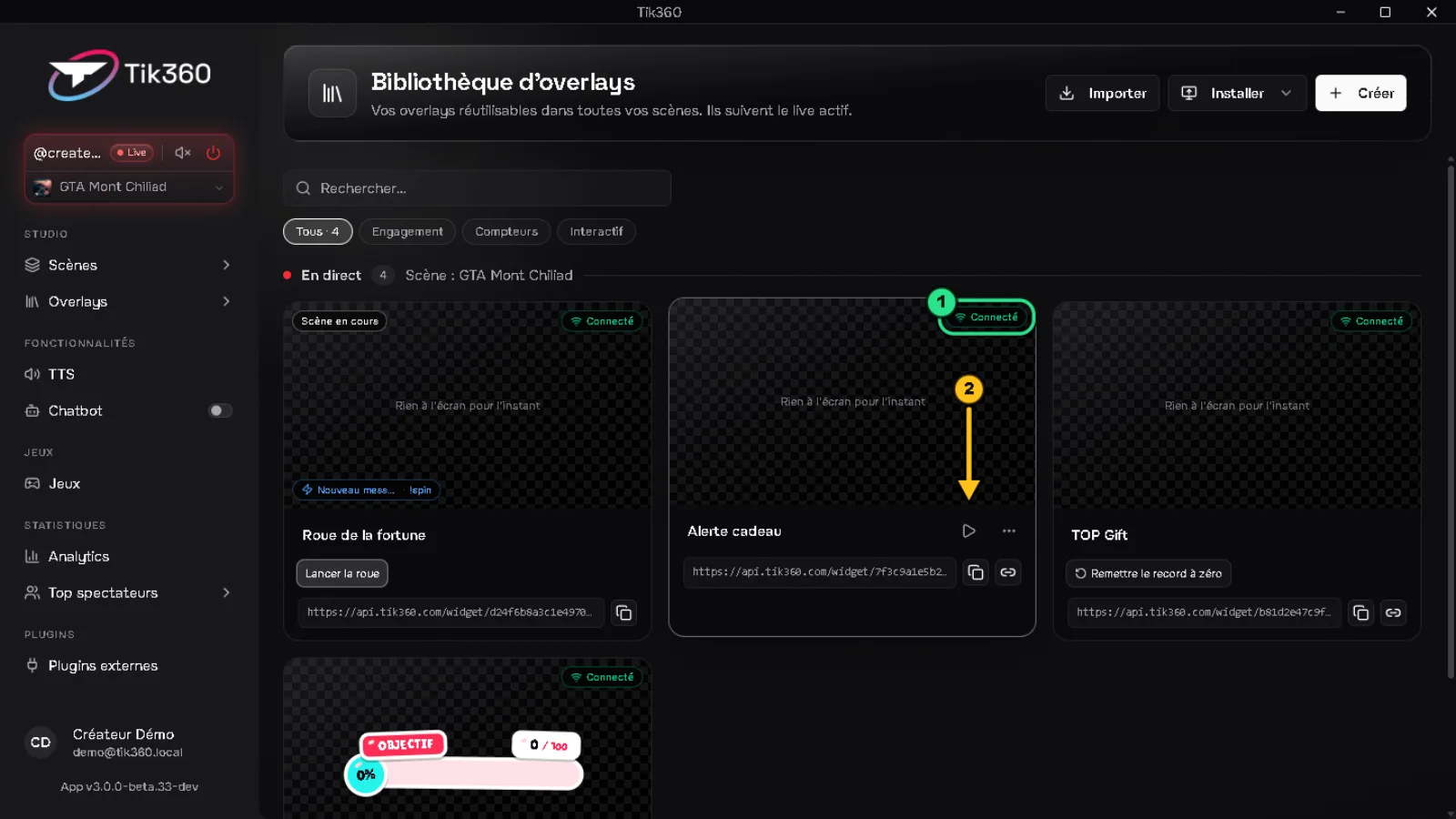
✅ Result: the overlay is visible and “Connected”. Still “Disconnected”? Go to #troubleshoot, section 3️⃣.