Create a keyboard or Stream Deck shortcut
Trigger a rule by hand, in the middle of a game, without going back to TIK360.
Screenshots are still in French for now; the bold names in the text are the ones from the English app.
Prerequisite: a rule in a scene · ⏱️ 3 min
1. Assign a key
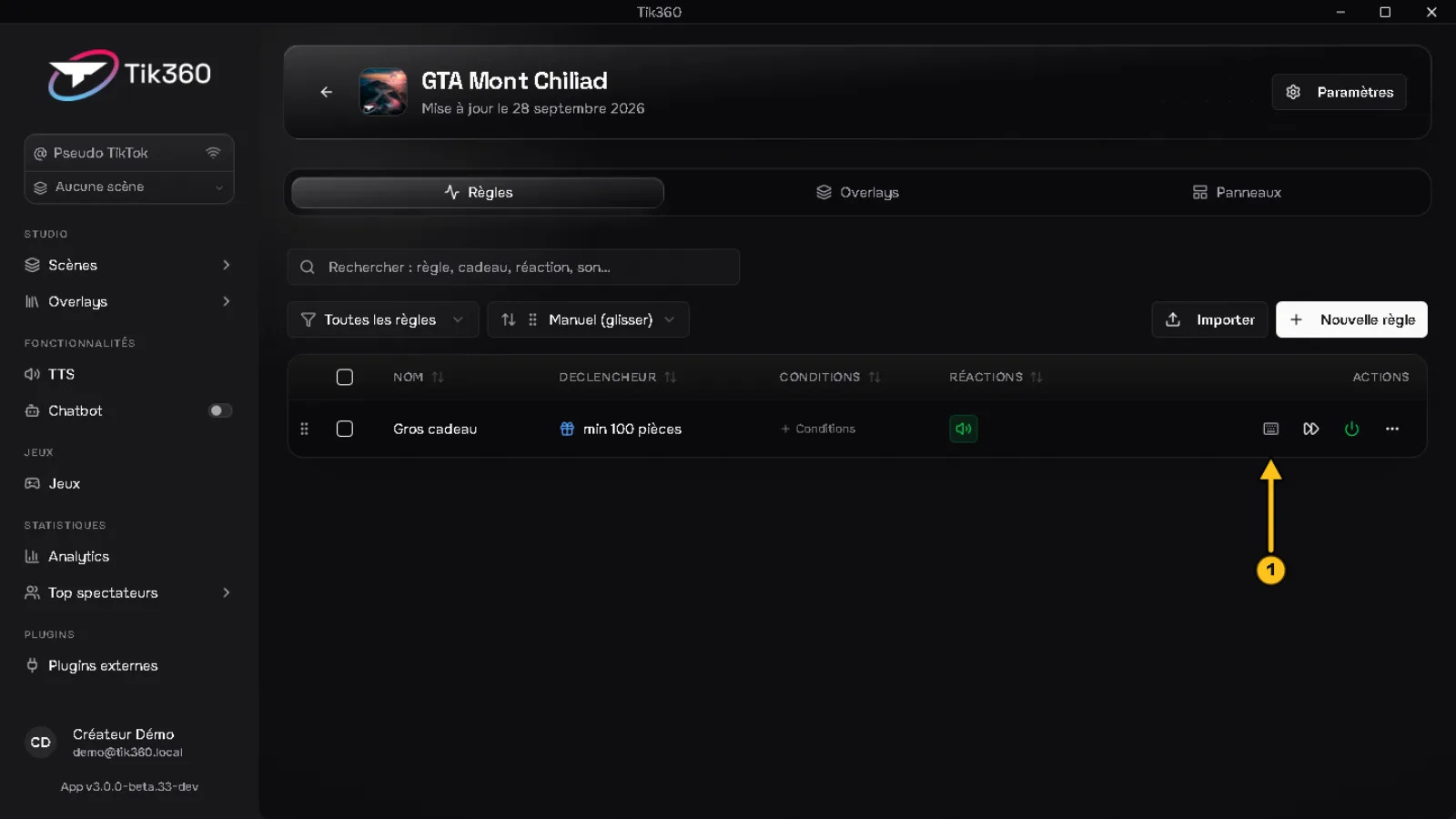
In the rules list, click the keyboard icon ① of the rule.
2. Choose the combination
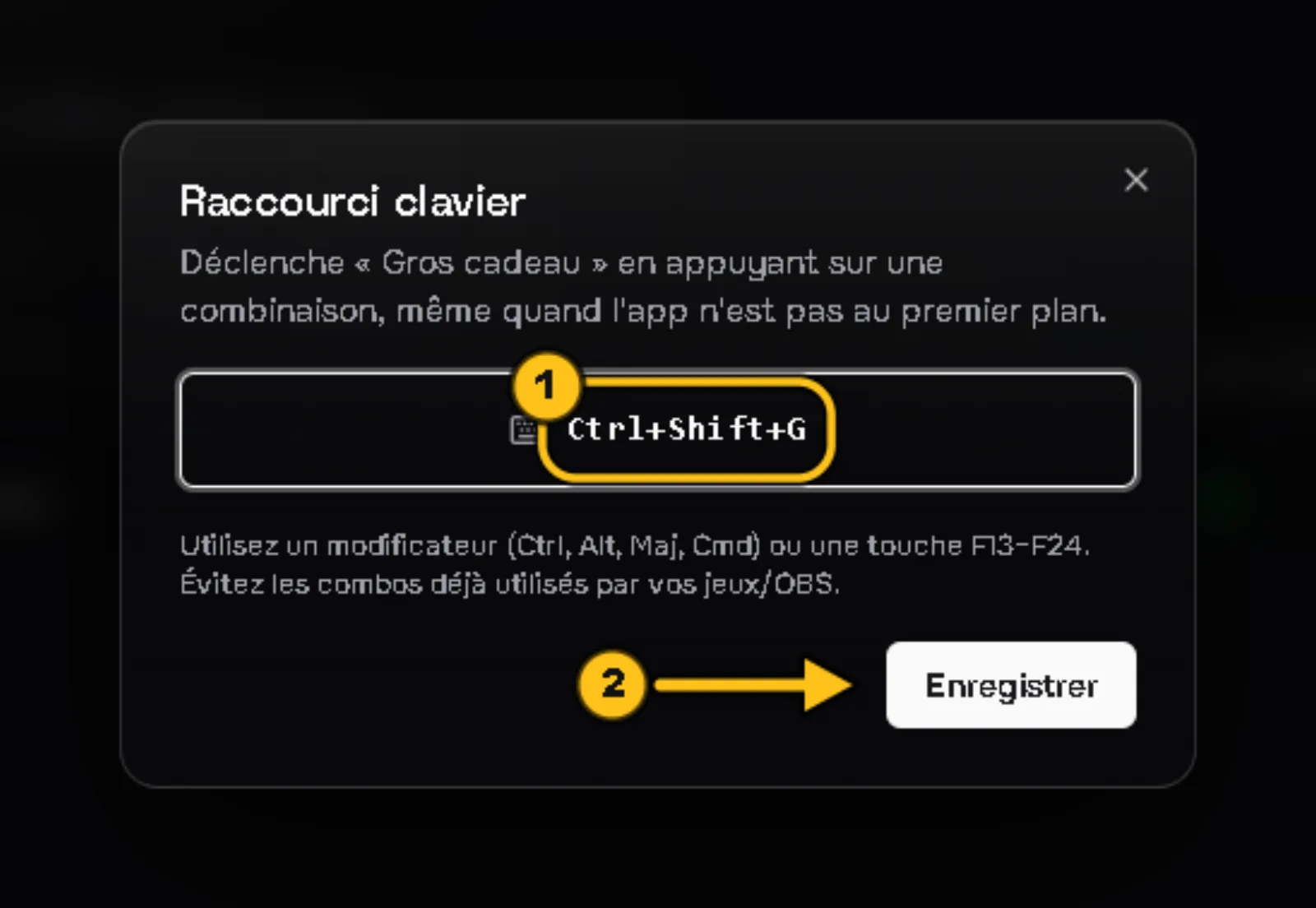
Press the combination you want ① (e.g. Ctrl+Shift+G), then Save ②. It then appears in the rule's row.
💡 Use a modifier (Ctrl, Alt, Shift) or an F13 to F24 key, and avoid combinations already taken by your games or OBS. TIK360 rejects a combination already used by another application. The same combination can be used in two different scenes.
3. Find all your shortcuts
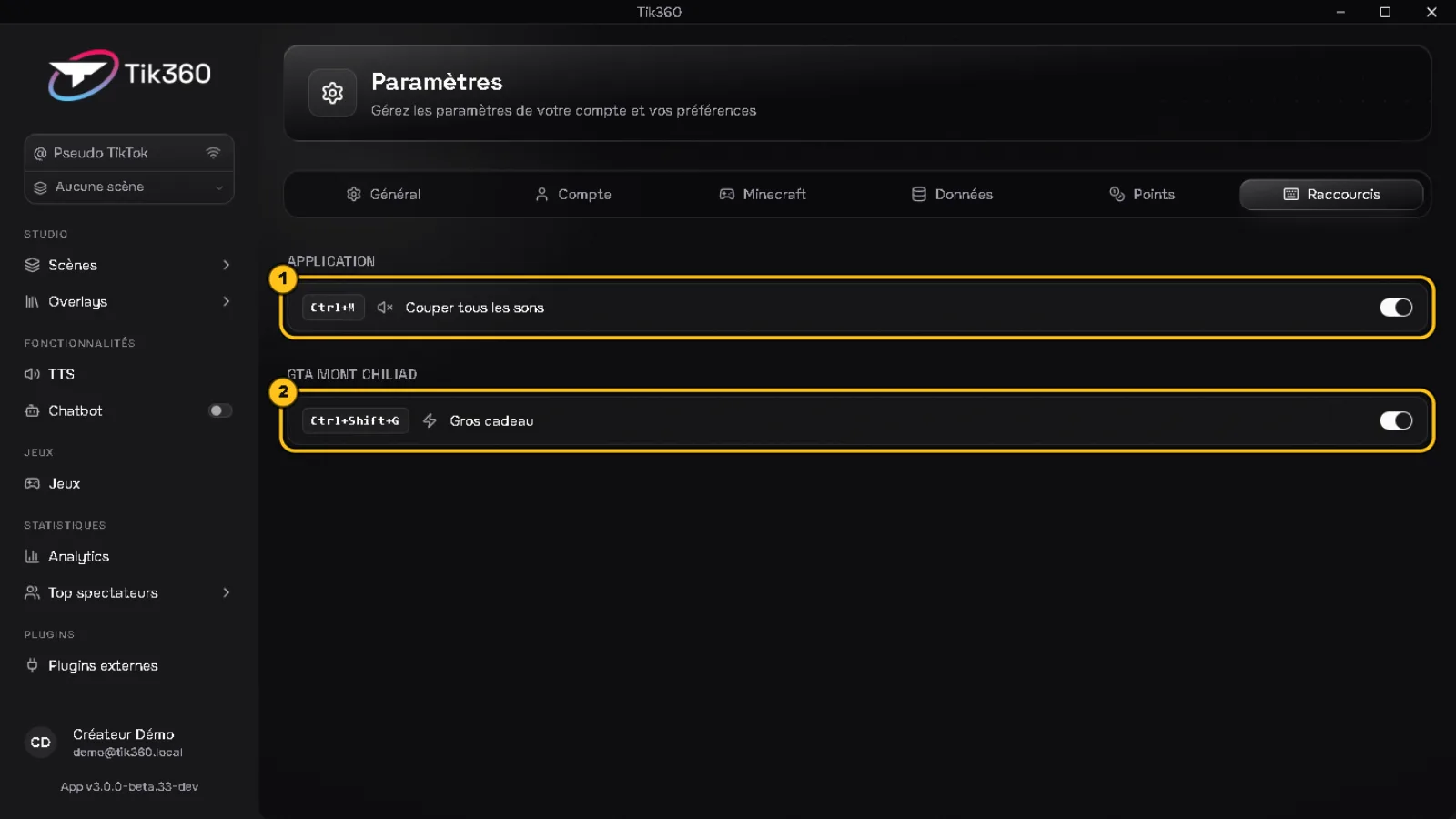
Profile → Settings → Shortcuts: the app shortcuts ① (including Stop all sounds, Ctrl+M) and those of each scene ②. The switch on the right pauses them without deleting them.
4. Stream Deck
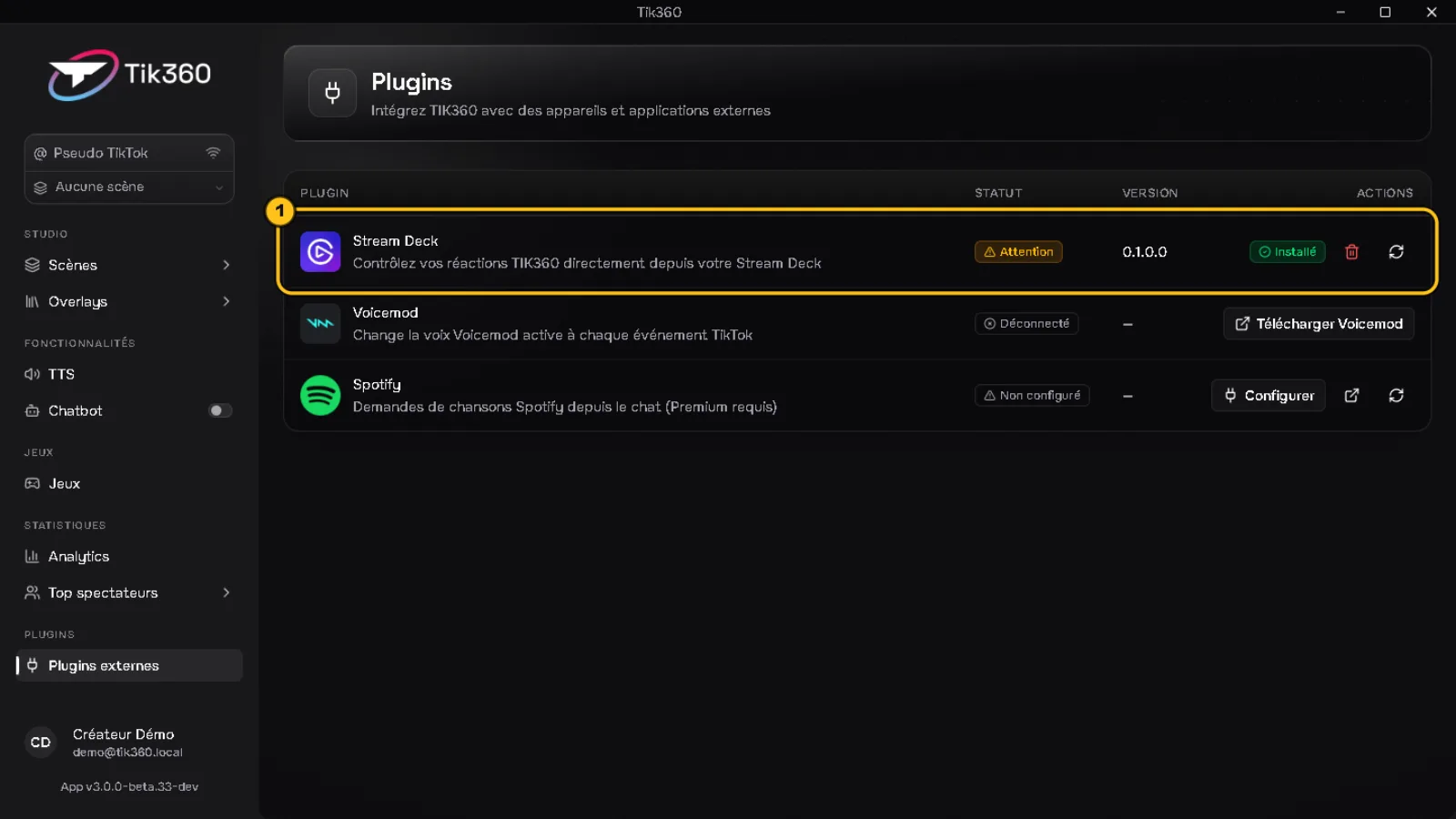
Open External Plugins → Stream Deck ① row:
- Not configured → install the Elgato software with Download Stream Deck app.
- Then click Install Plugin: the status changes to Ready.
- In the Stream Deck software, drag the TIK360 actions onto your keys.
✅ Result: your rule triggers with your combination or your Stream Deck key, even when TIK360 isn't in the foreground.